Mara schedules posts at midnight, chases trends at dawn, and still sees crickets. The captions feel fine, the visuals look sharp, but comments stay quiet. The clock keeps ticking, and ideas run thin.
ChatGPT prompt packs fix that. They are ready sets of instructions that guide the AI to write posts, captions, hooks, and content plans fast. You plug in your brand, goals, and audience, then get fresh ideas on demand.
For Instagram and TikTok, this means scroll-stopping hooks, clean captions, and punchy scripts. You save hours, keep your voice, and spark new angles you would not try alone. Results improve when content stays consistent and on-brand.
This post breaks down how prompt packs work, what to include, and when to use them. You will see 2025 trends like smart content calendars that pick the best times to post, and AI-generated ad ideas that fit your niche. We will share examples, setup steps, prompts to copy, and a simple plan you can use today.
What Are ChatGPT Prompt Packs and How Do They Help Your Social Media Game?
Prompt packs are collections of clear instructions you feed into ChatGPT to get fast, on-brand content ideas. Think of them as recipe cards for captions, hooks, stories, carousels, and even weekly plans. In 2025, they shine when text meets visuals, since you can plan captions, story frames, and image ideas in one go. A small shop owner can line up a week of posts in an hour, then tweak tone and timing to fit the audience.
Start simple. You do not need a giant library to see results. Build a small set that fits one goal and one audience.
Pick your goal. Examples: more story views, more saves, or sales from DMs.
Define your audience. Say who they are and what they care about.
List 5 to 7 prompts for posts you use often, like Reels, carousels, and stories.
Add voice rules. Mention tone, banned words, and brand phrases.
Plan visuals. Pair each prompt with a simple image or video note.
Simple example prompt for an Instagram Story:
“Write 3 IG Story frames for swap in your business name, teasing a 20% weekend offer. Use one poll sticker, one tip, and one DM nudge. Keep lines under 12 words. Audience: young shoppers in your city. Goal: clicks to bio link.”
Customize every line. Swap in your niche, city, and product terms. If you sell sneakers, mention drop dates. If you run local events, add timing and location. Start with one goal for one week to build confidence, then expand.
For extra ideas, scan these prompt libraries and tailor them to your brand: the concise list of social prompts from Digital First AI and the broad 2025 prompt roundup at God Of Prompt.
Top Benefits for Busy Content Creators
Prompt packs keep your flow tight and your feed alive. You post more, stress less, and stay on voice.
Faster schedules: Batch a week of captions in 30 minutes. Example: a café doubles posting days without overtime.
Trend-ready ideas: Add a “trend check” line in your prompts. ChatGPT suggests hooks that fit current sounds or topics.
Clear funnel fit: Map prompts to awareness, consideration, and buy. Teaser reel, FAQ carousel, then DM-ready offer.
Better audience fit: Use audience notes, like slang and pain points. A student brand cut bounce and grew saves by 2x.
Consistent tone: Lock style rules right in the pack. Every post sounds like you, not a template.
Less decision fatigue: Open the pack, pick a prompt, post. You feel calm, not rushed, and you enjoy creating again.
In 2025, packs guide both words and visuals, so your captions, story frames, and image ideas match. That unity lifts reach and makes each post easier to ship.
Fresh 2025 Trends to Supercharge Your Prompt Packs
Your prompt packs can do more in 2025. Think longer plans, sharper platform fits, and ads that stop the scroll. Blend evergreen tips with timely moments. Pair text with quick visuals for speed and impact. Want proof it works? See holiday prompts that map to real dates in guides like January 2025 social media holidays.
Smart Content Calendars for Non-Stop Posting
Prompts now build 30-day maps that match your products, audience pain points, and sales windows. You save time, post steady, and avoid burnout.
Why it works: Fewer daily decisions, more consistent reach, cleaner story arcs.
Mix formats: Tips, behind-the-scenes, UGC, promos, FAQs, and live reminders.
Try: Create a 30-day calendar for a DTC skincare brand targeting acne-prone Gen Z. Include 3 reels per week, 2 carousels, 1 live Q&A, and 2 UGC reposts. Mark soft sells vs hard sells. Align with a mid-month bundle promo. Add alt-text suggestions and best posting times.
For more templates, explore this prompt list from SocialPilot.
Platform-Tailored Prompts for Instagram, TikTok, and More
Right tone, right format, right length. That combo boosts saves, shares, and watch time.
TikTok sample: Write a 15-second script with a bold hook and 3 quick cuts for a local coffee shop. Trendy sound, on-screen captions, CTA: “Comment your go-to order.”
Instagram sample: Write a carousel caption with a 2-line hook, 3 value tips, and a save-worthy summary for a fitness coach. Include 3 hashtag clusters.
Facebook sample: Write a friendly question-led post for a neighborhood bakery. Invite comments, include an event link, and end with a simple poll idea.
Test, track, and double down on what gets replies and shares.
Ad Ideas and Visual Boosts That Drive Results
Use prompts that shape tight hooks, crisp benefits, and clear CTAs. Link them to image tools or avatars for fast visuals.
2025 example: Generate 5 ad variations for a 48-hour spring sale on eco sneakers. Each needs a punchy hook, 2 benefits, social proof, and a “Shop Now” CTA. Suggest a product photo plus a lifestyle shot with alt-text.
Pair with quick visuals from your editor or stock. Expect higher clicks and leaner cost per sale when the hook and image align.
Real Examples and Smart Tips to Get Started Today
You do not need a massive library to see traction. Start with a few high-yield prompts, tuned to your niche, and ship posts that spark replies, saves, and clicks. Use the examples below, then tailor the voice and details to sound like you.
Prompt Examples That Spark Ideas Fast
Copy these and post faster. Each shows a raw prompt and a polished output you could use today.
Full 14-Day Calendar, filled for Sunny Sips Coffee
Raw prompt: Create a 14-day content calendar for Sunny Sips Coffee in Austin. Goals: more comments and 50 email signups. Mix: 4 Reels, 4 carousels, 4 stories, 2 live reminders. Include hooks, CTAs, and basic alt text.
Polished post: Day 3 Reel hook: “This latte art almost failed. Here is how we saved it.” CTA: Comment your go-to order. Alt text: Barista pours heart latte art. Story idea: 2-frame poll, “Cold brew or flat white?” Live reminder: “Friday 5 PM, free tasting. Tap to get a seat.”
Witty Captions for GlowNest Skincare
Raw prompt: Write 5 cheeky IG captions for GlowNest Skincare’s acne line. Keep under 120 words. Goal: more saves and replies.
Polished post: “Breakouts happen. Panic does not. Save this 3-step fix for your next flare.” CTA: Comment your skin type. Hashtags: #acnesupport #skincaretips
Ad Variations for TrailLite Running Shoes
Raw prompt: Write 3 paid social ad captions for TrailLite. Include one pain, two benefits, one proof line, and a clear CTA.
Raw prompt: Plan a 5-day UGC drive for CozyCrate. Goal: 60 tagged photos. Add daily prompts, an incentive, and comment-focused CTAs.
Polished post: Day 1 caption: “Show us your coziest corner. Tag #CozyCrateHome. We pick 5 winners for a $25 gift card.” CTA: Comment your favorite candle scent.
Swap details for relevance: location, product names, slang, and buyer pains.
Test voice: short lines, clear verbs, and your brand phrases. No corporate fluff.
Blend text with visuals: pair captions with Canva templates, simple color rules, and alt text for clarity.
Brand check: tone, banned words, and CTAs that match your funnel.
Refine in four steps:
Generate: run 3 prompt variations per post.
Edit: trim 20 percent, add one clear hook, one CTA.
Post: schedule at peak times, pin comments when helpful.
Track: watch comments, saves, and link clicks; keep winners, cut duds.
Tie posts to goals like lead growth or UGC, not vanity metrics. Update prompts when platforms tweak features or caption length. Keep it human. Share small stories, admit lessons, and talk like a person.
Want a head start? Grab a free starter pack idea: one calendar prompt, one caption prompt, one ad prompt, and one campaign prompt. Mix, post, and measure this week.
Conclusion
Mara is not chasing trends anymore. Her prompt pack runs the plan, her feed hums, and comments keep rolling.
That is the power here. Prompt packs save hours, lock voice, and ride 2025 moves like smart calendars, platform-fit scripts, and lean ad ideas. You get steady posts, sharper hooks, and real results you can track.
Start now. Take one prompt from this guide, plug in your brand, and publish today. Share a win in your next post, or invite replies and learn in public.
Keep it simple, keep it human, keep it consistent. Ready to fill your feed with great posts?
Thanks for reading. Drop your first prompt idea below, and tell us what happens. Easy mastery is closer than it looks.
Ever struggle to get the perfect AI-generated art even after tweaking your prompt ten times? You are not alone. AI prompting subscription plans give you better models, smarter prompt optimization, and faster workflows so you hit the look you want with fewer retries.
These plans bundle features like prompt libraries, auto-tuning, team sharing, and usage analytics. Comparing the best options in 2025 helps you avoid bloated tiers, cut costs, and save hours on trial and error. You get clearer structure, stronger outputs, and a smoother path to polished images.
If you create logos, album covers, character sheets, or product visuals, the right plan helps you turn ideas into stunning graphics faster. Some focus on prompt optimization across models, others on collaboration and asset handoff. You will see what fits solo creators, small teams, and studios.
You will get a quick breakdown of pricing, strengths, and who each plan is for. To warm up, skim this resource on tools and free prompts: Explore 10 AI Prompting Tools and 50 Free Prompts. Prefer a video first? Watch this guide: https://www.youtube.com/watch?v=P08jrZhyNxw. Email me to get my free PDF “Ultimate AI Image Generator Ecosystems Toolkit” with The 7 Major AI Image Generation Ecosystems. Next, you will see the top AI prompting subscription plans compared side by side.
Essential Features for Digital Artists
You need features that help you experiment, refine, and ship. Look for:
High-resolution outputs: 4K-ready images, built-in upscalers, and no watermarks for client-ready delivery.
Style customization: Style presets, reference image support, and consistent character or brand styling for series work.
Prompt optimization tools: Prompt suggestions, negative prompts, seed control, and batch generation to test multiple ideas quickly.
Fine control: Aspect ratios, tiling, masking, and inpainting to fix small issues without restarting.
Asset management: Version history, favorites, and export profiles to keep your workflow tidy.
What Makes a Great AI Prompting Subscription Plan?
A strong plan removes friction in your creative flow. You want fast iterations, clean exports, and tools that help you go from rough idea to polished art without guesswork. The best AI prompting subscription plans balance output quality, control, and cost so you can produce more work with less tinkering.
Example: testing 12 poster variants in one batch, locking a seed, then upscaling the best pick speeds up concept art without losing your core look. For a broader view of prompt tools, see this roundup of AI prompt generators.
Pricing and Value Breakdown
Free tiers are great for trials, but you may hit limits like low res, watermarks, or slow queues. Paid plans typically range from $5 to $30 per month. At the low end, expect fair limits and standard quality. Mid tiers often add priority compute, no watermarks, larger sizes, and sometimes commercial rights. Some plans include unlimited generations; others use credits.
Calculate value by your output. Example: if you finish 40 images a month, a $15 plan is $0.38 per finished asset, not counting time saved. Watch for hidden fees: pricey upscales, add-on credits, storage overages, commercial license adders, and model-switch fees. For context on tool breadth and pricing variety, scan this review of the best AI tools in 2025.
Top AI Prompting Subscription Plans Compared in 2025
Choosing among AI prompting subscription plans comes down to output quality, control, and cost. Use this side‑by‑side view to match your projects with the right tool, then stack an optimizer if you want extra consistency across models. If you want a broader market scan, skim the roundup of top AI prompt package providers for 2025. Want help mapping ecosystems? Email me for the free PDF “Ultimate AI Image Generator Ecosystems Toolkit.”
MidJourney: Best for High-Quality Custom Art
MidJourney shines for detailed, cohesive images and tight style control, starting at $10 per month. You get reliable compositions, strong upscales, and consistent character or brand looks, which makes it ideal for graphic artists needing print-ready work. Style references and negative prompts reduce cleanup time. Pros: fewer artifacts, predictable detail, great upscalers. Cons: real learning curve and prompt syntax to master. For plan specifics and tier features, see MidJourney’s official comparison page: Comparing Midjourney Plans.
Leonardo.Ai: Fast and Customizable for Pros
Leonardo’s Phoenix model delivers sharp outputs with real-time editing and fine-tuning, starting from about $12 per month. It suits professional designers who need control over texture, lighting, and model training without leaving the app. You can train personal models, apply style presets, and keep brand assets consistent. Pros: rich export options, personal model slots, batch tools. Cons: tiered token limits can bottleneck heavy users. Review pricing and token details on the official page: Leonardo.Ai Pricing.
Stable Diffusion: Affordable Prompt Exploration
Stable Diffusion is a great sandbox for prompt exploration, with a free tier in many hosted apps and common pro plans around $7 to $14 per month. You get a huge community prompt library and wide model choices, perfect for testing many variations before final polish elsewhere. Pros: adjustable styles, open models, low cost for volume testing. Cons: ads or slower queues in some free versions, more tinkering needed for clean results. It is a budget workhorse for iteration.
Bing Image Creator Pro: Easy for Beginners
Bing Image Creator Pro keeps things simple at about $4.99 per month for 200 images, with smooth Windows integration. It is great for new digital artists who want quick social graphics, thumbnails, or concept sketches without complex controls. You get straightforward prompts, fast generation, and sensible defaults. Pros: simple UI, easy onboarding, handy in Windows workflows. Cons: generation limits can cap busy weeks, fewer pro controls. A clean starter option while you learn prompt fundamentals.
PromptPerfect: Optimize Your Prompts Across Tools
PromptPerfect is an add-on that auto-tunes prompts for clarity and recall across models for $19.99 per month. Paste your intent, get optimized prompts you can run in MidJourney, Leonardo, or text models. It is useful when you jump between tools and want consistent phrasing. Pros: quick wins, browser extension, low lift for teams. Cons: not a full art generator, best seen as a booster. Pair it with your main image plan for steadier results across your stack.
How to Choose the Right Plan for Your Creative Needs
Picking the right AI prompting subscription plans comes down to how you work, how much you produce, and what rights you need. Start with your output targets, not shiny features. Then choose the plan that removes the most friction in your day-to-day creative flow.
Audit Your Workflow and Output Goals
Before comparing tiers, benchmark your month.
How many finished images do you ship?
What size do clients expect, social, print, or both?
Do you repeat characters, brands, or styles?
Do you work alone or with teammates?
Quick baseline you can use this week:
Track a week of work. Count drafts, finals, and upscales.
Note where you waste time, prompt rewrites, artifact cleanup, or export steps.
Multiply by four for a monthly estimate. That number guides the tier.
Map Features to Use Cases
Match your use case to the features that matter. Skip what you will not use.
Use case
Monthly outputs
Must-have features
Typical tier
Social graphics and thumbnails
40 to 100
Fast generation, templates, batch exports
Entry to mid
Client brand work
20 to 60
Consistent character styling, style presets, version control
Mid
Print posters and covers
10 to 30
4K upscales, clean compositions, watermark-free
Mid to pro
Product shots and variations
50 to 200
Seeds, negative prompts, masking, batch tools
Mid
Concept art and look dev
100 to 300
Rapid sampling, prompt libraries, model switching
Entry to mid
Tip: If you rely on high-res print or locked character looks, skip entry tiers. Those needs usually require mid or pro to avoid rework.
Decide on Budget and Pricing Model
Your budget should match finished output and time saved. Compare:
Credits vs unlimited: Credits are fine for light use. Unlimited reduces stress for heavy iteration.
Priority compute: Worth it if you work on deadlines.
Rights included: Commercial use and no watermark are musts for client work.
Key takeaway: pick the plan that trims the most friction for your workload. If a feature does not speed you up, skip it, even if it looks cool. Email me to get my free PDF “Ultimate AI Image Generator Ecosystems Toolkit” with The 7 Major AI Image Generation Ecosystems to see how platforms differ before you commit.
Conclusion
You compared features, pricing, and real use cases, so now you can pick with confidence. The right AI prompting subscription plans help you cut retries, lock consistent style, and ship client‑ready work faster. Match your volume and rights needs, choose the tier that removes the most friction, then stack an optimizer only if it saves time.
You will find the perfect plan to unleash your creativity. If you are still getting started with prompt craft, explore these Free beginner AI prompt tools to sharpen your skills before you commit.
Compare plans and choose yours today. Email me to get my free PDF “Ultimate AI Image Generator Ecosystems Toolkit” The 7 Major AI Image Generation Ecosystems to help you understand how each platform works. It is a great resource for beginners.
FAQ Section What is an AI prompting subscription plan?
An AI prompting subscription plan offers advanced tools and features, often including access to premium AI models, prompt libraries, auto-optimization, and collaboration features, designed to help users generate higher-quality AI art and images more efficiently.
How do AI prompting subscriptions save time and improve output quality?
These plans streamline the AI art creation process by providing optimized prompt suggestions, access to more powerful models, and tools for fine-tuning outputs, significantly reducing the trial-and-error often associated with generative AI and leading to superior results faster.
What key features should I look for when comparing plans in 2026?
Look for advanced prompt optimization, access to multiple cutting-edge AI models, a comprehensive and searchable prompt library, team collaboration features, usage analytics, and excellent customer support. Consider whether it aligns with your specific creative workflow and budget.
Are these plans suitable for both solo creators and large studios?
Yes, many AI prompting subscription plans offer tiered pricing and features designed to cater to various user types, from individual artists seeking to enhance their personal projects to small teams and large studios requiring robust collaboration, asset management, and advanced integrations.
Can AI prompting subscriptions help with specific artistic styles or commercial projects?
Absolutely. Many platforms include features that allow for style customization, consistency across multiple generations, and even intellectual property management. This makes them invaluable for artists, designers, and marketers working on commercial projects, logos, character sheets, and product visuals.
I used to burn an hour shaping each outline. Then a tiny tweak changed everything. I added two lines to my prompt, asked for bullet points with word counts, and my content creation speed jumped 50 percent. That small win sent me down the path to AI Prompting Templates.
Here is the simple idea. AI Prompting Templates are pre-made instructions that guide your AI to return useful, consistent outputs. You plug in your details, the template handles structure, tone, and format. Less guesswork, fewer edits, faster results.
In this post, I will show you how templates work, when to use them, and how to adapt them to your workflows. You will see the core parts that make a prompt template reliable, plus quick upgrade tips for quality and speed. I will point you to smart tools and trusted sources so you can get moving today.
If you are new, start with the basics and a few safe wins. I recommend this roundup of the Best free AI prompt tools for beginners, it gives you ready-to-use starters that are easy to test: https://aipromptprophet.com/best-free-ai-prompt-tools-for-beginners/. If you are experienced, you will get patterns for chaining prompts, setting roles, and defining strict output formats.
By the end, you will have plug-and-play templates for digital creators, small businesses, tech pros, and AI prompt engineers. You will know how to tune them for brand voice, data inputs, and results you can trust. Get instant access to powerful AI prompting templates, and start creating better prompts. Let’s get practical and save real time.
Why AI Prompting Templates Save You Time and Effort
I treat AI Prompting Templates like checklists for my brain. They cut setup time, reduce errors, and give me a head start on hard tasks. Instead of rewriting instructions for each request, I slot in variables and hit go. The result is consistent output that I can trust, with fewer rewrites and less context switching. For a practical foundation on structure and clarity, I like how MIT breaks down effective prompt basics.
Key Benefits for Beginners and Experts Alike
Templates pay off for every skill level. Here is where they shine and how I use them.
Saves time
Why it matters: You skip setup and reuse proven patterns. Fewer keystrokes, faster results.
Quick example: I use a summary template to turn a 2,000-word article into a 120-word brief with bullets in seconds.
For tech pros: A bug triage template captures error logs, expected behavior, and steps to reproduce. That trims the back-and-forth and speeds up fixes.
Improves accuracy
Why it matters: Clear constraints and examples reduce drift and vague answers.
Quick example: A product description template enforces length, tone, features, and a CTA, which keeps copy on-brand.
For tech pros: A code review template asks for complexity notes, edge cases, and test stubs, which cuts miss rates and rework. If you prefer a primer on structure and variables, this guide to AI prompt templates explains the common building blocks.
Sparks creativity
Why it matters: Guardrails free you to explore more ideas, not fewer.
Quick example: A content idea generator template outputs 10 hooks with angles, audiences, and proof points, which beats staring at a blank page.
For tech pros: A refactor template proposes alternative patterns, trade-offs, and before-after snippets, which speeds up better designs. For more hands-on tools and examples, try these AI prompt tools to boost creativity.
If you want to scale quickly, compare providers that package ready-to-use templates and workflows in this roundup of Top AI prompt package providers for 2025. Get instant access to powerful AI prompting templates, and start creating better prompts today.
Explore Top Categories of AI Prompting Templates
I group AI Prompting Templates by the output I need. That keeps my process clean and repeatable. Below are the categories I use most, with plug-and-play templates you can drop into your workflow. Each one sets role, structure, and constraints, so you get clear, usable results. If you want a broader menu of working patterns, this guide on prompt engineering templates that work offers proven recipes you can adapt.
Creative Writing and Content Generation Templates
I build content templates to produce publishable drafts with the right tone, structure, and engagement cues. Use these as-is, or swap variables to fit your brand.
500-word blog post with structure Template: “Write a 500-word blog post about {TOPIC} for {AUDIENCE}. Use an intro (2-3 sentences), 3 subheadings, short paragraphs, and a conclusion with a single CTA. Tone: {TONE}. Include one statistic with a source, and 3 SEO keywords: {KEYWORDS}. Return a meta title (60 chars) and meta description (155 chars).” Why it works: You get a draft with on-page SEO, scannable sections, and a clear CTA.
Video script with timestamps Template: “Create a 90-second video script for {PLATFORM}. Topic: {TOPIC}. Audience: {AUDIENCE}. Format: Hook (0:00-0:05), Problem (0:05-0:20), Solution (0:20-0:60), Proof (0:60-1:20), CTA (1:20-1:30). Provide on-screen text and voiceover lines. Add 3 B-roll suggestions.” Why it works: Timestamps force pacing, which improves retention and watch time.
Social caption with hooks and CTAs Template: “Write 5 social captions for {PLATFORM} about {TOPIC}. Tone: {TONE}. Each caption includes a 6-word hook, 1 value statement, 1 action step, 2 relevant hashtags, and 1 CTA that drives {DESIRED_ACTION}.” Why it works: You get testable variants and consistent engagement prompts.
Outline to draft in one pass Template: “Create a detailed outline for a {FORMAT} titled ‘{WORKING_TITLE}’ for {AUDIENCE}. Include H2s, H3s, and bullet points. Then produce a 700-word first draft based on the outline. Keep paragraphs under 3 sentences. Add 3 pull quotes.” Why it works: You move from structure to draft without breaking flow.
Thought leadership angle finder Template: “Generate 10 content angles for {TOPIC}. For each, include a one-sentence thesis, counterpoint, data source idea, and a proposed headline under 60 characters.” Why it works: Angles prevent generic content and spark stronger hooks. For more starter ideas, this list of AI content prompts and templates can help you test formats across blogs and social.
Pro tip: Save variables like {AUDIENCE} and {TONE} as presets. That keeps brand voice consistent across channels. Get instant access to powerful AI prompting templates. Start creating better prompts.
Technical and Code Templates for Tech Pros
For engineering tasks, I lock in structure, constraints, and tests. That makes outputs easier to verify and ship. These AI Prompting Templates are designed for code generation, translation, and debugging.
Translate code safely Template: “Translate this {LANGUAGE1} code to {LANGUAGE2}. Preserve logic and comments. Match idiomatic patterns in {LANGUAGE2}. Add unit tests with {TEST_FRAMEWORK}. Include a brief note on time and space trade-offs.” Use case: Port legacy modules without losing behavior.
Bug reproduction and fix plan Template: “You are a senior engineer. Given the error log and steps to reproduce, identify root cause, list 3 likely failure points, propose a minimal fix, and provide a patch. Then write a test that fails before the fix and passes after. Inputs: {ERROR_LOG}, {STEPS}, {EXPECTED_BEHAVIOR}.” Use case: Faster triage with clear next steps.
Refactor with constraints Template: “Refactor the following {LANGUAGE} function to improve readability and performance. Limit cyclomatic complexity to under 10. Keep the public API stable. Add docstrings and examples. Provide before and after snippets, and explain performance changes.” Use case: Cleaner code with measured gains.
Generate API client with tests Template: “Create a typed {LANGUAGE} client for this REST API. Include methods for {ENDPOINTS}. Handle rate limits, retries, and errors. Add unit tests with mocks, plus a quick start README with examples.” Use case: Ship a usable client with docs and tests in one pass.
“Translate this {LANGUAGE1} code to {LANGUAGE2}” with context Template: “Translate the following code. Preserve algorithmic complexity. Replace libraries with closest standard equivalents. If a feature lacks parity, suggest a shim with code.” Use case: Keeps conversions practical when ecosystems differ.
Prompt engineers can turn these into testable workflows: run the same input across models, compare outputs with acceptance criteria, and log diffs. For more structured recipes you can copy, review these programming prompt templates and adapt them to your stack.
Ready-to-Use Templates Tailored to Your Role
I built these AI Prompting Templates to remove guesswork and speed up results. Each one sets clear inputs, structure, and success criteria. Plug in your variables, then test two or three variants to find winners fast.
Templates for Digital Creators
When reach, saves, and watch time matter, templates that control hooks, pacing, and CTAs help you post with confidence.
Short-form video scripts that boost retention Prompt: “Write a 45-second TikTok script on {TOPIC} for {AUDIENCE}. Include: Hook (7 words), Problem (1 line), Solution (3 steps), Proof (1 stat with source), CTA (1 action). Add on-screen text and 2 B-roll cues.” Why it works: Tight pacing increases watch time and completion rate.
Instagram captions that drive comments Prompt: “Create 5 Instagram captions about {TOPIC}. Each includes a 5-word hook, 1 value statement, 1 save-worthy tip, 2 hashtags, and a CTA that asks a question about {ANGLE}.” Why it works: Clear hooks and questions spark replies and saves.
Blog outlines that convert into drafts Prompt: “Outline a blog titled ‘{WORKING_TITLE}’ for {AUDIENCE}. Include H2s and H3s, bullet points per section, and 3 FAQs. Then write a 700-word draft with short paragraphs and 1 CTA to {GOAL}.” Why it works: You move from plan to draft in one pass.
Pro tips:
Use brand presets for tone, voice, and banned words.
Track outputs by metric, for example, hook CTR or average view duration, to keep improving.
Templates for Small Businesses
Use AI Prompting Templates to write ads faster, mine customer feedback, and spot trends before your competitors.
High-ROI ad testing Prompt: “Write three ad headlines for {PRODUCT} targeting {AUDIENCE}. Tone: {TONE}. Include one benefit, one pain, and one proof-based headline. Keep to 30 characters.” Follow-up: “Now write 3 descriptions, each under 90 characters, with 1 feature and 1 outcome.” Why it works: You get testable pairs that align to platform limits.
Review analysis that fuels product updates Prompt: “Analyze these {PLATFORM} reviews. Summarize top 5 themes, recurring pains, desired features, and language customers use. Create a table with theme, example quote, and suggested fix or message.” Why it works: Clear themes shape product copy and roadmap.
Trend scouting you can act on Prompt: “From these sources {LINKS}, identify 5 trends in {INDUSTRY}. For each, add a one-sentence opportunity, a low-cost test, and one KPI to monitor.” Why it works: You move straight from insight to action.
Local SEO booster Prompt: “Write a Google Business Profile post for {BUSINESS} promoting {OFFER}. Include a hook, 2 benefits, a location cue, and a CTA to call or visit. 150 words.” Why it works: Fresh posts lift visibility and calls.
Templates for Tech Professionals and Prompt Engineers
Speed up debugging, produce clean docs, and harden prompts with precise structure and constraints.
Debugging with clear triage Prompt: “Given {ERROR_LOG}, {STEPS_TO_REPRO}, and {EXPECTED_BEHAVIOR}, identify root cause, list 3 likely failure points, propose a minimal patch, and supply a test that fails before and passes after. Include time and space impact.” Why it works: You get a fix plan and a safety net.
Documentation that developers will read Prompt: “Document the {MODULE} API. Include purpose, inputs and types, outputs and types, side effects, edge cases, examples, and a quick start. Keep each section under 5 lines.” Why it works: Short, scannable docs reduce support time.
Prompt rewriting for higher fidelity Prompt: “Rewrite this prompt for more detail: {ORIGINAL_PROMPT}. Add role, inputs, constraints, steps, acceptance criteria, and output format. Include 2 negative instructions to avoid unwanted behavior.” Why it works: Structure reduces drift and improves reproducibility.
Evaluation harness for prompts Prompt: “Create an evaluation checklist for {TASK}. Include must-have criteria, scoring from 1-5, failure modes, and 3 example test cases with expected outputs.” Why it works: You can compare models and track gains over time.
If you need ready-made sources and places to publish or buy tested patterns, review this guide to Top AI Prompt Marketplaces for Buying and Selling. Use these AI Prompting Templates as a base, then iterate with your own data and metrics. Get instant access to powerful AI prompting templates. Start creating better prompts.
Tips to Customize and Get the Most from AI Prompting Templates
AI Prompting Templates only pay off when they fit your goals, voice, and constraints. I treat each template like a living asset. I tune variables, shorten steps, and keep outputs strict. Use these tips to turn generic templates into reliable systems that save time and improve quality.
Create a single source of truth for variables
I keep reusable variables in one place so every template stays consistent.
Define AUDIENCE, TONE, BRAND_RULES, and BANNED_WORDS.
Store product names, value props, and CTAs as presets.
Use short, clear variable names, and document one example for each.
Role prompts shape behavior. Constraints shape output. I combine both.
Role: “You are a senior tech writer” or “You are a growth marketer.”
Constraints: length, structure, voice, and must-have elements.
Add two negative rules to block unwanted behavior.
Example: Include 3 bullets with benefits. Exclude emojis and clichés.
Force outputs into a format you can use
If I need clean handoff to a CMS or a script, I require structure.
Ask for JSON, a bullet list, or a table with fixed fields.
Provide a short schema. Keep keys simple and stable.
Include acceptance criteria so the model checks its own work.
Example: Return JSON with keys: title, intro, sections[], cta.
Seed with examples and counter-examples
Few-shot samples cut ambiguity. Bad examples teach what to avoid.
Show one strong example with notes on why it works.
Show one weak example with what to fix.
Keep examples short so they fit within context.
Example: Good hook: “Stop losing users at signup.” Bad hook: “In today’s digital world…”
Calibrate parameters for your task
I tune settings to balance creativity and control.
Setting
Use
Effect
Temperature 0.2 to 0.4
Accuracy, factual tasks
Tighter, safer outputs
Temperature 0.6 to 0.8
Ideation, hooks
More variety, more risk
Max tokens
Longer drafts or short blurbs
Controls depth and length
Frequency penalty 0.5
Avoid repetition
Reduces repeated phrases
Start low temperature for instructions, higher for ideas.
Layer prompts into a simple workflow
I break big tasks into small, testable steps.
Outline template sets structure and key points.
Draft template expands sections with tone controls.
Edit template tightens copy, adds examples, and checks length.
QA template verifies format, facts, and banned words.
This chain reduces errors and speeds up revisions.
Add guardrails and failure checks
I ask the model to check its own output before returning it.
“Validate length and format. If missing, fix before final.”
“Flag any claim without a source as ‘needs citation’.”
“Compare output to acceptance criteria. Score each item 1-5.”
I also include a recovery step: “If you cannot meet constraints, return a short note and the closest valid draft.”
Measure what matters and iterate
I track outcomes tied to the goal, not just vibes.
For content: CTR, scroll depth, time on page.
For ads: CPC, conversion rate, ROAS.
For code: test pass rate, complexity, runtime.
Run small A/B tests: one variable change per run. Keep a changelog with prompt version, settings, and results.
Personalize tone and brand voice
Voice makes templates feel native to your brand.
Provide 3 short voice samples with do and don’t notes.
Include sentence length, reading level, and pacing rules.
Use a mini style guide: contractions, point of view, banned phrases.
Example: Use short sentences, active voice, and direct claims. No hype words.
Attach real context and data
Models do better with context. I feed them what they need.
Paste key product facts, pricing, and constraints.
Add short customer quotes for language and proof.
Supply links or snippets of source data when allowed.
Keep context concise, and label each block for clarity.
Maintain a versioned prompt library
I treat AI Prompting Templates like code.
Store prompts with versions and clear names.
Add notes on use cases, settings, and win rates.
Retire prompts that no longer meet standards.
A clean library removes guesswork and speeds onboarding.
Quick template you can adapt today
Use this structure to harden any template: Role: You are a senior {DISCIPLINE}. Task: Produce {OUTPUT} for {AUDIENCE}. Context: {FACTS}, {CONSTRAINTS}, {GOAL}. Format: Return {FORMAT} with fields {FIELDS}. Rules: Length {LIMITS}. Tone {TONE}. Include {MUST-HAVES}. Avoid {BANNED}. Checks: Validate against {CRITERIA}. If missing, correct before final. Settings: Temperature {VALUE}. Max tokens {VALUE}.
AI Prompting Templates work best when they are specific, short, and tested. Start with one workflow, log results, and refine. Get instant access to powerful AI prompting templates. Start creating better prompts.
Conclusion
Here is the payoff. AI Prompting Templates make AI work for you, across roles and tasks, with less trial and error. You get repeatable structure, cleaner outputs, and faster drafts you can trust. That means more time for real work, like editing, testing, and shipping.
I recommend one simple next step. Pick a single template from this post, swap in your variables, and run a quick test today. Track one metric that matters, like time saved or revision count. Then post your results in the comments so we can compare notes and improve together.
This skill compounds. The more you use AI Prompting Templates, the sharper your prompts become, and the more your workflows click. Start with one win, then version your prompts, add guardrails, and build a small library that fits your team. I will share future posts on advanced prompting, including chaining prompts, evaluation checklists, and strict output formats.
You already have what you need to move. Keep it simple, keep it structured, and keep it measurable. Get instant access to powerful AI prompting templates. Start creating better prompts.
Thanks for reading and testing with me. I appreciate your time and ideas. Let me know what you try, what worked, and what broke so we can refine the next set.
FAQ Section What are AI prompting templates and how do they work?
AI prompting templates are pre-structured sets of instructions designed to guide AI models to produce consistent, high-quality, and relevant outputs. You simply plug in your specific details, and the template handles the underlying structure, tone, and format, reducing guesswork and speeding up content creation.
How can AI prompting templates save me time in content creation?
Templates drastically cut down the time spent shaping individual prompts. By providing a ready-made framework, they eliminate the need to repeatedly craft structure, tone, and specific requirements, leading to up to 50% faster content generation and fewer edits.
Who can benefit most from using AI prompting templates?
Templates are beneficial for a wide range of users, including digital creators, small business owners, tech professionals, and experienced AI prompt engineers. Beginners get easy-to-use starters, while experienced users can leverage them for complex tasks like chaining prompts or defining strict output formats.
Where can I find reliable free AI prompt templates for beginners?
You can find a great roundup of ready-to-use starters at aipromptprophet.com/best-free-ai-prompt-tools-for-beginners/. These tools offer easy-to-test templates that help new users get started quickly and achieve safe wins with AI.
Can I adapt AI prompting templates to my specific brand voice and data inputs?
Absolutely. The article will show you how to tune templates for your brand voice, integrate specific data inputs, and ensure the results you get are trustworthy and aligned with your unique needs. This includes patterns for setting roles and defining strict output formats.
What if your everyday AI chats could power your next product, campaign, or course? With the right system, they can. You will turn scattered prompts into a repeatable engine that saves time and grows ideas on command.
Think of AI prompt packages as bundled scripts for common tasks. Each bundle covers one goal, like blog briefs, ad angles, email sequences, or product research. You plug them in, follow simple steps, and get consistent results, even on a busy day.
If you are new to prompts or run a small business, this is your cheat code. No more guessing what to type or fixing messy outputs. AI Prompt Package Creation gives you structure, guardrails, and quality control you can count on.
You will learn how to build clear roles, inputs, and examples, plus when to use mega-prompts, prompt chaining, and simple multimodal cues for better context. We will also touch on safe prompting habits that cut errors and bias. By the end, you will have a starter set you can use across content, marketing, and ops.
Get ready to map your core tasks, wire in smart prompts, and run them like templates. Our comprehensive guide walks you through the entire process. You will learn how to create prompts that save time and boost your ideas, starting today.
Understand AI Prompt Packages and Why You Need Them
Think of an AI prompt package as a ready-to-run system for a task. You get structured prompts, roles, inputs, examples, and QA checklists, all built to work together. Instead of guessing what to type, you follow a simple flow and get reliable results.
This is the core of AI Prompt Package Creation. You build once, then reuse daily. It saves time, locks in voice and style, and reduces rework across your content, marketing, and ops.
What an AI Prompt Package Includes
A strong package has a few core parts that keep outputs consistent and on-brand:
Role setup: Clear model identity and constraints, like “You are an SEO editor.”
Inputs: What you supply each time, such as audience, topic, brief, and data.
Steps or chains: Small prompts that run in a set order for quality control.
Examples: Short input and output pairs to show the model what “good” looks like.
Style guardrails: Tone, banned phrases, formatting, and reading level targets.
QA checks: A checklist the model follows to catch errors before final output.
Variants: Optional prompts for short, long, or platform-specific versions.
Steps: Brief, title ideas, outline, draft, meta data, QA.
QA: Check reading level, link placement, claims, and duplicates.
Run this flow and you get tight, on-brand content, every time. That is the promise of AI Prompt Package Creation.
Grab the Latest Tips to Build Even Better Prompts in 2025
You can get sharper outputs with less effort this year. Models handle more context, more modes, and tighter instructions. Pair that power with smart structure and you will ship stronger work with your AI Prompt Package Creation system.
Treat Every Prompt Like a Mini Spec
Loose prompts create loose results. Write prompts as if you are handing a clear brief to a junior teammate.
Role: Define who the model is and the limits of its job.
Goal: State the output format and success criteria.
Inputs: List the variables you will supply each run.
Rules: Include tone, banned phrases, and must-have checkpoints.
Example you can adapt: You are a senior SEO editor. Goal: produce a 600-word blog outline with H2s and H3s. Inputs: topic, audience, primary keyword, internal links. Rules: active voice, 8th grade reading level, no hype words, include 2 internal links, return JSON with fields: title, outline, notes.
Why this works: you reduce guesswork, prompt length, and rework. The model fills a form, not a blank page.
Chain Short Steps, Not One Giant Ask
Short, focused steps beat one mega prompt. Split your package into a small chain, then review each step.
Step 1, clarify inputs and edge cases.
Step 2, produce outline options.
Step 3, draft with constraints.
Step 4, run QA and fix gaps.
Multi-agent flows can help for complex work, like one agent for research and another for editing. 2025 tools make this easier, and the pattern is backed by current best practices on multi-step prompting and structure seen in resources like Lakera’s prompt engineering guide for 2025.
Use Few-Shot Micro Examples for Style and Format
One or two small examples steer tone and structure better than long lectures.
Show a good outline and a weak outline, then explain why the good one wins.
Include one labeled example of the JSON or table format you want.
Keep examples short, so they do not bloat context.
Quick comparison:
Bad: “Write a great outline.”
Better: “Write 5 H2s with 2 H3s each. Use 8 to 12 words per heading. Match this sample style: H2: Problem, H3: Symptom, H3: Fix.”
Models now accept text plus images or audio in many tools. Use that to add context, not clutter.
Paste a product screenshot, then ask for a 70-word feature summary.
Attach a chart image and ask for three key takeaways in bullets.
Provide a brand voice audio clip, then request copy in that tone.
Tip: always restate the objective and constraints in text, even when you add images. Visuals guide context, text locks precision.
Control Cost and Speed Without Sacrificing Quality
Token waste adds up. Trim, structure, and reuse.
Store your role and rules as a reusable system prompt.
Keep variables short and clear. Use the same names every time.
Ask for compact outputs where possible, like bullet summaries before drafts.
Prefer JSON or simple tables for intermediate steps. They are easy to review and refeed.
A quick tactic:
First prompt: “Draft 6 title ideas with a 60-character limit.” Choose one.
Second prompt: “Write the outline using the selected title.” This saves tokens and time.
Build Safety and QA Into the Flow
Quality checks should not be an afterthought. Bake them in.
Add a short QA checklist at the end of each step.
Require sources for claims and reject vague language.
Flag risky phrasing and verify numbers before finalizing.
For public content, include a bias and risk pass.
Simple end-of-step QA example: Before returning the final draft, confirm reading level is grade 8 to 9, confirm two internal links are present, verify all data points with sources, and remove filler phrases.
If you want tools to help explore, test, and improve prompts faster, scan this curated roundup of Top 10 AI Prompt Tools for Boosting Creativity in 2025. It is a practical add-on to your AI Prompt Package Creation workflow.
FAQ Section What is an AI prompt package?
An AI prompt package is a curated bundle of structured prompts designed for a specific goal, allowing users to achieve consistent, high-quality AI outputs for tasks like blog briefs, ad copy, or product research, making AI interactions more efficient and reliable.
Why should I use AI prompt packages?
They save time by reducing guesswork, ensure consistency in AI outputs, provide built-in quality control, and allow for repeatable workflows. This makes AI more predictable and effective for everything from content creation to marketing campaigns and operational tasks.
What are mega-prompts and prompt chaining?
Mega-prompts are comprehensive, single prompts designed to handle complex tasks with extensive context and instructions. Prompt chaining involves a series of interconnected prompts, where the output of one prompt feeds as input into the next, breaking down complex tasks into manageable, sequential steps.
How do prompt packages help small businesses?
For small businesses, prompt packages act as a ‘cheat code’ by providing ready-to-use, effective AI workflows without needing extensive prompt engineering knowledge. They enable consistent, high-quality support across content, marketing, and operational needs, saving time and resources.
What are safe prompting habits?
Safe prompting involves creating prompts with clear boundaries, specifying ethical guidelines, and regularly reviewing AI outputs for potential biases or inaccuracies. It also includes protecting sensitive information and refining prompts to reduce errors and undesirable responses, ensuring responsible AI use.
Conclusion
You started with casual chats, now you have a repeatable system that turns ideas into outputs on command. Build small, clear steps, add micro examples, and run tight QA to keep quality high. The payoff is speed, consistency, and results you can trust across content, marketing, and ops, powered by AI Prompt Package Creation.
You have the tools, so create your first package today. Take one task you do every week, write the role, inputs, and rules, then ship a simple v1. Our comprehensive guide walks you through the entire process. Start creating.
Try one prompt right now, record your result, then share what worked. Keep refining, keep shipping, and keep your system simple. This is how you turn everyday AI into output you can count on.
Etsy AI Prompt Packs: 10 Trending Product Lines (Dark Academia to Cozy Ghibli-Core) for 2026
Introduction
I sell Etsy AI prompt packs, so I watch what people actually search for, what aesthetics keep showing up in listings, and which creative niches buyers keep building businesses around. The strongest product lines on Etsy right now sit at the overlap of mood, story, and output, meaning buyers don’t just want “image prompts,” they want a repeatable style system that produces consistent sets for prints, clipart, book art, thumbnails, social posts, and digital downloads.
The niches below map cleanly to popular aesthetics, and they’re practical for prompt packs because each one can be turned into structured prompt formulas, scene libraries, and variation sets (lighting, lens, palette, texture, era, props, environments). I’m keeping this list focused on the exact niches you named, while shaping each into a product line that makes sense for an Etsy shop.
1. Dark Academia Prompt Packs (Moody Study Rooms, Gothic Libraries, Vintage Ink)
Dark academia works because it’s instantly readable, even in a thumbnail, and it gives buyers a stable set of visual rules (low light, deep shadows, textured paper, wood and brass props, rainy windows, candle smoke). My best dark academia prompt packs are built as “scene kits” that buyers can reuse across posters, journals, book covers, and branding.
I structure this product line around repeatable compositions: desk flat lays, portrait studies, library aisles, courtyard fog, handwritten marginalia, antique maps, and still-life stacks. I also include prompt variants for “clean print-ready” outputs (less noise, sharper edges) and “aged archive” outputs (grain, foxing, ink bleed, vignette). If I want a market sanity check, Etsy’s own results pages make it obvious the aesthetic stays popular and productized, even outside prompts, which is why it converts well when I package it as a style system, not random prompts (see Etsy’s Gothic AI prompts market page and a representative dark academia decor listing).
Prompt:
An ancient, melancholic vampire lord gazing out a grand stained-glass window of a dark academia university, a storm brewing outside, oil painting with subtle engraving textures, fantasy, mysterious, rich jewel tones, epic lighting, intricate architecture, 8k
Prompt:
A carriage speeding through a moonlit, foggy forest towards a distant, foreboding gothic castle, ‘Bridgerton dark’ romance, vampire aesthetic, hyper-detailed oil painting, moody engraving effects, mysterious, atmospheric, intricate, 8k, fantasy.
Prompt:
A scene of a midnight feast, elegant vampires and their guests dining in a ‘Bridgerton dark’ banqueting hall, candlelight, ornate silver, mysterious shadows, hyper-detailed oil painting, detailed engraving on tableware and decor, intricate, 8k, fantasy.
Analog horror is a niche where buyers want texture and unease more than “beautiful art,” which makes it perfect for prompt engineering. The pack needs strong controls: era cues (80s to early 2000s), lens and camera artifacts, scanlines, chromatic bleed, tracking errors, timecode overlays, and imperfect lighting.
I build this product line in modules so buyers can mix and match: “broadcast interruption,” “public access studio,” “school training tape,” “mall security cam,” “weather alert crawl,” and “creepy PSA.” The prompt formulas matter here because consistency is everything. If the results don’t share the same VHS grammar (washed blacks, crushed highlights, warped edges), the buyer can’t assemble a cohesive set.
This line also sells well as “episode packs,” meaning each pack contains a tight set of scenes that imply a story arc, like title card, establishing shot, warning screen, creature glimpse, aftermath frame, and end slate.
Prompt:
Handheld 1993 camcorder footage, POV shot inside an abandoned basement archive, rotting cardboard boxes on metal shelves, a single flashlight beam cutting through thick dust motes, a tall indistinct humanoid figure with elongated multiple limbs standing in the deep shadows, heavy VHS tracking static, color bleeding, screen tearing, red REC text and timestamp DEC 04 1993 11:45 PM in the corner –ar 4:3 –v 6.0 –style raw
Prompt:
Emergency Broadcast Intrusion
Analog horror broadcast emergency screen, distorted CRT monitor display, heavy scanlines and chromatic aberration, cryptic government warning text overlapping a blurry image of a multi-limbed entity, magnetic tape interference, static noise, eerie lo-fi aesthetic, signal decay, high contrast shadows –ar 4:3 –v 6.0 –chaos 20
Prompt:
The Stalker in the Stacks
First-person perspective found footage, deep perspective of dark library archive stacks, moldy boxes, flickering flashlight illumination revealing a monstrous shadow with too many arms, grainy 16mm film texture, heavy tape hiss, visual artifacts, low-resolution 480p aesthetic, unsettling atmosphere, cinematic horror lighting –ar 16:9 –v 6.0 –stylize 250
Ghibli-style prompts remain a high-intent search pattern because the aesthetic is shorthand for soft color, lived-in environments, and emotional warmth. I treat this as a “cozy cinematic animation” product line, with prompts that emphasize environment storytelling (kitchen clutter, wind in grass, train stations at dusk, small towns) and camera language (wide establishing shots, close-up prop studies, mid shots with environmental context).
I also include character-safe options focused on non-specific features and original designs (travelers, bakers, forest caretakers) so buyers can use the prompts to create unique outputs rather than copies. When I’m designing prompt packs, I reference common prompt structures and the typical visual ingredients people associate with the style, then translate them into parameterized templates buyers can adapt. For broader context on what people mean when they search this, I point buyers to resources like this Ghibli-style prompt guide and Etsy’s visible demand on the Ghibli AI market page.
Prompt:
cinematic photo of a young girl gazing out a window at a fantastical, photorealistic airship gracefully floating above a pastoral valley, gentle evening glow painting the sky, a warm, cozy room interior reflected in the glass, radiating emotional depth, detailed, intricate, epic lighting, 8k, photorealistic –ar 16:9
Prompt:
cinematic photo of a bustling Ghibli-style market street in a photorealistic medieval-inspired town, soft, diffused daylight, vendors with unique, fantastical wares, a deep sense of lived-in history, intricate details of architecture and clothing, an epic wide shot, detailed, 8k, photorealistic –ar 16:9
Prompt:
cinematic photo of a cozy reading nook filled with stacks of old books, a warm knitted blanket, and a ginger cat sleeping peacefully, soft lamplight casting long, comforting shadows, rain visible through a large window, a mid shot exuding emotional warmth, detailed, intricate, epic, 8k, photorealistic –ar 16:9
Liminal space is one of the most “promptable” aesthetics because it relies on environment design, lighting temperature, and absence. Buyers usually want outputs that feel familiar but wrong, like fluorescent-lit corridors, empty malls, silent pools, office carpets, foggy parking lots, and waiting rooms with too many chairs.
I build this product line around scene categories and camera rules: wide angle, centered symmetry, long hall vanishing points, soft grain, slightly underexposed corners, and muted palettes. I also add “era filters” so buyers can choose late-90s consumer spaces, 70s institutional spaces, or modern sterile minimalism.
For Etsy AI prompt packs, liminal space works well as a high-volume pack because variation is the point. I’ll include dozens of environment nouns and prop sets that can be swapped while keeping the same uneasy tone, which helps buyers generate sets for albums, YouTube thumbnails, short-form horror edits, and print bundles.
Prompt:
cinematic photo of a vast, ancient fantasy temple partially submerged in crystal-clear, still water, reflecting an eerie, otherworldly sky, empty, silent, epic, detailed, mystical, intricate, epic lighting, 8k, photorealistic –ar 16:9
Prompt:
cinematic photo of a monumental staircase ascending into a swirling nebula of stars and cosmic dust, ancient and deserted, leading to an unknown celestial destination, epic fantasy, cosmic liminality, highly detailed, intricate, epic lighting, 8k, photorealistic –ar 16:9
Prompt:
cinematic photo of a colossal, ornate archway standing alone in a vast, empty plain, shimmering with latent magical energy, hinting at other dimensions, epic fantasy, portal-like, mysterious, detailed, intricate, epic lighting, 8k, photorealistic –ar 16:9
Cozy fantasy plus Ghibli-core is a dependable seller because it merges two buyer desires: comfort and story. This product line is less about spectacle, more about the feeling of safety inside a magical world, with gentle stakes and warm spaces. I write prompts that prioritize small moments, like soup simmering, lantern-lit streets, shared bread, warm cloaks, pet companions, and quiet travel.
I organize the pack like a world bible: locations (village, forest path, greenhouse, bakery, train car), daily rituals (tea, writing letters, mending clothes), and magical accents (tiny spirits, runes carved into wood, floating lights). It’s also easy to bundle this with printable use cases, like planner stickers, children’s book illustration styles, and art print collections.
This niche aligns well with the broader pattern that fantasy and dreamy aesthetics keep selling in large bundles on Etsy, which is why I position it as a “cozy set generator,” not a one-off art style.
Prompt:
photorealistic cinematic wide shot of a charming Ghibli-style cottage nestled on a verdant hillside, smoke gently curling from its chimney, surrounded by ancient, moss-covered trees and a field of tall grass swaying in a soft breeze, bathed in the golden hour’s gentle, diffused light, intricate details, epic, 8k –ar 16:9
Prompt:
photorealistic cinematic close-up shot of a winding, overgrown garden path made of uneven flagstones, leading towards a hidden Ghibli-style cottage, surrounded by vibrant wildflowers and lush foliage, sunlight dappling through overhead tree branches, soft, enchanting lighting, intricate details, epic, 8k –ar 16:9
Prompt:
cinematic photo of an epic wide establishing shot of a winding river flowing through a vibrant, photorealistic Ghibli-style landscape, ancient, moss-covered ruins nestled among rolling hills, a small wooden boat drifting peacefully downstream, soft morning mist, detailed, intricate, 8k, photorealistic –ar 16:9
This product line is one of the most practical for Etsy buyers because the outputs convert into products fast: sticker sheets, clipart bundles, kids wall art, classroom decor, and character packs for books and games. The trick is building prompts that keep the creature design consistent while allowing controlled variations (pose, outfit, prop, emotion).
I write these packs with a “creature builder” structure: base body type (tiny dragon, mushroom imp, cloud cat, teacup fox), surface texture (fluffy, velvet, plush, scaled), face rules (big eyes, small nose, soft blush), and accessories (tiny satchel, leaf hat, star charm). Then I include background modes: transparent-style minimal, soft vignette, or storybook scene.
An epic, photorealistic shot of an adorable scaled tiny dragon, its emerald scales catching the dappled sunlight, with huge luminous eyes, a delicate snout, and a subtle rosy blush. It wears a tiny leather satchel, perched on an ancient, gnarled tree root in a magical, sun-drenched enchanted forest. Detailed, intricate, cinematic lighting, 8k, ultra-photorealistic
Prompt:
cinematic photo of a series of colossal, empty floating islands connected by crumbling ancient fantasy bridges over an endless void, bathed in the twilight of an alien sun, epic scale, liminal, highly detailed, intricate, epic lighting, 8k, photorealistic –ar 16:9
Prompt:
cinematic photo of a series of perfectly still, mirror-like lakes reflecting an impossible fantasy sky, surrounded by ancient, silent ruins, sense of endlessness and reflection, epic, tranquil yet eerie, detailed, intricate, epic lighting, 8k, photorealistic –ar 16:9
Tea and bakery aesthetics sell because the images communicate comfort in one second. I build this product line for creators who need consistent food styling without hiring a photographer, and for digital sellers who make kitchen prints, recipe card kits, menu templates, café branding, and journaling ephemera.
My prompt packs focus on: steam behavior, glaze shine, crumb texture, warm window light, ceramic details, linen fabrics, and cozy clutter. I also include sets for “product mock” compositions (top-down pastry flat lay, cup and saucer hero shot, bakery shelf lineup) and “scene mood” compositions (rainy afternoon café, candle-lit evening tea, sunlit morning bread).
What makes this niche strong for Etsy AI prompt packs is the repeat-buy pattern. Buyers often want many outputs in the same style to build bundles, so a pack that generates cohesive sets is more valuable than a few pretty prompts.
Prompt:
Macro shot of a golden-brown flaky croissant and crusty sourdough loaf on a rustic wooden table, warm morning sunlight streaming through a window, visible steam rising in delicate swirls::2, glistening honey glaze shine, intricate crumb texture, linen napkin, soft dust motes in the light, cinematic lighting, photorealistic, 8k, ultra-detailed, –ar 16:9 –v 6.0 –style raw
Prompt:
Close-up hero shot of a hand-crafted ceramic teacup and saucer, swirling steam, a slice of glossy berry tart next to it, rainy window background with soft bokeh droplets, cozy cafe interior, flickering candle light, moody atmosphere, rich textures of linen and ceramic, soft cool tones contrasted with warm highlights, –ar 3:2 –v 6.0
Prompt:
Top-down flat lay of an artisanal bakery spread, cinnamon rolls with dripping white icing, powdered sugar dusting, scattered crumbs, vintage silver spoons, open antique book, sprigs of lavender, rustic linen tablecloth, soft golden hour lighting, cozy clutter, high-angle composition, intricate details, vibrant colors, 8k, –ar 4:5 –v 6.0
Dreamy nightscapes sit at the intersection of fantasy and calm. Buyers use them for wallpapers, prints, social headers, book covers, meditation content, and ambient video art. I build this product line with lighting-first prompt logic: moon as key light, soft rim light on silhouettes, star density controls, haze thickness, and controlled saturation so it doesn’t turn neon.
I also add location variations that keep the same sky language: rooftop views, lakeside reflections, forest clearings, desert dunes, seaside cliffs, and sleepy towns. This pack style pairs well with “series creation,” meaning the buyer can generate 12 matching images for a calendar, a set of printable posters, or a cohesive Instagram grid.
To match how people browse on Etsy, I make sure the prompt outputs are consistent in palette and composition so they look like a set the moment they’re placed side by side.
Prompt:
A cinematic nightscape view from a cobblestone rooftop terrace overlooking a quiet, sleepy town. Above, a vast indigo sky is peppered with millions of twinkling stars and a brilliant, glowing silver moon that casts long shadows across the tiles. A soft lavender mist curls around the chimneys and dim streetlamps of the town below. The composition is a wide-angle shot with the horizon line positioned low to emphasize the celestial expanse. The color palette is strictly dominated by deep blues, cool purples, and ethereal silver moonlight, creating a serene and dreamy atmosphere. intricate details, HDR, beautifully shot, hyperrealistic, sharp focus, 64 megapixels, perfect composition, high contrast, cinematic, atmospheric, moody
Prompt:
A serene nightscape of a glass-like lake nestled within a dense forest clearing. The water perfectly reflects the starry indigo sky and the radiant glow of a high-hanging silver moon. Tendrils of white mist float just above the water’s surface, creating a dreamy, ethereal atmosphere. Tall, silhouetted pine trees frame the edges of the composition, leading the eye toward the center of the lake. The lighting is purely lunar, hitting the water with sharp silver highlights. The palette remains consistent with the series, utilizing deep cerulean and midnight blue tones.
Prompt:
A breathtaking cinematic nightscape of rolling desert dunes under a majestic starry sky. The sand appears as a cool, desaturated grey under the intense glow of a large, luminous moon centered in the upper frame. A thin layer of mist settles in the valleys between the dunes, catching the silver moonlight and adding a sense of depth. The composition is expansive and symmetrical, drawing the eye toward the horizon where the deep indigo sky meets the earth. The atmosphere is quiet and ethereal, strictly adhering to the unified color scheme of midnight indigo and shimmering silver.
Soft watercolor and pastel aesthetics keep selling because they translate directly into printable products and craft assets. This product line needs more technical prompt detail than most, since watercolor results can get muddy or overly digital if the prompt doesn’t specify paper texture, pigment behavior, edge bleed, and negative space.
I design these packs around “bundle-ready” outputs: individual objects with clean edges, simple shadows, and enough blank space for cutting, plus full-page scenes for prints. I also include palette control (dusty rose, sage, butter yellow, powder blue) and texture control (cold-press paper, light granulation, soft wash gradients).
Even outside prompt packs, Etsy shows strong demand for watercolor-style digital assets, which supports why this aesthetic works as a prompt product line, as seen in listings like this watercolor clip art set.
Prompt:
A charming, minimalist ceramic teapot alongside a matching teacup, painted in a soft butter yellow with accents of powder blue. The items are arranged as a single clipart element on a clean white background. The art style is a gentle watercolor wash with visible paper texture and subtle granulation in the deeper tones. A simple, soft shadow is cast to the right of the objects. The colors blend smoothly with light gradients, creating a peaceful and cozy aesthetic suitable for digital stationery.
Prompt:
A detailed watercolor illustration of a single, delicate peony flower in full bloom. Its soft, ruffled petals are painted in varying shades of dusty rose, blending into elegant sage green leaves. The botanical subject is centered on a clean, pure white background with crisp edges. A faint, soft grey shadow is cast directly beneath the flower to create a subtle sense of depth and dimension. The image captures the tactile texture of cold-press watercolor paper, with visible light granulation in the pigment washes. Bright, even lighting illuminates the piece, accentuating the smooth gradients and delicate transitions between the pastel hues.
Prompt:
A collection of three distinct botanical sprigs, including eucalyptus and lavender, rendered in a soft pastel watercolor style. The color palette is strictly limited to muted sage green, dusty rose, and powder blue. Each sprig is meticulously detailed with clean edges and sits on a pristine white background. The texture of the piece mimics high-quality cold-press watercolor paper with a light, grainy finish and delicate wash gradients. The composition is airy and light, with a very faint shadow placed directly beneath each stem to ground them.
I treat “Cozy Fantasy Ghibli Core” as its own line (separate from the earlier phrasing) because it sells best when it’s packaged as a complete system: characters, environments, props, and seasonal variations that all share the same visual grammar. Buyers want that cohesive look across dozens of images, which makes this niche perfect for bigger packs with sub-collections.
This product line is where I stack the strongest elements: cozy domestic scenes, gentle fantasy creatures, warm lighting, soft painterly backgrounds, and cinematic framing. I also create seasonal subsets (spring rain, summer festivals, autumn lantern walks, winter bakery nights) so the buyer can keep producing themed sets year-round without changing style.
For shoppers browsing Etsy, it also helps that prompt packs are already normalized as a product category, so this line fits neatly into existing buyer behavior around downloadable bundles (see Etsy’s broad prompt packs market page and the wider prompts AI pack results).
Conclusion
These 10 Etsy trending product lines work because each one has a clear aesthetic promise and a practical output use case. When I build Etsy AI prompt packs around dark academia, analog horror, Ghibli-core cozy fantasy, liminal space, dreamy nightscapes, pastel watercolor, bakery comfort, and fantasy creature sets, I’m not selling random text prompts, I’m selling a repeatable style engine that creators can use to produce cohesive bundles.
That’s why these niches keep showing up in searches and listings, and why they’re a strong foundation for a prompt-pack shop that wants consistent demand across different buyer types.
FAQ Section What are Etsy AI prompt packs?
Etsy AI prompt packs are curated collections of text prompts designed to generate consistent, aesthetically cohesive AI art. They often include structured formulas, scene libraries, and variations to help digital artists create specific styles like Dark Academia or Ghibli-Core for commercial use across various platforms.
How can I monetize AI art prompts on Etsy?
You can monetize AI art prompts by selling them as digital download packs on Etsy. These packs offer significant value by providing a ‘style system’ for buyers, enabling them to create consistent art for prints, clipart, book art, or social media, thereby saving them time and effort in prompt engineering and style development.
What makes a good AI prompt pack for Etsy?
A good AI prompt pack for Etsy focuses on a niche aesthetic (e.g., Dark Academia, Ghibli-Core), offers repeatable style systems, includes essential variations (lighting, palette, texture, era, props, environments), and targets specific commercial outputs (e.g., prints, social posts, digital planners). Buyers seek consistency, commercial viability, and ease of use.
Lemon Squeezy vs Payhip vs Gumroad: Best for Small Digital Shops (My 2026 Pick Guide)
Choosing where to sell my digital products feels like picking a checkout line when I’m already late. I want something easy, trusted, and predictable, and I don’t want surprise fees nibbling away at every sale.
Digital products are booming in 2026, but the boring details matter more than ever: fees, taxes, and payout timing can turn a “good month” into a shrug. That’s why my shortlist comes down to three names I see everywhere: Lemon Squeezy, Payhip, and Gumroad.
In this Lemon Squeezy vs Payhip vs Gumroad comparison, I’m going to break down what actually affects my day-to-day: fees, taxes, setup, checkout, marketing tools, and who each platform fits. The goal is to help you pick the best platform for digital products for a small shop without overthinking it.
Quick decision guide: which platform fits my small digital shop?
If I’m trying to choose in under a minute, I start with one question: what pain am I trying to avoid, and what outcome do I want most?
Here’s the fast filter I use:
If I want to start fast and I don’t care (yet) about higher fees as I grow, I lean Gumroad.
If I sell worldwide and I want tax handling done for me, or I sell software with license keys, I lean Lemon Squeezy.
If I want strong value over time and I’m selling downloads, courses, or memberships, I lean Payhip.
Now I’ll back those picks up with the details that usually decide it.
I want the fastest setup and a familiar marketplace feel: when Gumroad makes sense
When I’m starting from zero, Gumroad has a real advantage: it’s quick. I can upload a file, set a price, publish, and start selling without building a full storefront.
Gumroad also has a familiar vibe for buyers. Many people have bought something there before, so the brand recognition can reduce friction. For a tiny shop selling a first ebook, a Notion template, presets, or a small asset pack, that matters.
The tradeoff is the part that sneaks up on me later: fees. As of January 2026, Gumroad’s common pricing is 10% + $0.50 per sale (plus payment processing that can still apply). When I’m testing one product, I can live with that. When sales grow, it can feel like I’m paying “rent” on every checkout.
I hate tax headaches or I sell software licenses: when Lemon Squeezy is the better fit
Lemon Squeezy is the one I think about when I want fewer admin chores. The big headline is taxes: Lemon Squeezy works as a Merchant of Record for many sellers, which means it collects and remits applicable sales tax or VAT for you in supported regions. If I’ve ever stared at “VAT rules by country” and felt my brain shut down, I know why that matters.
It’s also strong for software sales. If I’m selling an app, a plugin, or anything that needs license keys, Lemon Squeezy has licensing tools and customer license management. That reduces the support emails that drain my week, like “I lost my key” or “I switched computers.”
It also supports a wider mix of payment methods than most creator-first stores, including cards plus wallets and regional options (more on that later). For international buyers, that can lift conversion.
The main downside I plan around is that some sellers report an approval or review step, depending on the account and product type. That can slow launch day if I’m in a hurry.
I want strong value for downloads, courses, or memberships: when Payhip wins
Payhip hits a sweet spot for small shops that care about margins and want built-in selling tools without duct-taping five services together.
For digital downloads, Payhip is straightforward. Where it starts to stand out is learning content and recurring revenue. Payhip supports courses, bundles, and drip content, which is perfect if my “one product” is really a library that grows over time.
Taxes are a key point too. Payhip is well-known for EU VAT handling, which helps if I sell to customers in Europe. I still need basic bookkeeping and clean records, but Payhip can remove a big chunk of the VAT stress.
Payhip also tends to feel like a “store builder” more than a single product checkout link, which matters when I’m building a brand and want multiple offers under one roof. For Payhip’s own side-by-side framing, this page lays out how they position it: Payhip vs Lemon Squeezy.
Pricing and fees that actually change my profit
Fees are emotional when you see them in real dollars. A difference that sounds small on paper becomes loud once I’m making steady sales.
Also, “fees” often mix three separate things:
Platform fee: the percent the platform takes. Per-transaction fixed fee: often a flat amount like $0.50 per sale. Payment processing: card network fees, PayPal fees, and other payment costs that vary by country and method.
Some platforms also offer monthly plans that reduce the per-sale cut. That can be worth it once sales become consistent.
A quick rule I use:
If I’m testing or low volume, I prefer a fee-based plan so I’m not paying monthly for hope.
If I sell steadily, a monthly plan can beat a percentage fee fast.
What I keep from $1,000 in sales (simple math, no spreadsheets)
Using January 2026 numbers from current published comparisons and platform info, here’s the rough “what I keep” picture on $1,000 in sales:
Gumroad: about $895
Lemon Squeezy: about $945
Payhip (Pro plan example): about $971
This is meant as a gut-check, not a promise. Final totals can change based on payment method, buyer country, refunds, and any plan you’re on. Still, the direction is clear: Gumroad is easiest to start, but it’s usually the priciest once sales stack up.
Hidden cost checks: refunds, chargebacks, and per-sale add-ons
The fee page never tells the full story. What bites small shops is the messy stuff that shows up after the sale.
Here’s what I always check before committing:
Refund handling: Can I issue refunds cleanly, and does the platform keep its fee or return it?
Chargebacks and disputes: Who fights the dispute, and are there extra dispute fees?
Payout timing: Do I get paid daily, weekly, twice monthly, or on a rolling delay?
Minimum payout thresholds: Some platforms hold payouts until I hit a minimum.
Per-sale fixed fees: A flat amount (like $0.50) hurts more on low-priced items.
Add-ons that cost extra: Any feature I “assume” is included (email, affiliates, licenses) that actually needs an upgrade.
If I sell a $9 template, a $0.50 fixed fee stings. If I sell a $99 course, I care more about the percentage fee and chargeback risk.
Features that matter day-to-day: checkout, taxes, delivery, and trust
This is where I stop thinking like an accountant and start thinking like a solo shop owner. Every feature either increases conversion or cuts support time.
To make this practical, imagine three common products:
a $15 ebook
a $39 template bundle with updates
a $149 mini-course
All three need a checkout that feels trustworthy, delivery that “just works,” and a way to handle taxes without panic.
Taxes and VAT: which one saves me the most stress?
If taxes are my biggest fear, Lemon Squeezy is hard to ignore. As a Merchant of Record for many sellers, it can handle the collection and remittance of applicable taxes for supported regions. That’s a big deal when buyers come from multiple countries.
Gumroad also positions itself as a Merchant of Record in many cases, which can reduce tax admin for creators selling globally.
Payhip is different. The standout is EU VAT support, which can be exactly what I need if Europe is a major market. If most of my customers are outside the EU, I still need to understand what I’m responsible for where I live.
No matter what platform I choose, I still keep clean records, track expenses, and set aside money for income taxes. The platform can help with sales tax or VAT, but it won’t run my whole business for me.
Payments and conversion: card, PayPal, Apple Pay, and global buyers
Checkout drop-off is often just “they couldn’t pay the way they wanted.”
As of January 2026, Lemon Squeezy accepts a wide mix of payment methods, including credit and debit cards, PayPal, Apple Pay, Google Pay, AliPay, WeChat Pay, and bank transfers. If I sell to a global audience, that menu matters because it removes excuses at checkout.
Gumroad has fewer payment options available to customers, which can be fine if my audience is mostly US-based card buyers. It can be limiting if I sell internationally.
Payhip supports standard payment methods, but it typically does not match Lemon Squeezy’s range. For many shops, standard is enough, but if I see a lot of international traffic, I pay attention here.
Digital delivery and customer experience: downloads, updates, and support load
Delivery is where small shops quietly lose hours.
What I want:
Buyers get their file immediately.
Download links don’t break.
I can update a product without chaos.
I can handle “I lost my link” without a 20-email thread.
All three platforms handle digital delivery, but the support load differs based on what you sell.
If I sell software, Lemon Squeezy’s license management is the clearest differentiator. When customers can manage licenses in a portal, I spend less time playing help desk.
For downloads like ebooks and templates, Payhip’s store structure can make it easier to build a clean product catalog, bundle items, and deliver a more “shop-like” experience. Gumroad is still fine for simple delivery, but it can feel more like standalone product pages than a full storefront.
Marketing and growth tools: email, affiliates, coupons, and course selling
Most small shops don’t fail because of product quality. They fail because promotion is hard to repeat, and the system doesn’t help.
I care about marketing tools that I’ll actually use on a busy week: coupons, affiliates, simple email, and basic upsells or bundles.
Selling courses and memberships: where Payhip pulls ahead for learning content
If I’m building a course business, Payhip often feels like the most complete option out of the box. The reason is structure: courses, bundles, and drip content support a real curriculum, not just a pile of files.
This matters for long-term revenue because I can sell learning in layers. For example:
Starter course: a focused 90-minute course for a low price point. Monthly add-ons: new lessons, templates, or office hours as a membership library.
That setup helps me keep customers longer, and it gives me a reason to email them that isn’t “please buy again.”
Affiliates, discounts, and simple promos: what I can run this week
All three platforms can support basic promos, but the best tool is the one I’ll use consistently.
Here’s the simple campaign I run when I want momentum without burning out:
Launch week discount: A short, clear offer (like 20% off for 5 days). Evergreen newsletter coupon: A smaller discount that only new subscribers get. Affiliate push: Invite a few creators with the same audience, give them a fair cut, and give them swipe copy.
Payhip includes affiliate tools and creator-friendly marketing features that make this kind of plan easy to repeat. Gumroad can also run coupons and simple promos quickly, which is part of its appeal for beginners. Lemon Squeezy supports marketing features too, and it pairs well with higher-priced products where the extra payment options and tax handling can lift conversion.
Here’s how I call it: Lemon Squeezy is my pick when I want strong tax handling and software licensing, Payhip is my pick when I want strong value plus solid courses and memberships, and Gumroad is my pick when I want the simplest quick start and a familiar brand, even if I pay more as I grow.
There isn’t one perfect platform. The right choice depends on what I sell, who buys it, and how steady my sales are. My best move is practical: pick the top two, run a small test sale, then commit to one for 30 days and focus on selling, not switching. If you do that, momentum starts to beat guesswork.
FAQ Section: Which platform has the lowest fees?
Each platform has different fee structures (transaction fees, monthly plans). Gumroad has higher transaction fees but no monthly fee for basic. Payhip offers free and paid plans. Lemon Squeezy combines payment processing and platform fees into one rate.
Is Lemon Squeezy good for beginners?
Yes, Lemon Squeezy is designed to be user-friendly with built-in tax handling, making it great for beginners, especially those new to international sales and compliance.
Can I sell subscriptions on Payhip?
Yes, Payhip supports selling subscriptions, memberships, and various other digital products like courses, ebooks, and downloads directly from your storefront.
What are the main differences between Gumroad and Payhip?
Gumroad is known for its simplicity, discoverability features, and established audience, while Payhip offers more robust features for branding, marketing, and integrated storefronts and email marketing tools.
Do these platforms handle sales tax (VAT/GST)?
Lemon Squeezy offers comprehensive tax handling for global sales, including VAT/GST, often simplifying compliance. Payhip and Gumroad also have features to help with tax calculations and reporting, but Lemon Squeezy’s is often highlighted as a key differentiator.
7 AI Breakthroughs from 2025 You Missed (and Why They Matter)
2025 was loud. Headlines shouted about chatbots, lawsuits, and who trained what on whose data. Meanwhile, the real AI breakthroughs 2025 slipped in through the side door, put on a name tag, and started doing actual work.
These weren’t magic tricks. They were the kind of improvements that show up in your support inbox, your design workflow, and yes, sometimes in a clinic, helping a nurse decide who needs attention first.
Here are seven updates you might’ve missed. Each one comes with a plain-English explanation, why it matters, and one simple takeaway you can use this week.
The big shift in AI breakthroughs 2025, AI learned to see, hear, and act
For years, “AI” meant typing prompts into a chat box. In 2025, that stopped being the default.
Now the common setup is an AI that can read a doc, look at a screenshot, listen to a call, and then do something with the result. Not “generate a paragraph,” but “open the ticket, update the CRM field, and draft the reply.”
This is the big practical shift behind many AI breakthroughs 2025: less chat, more coordination across media and tools. Google’s year-end recap of research points to the same themes, agents, reasoning, and science moving faster (Google 2025 recap: Research breakthroughs of the year).
Multimodal AI got practical, one model now handles text, voice, images, video, and code
“Multimodal” sounds like a word invented to win a grant. It’s simpler than that: one AI can work with more than one type of input.
Before, you’d use one tool for text, another for images, another for audio, then copy-paste your way into a mess. In 2025, it started to feel normal to toss everything into one place and get one coherent answer.
Everyday examples that became much less painful:
Upload a messy chart and ask, “What’s the trend, and what should I test next?”
Talk out loud for 45 seconds and get a usable blog outline (then ask it to rewrite in your brand voice).
Share a screenshot of a broken settings page and get step-by-step troubleshooting.
Drop in a product demo video and ask for three ad angles, five hooks, and a landing-page draft.
For creators and marketers, this mattered because production stopped being a relay race. Fewer tools, fewer handoffs, fewer “wait, which version is the final?” moments. Some of the broader “multimodal is the story of 2025” coverage captured that shift well, even if the best proof is your own workflow (Next-Gen AI Models: Why Multimodal Intelligence Is the Real Breakthrough of 2025).
Takeaway: Pick one “mixed input” task (like chart + notes), and make it your default AI test.
Autonomous AI agents moved from demos to real work, they run tasks end-to-end
If multimodal AI is “it understands,” agentic AI is “it does.”
An AI agent is software that takes a goal, breaks it into steps, and completes those steps across tools. You don’t ask it to write an email. You ask it to “resolve these 30 low-priority tickets,” and it works through them, with rules.
In 2025, agents went from flashy demos to real workflows in support, ops, and sales:
Human check for high-risk actions (refunds, legal, patient info)
Takeaway: Let an agent handle low-risk tasks first, and treat permissions like loaded tools.
Medicine and health got weirdly better, AI found signals doctors often miss
The sci-fi version of health AI is a robot doctor with perfect bedside manners. The real 2025 version was quieter and more useful: AI spotted patterns that are easy to miss, and it did it fast.
This matters because speed changes outcomes. It also changes access, especially in places without fancy equipment or specialist time. For the broader context of where health and science AI went in 2025, Google Research’s own recap shows how much effort is going into discovery and clinical support (Google Research 2025: Bolder breakthroughs, bigger impact).
Still needed (and still non-negotiable): clinical validation, privacy protections, and bias checks. Helpful tools can still cause harm if they’re sloppy.
A 10-second EKG could flag a hard-to-spot heart problem in seconds
Here’s a breakthrough with real “this helps people this week” energy.
A standard EKG is quick and common. The tricky part is that some heart problems don’t show up clearly to the human eye, especially conditions that are under-recognized or look like other issues.
Faster triage, so the right people get attention sooner
Fewer missed cases that might otherwise bounce between visits
More support for clinics that don’t have advanced imaging on hand
What it doesn’t do: it doesn’t replace diagnosis. It’s a signal booster, not a final verdict.
If you want another real-world angle on AI reading heart signals, UC Davis Health also covered an AI model improving heart attack detection, which shows the same theme, pattern-finding at speed (New study finds AI model improves heart attack detection).
Takeaway: In health AI, the win is often “faster and earlier,” not “fully automated.”
AI started mapping the gut-brain link to find “brain foods” faster
If your feed served you “one weird food for focus,” you’ve met the problem. Nutrition science is slow, bodies vary a lot, and humans love a shortcut.
In 2025, more research teams used AI models to simulate and sort through gut-brain interactions. In plain terms, they try to predict how nutrients might affect brain health through the gut, then shortlist what’s worth testing in real studies.
Think of it like this: instead of tasting every soup in the world, you ask an assistant to read every recipe, flag likely winners, and tell you which ten to cook.
You’ll often see candidates like citicoline discussed in “brain health” circles, but the key shift is the pipeline. AI helps narrow options faster than trial-and-error.
Why it matters for brands and consumers:
Shorter research cycles for new formulations
More targeted hypotheses (less random “add mushrooms” energy)
Better odds that products are based on something testable
The guardrail: AI can suggest what to study, but it can’t replace human studies. Biology still has a vote.
Takeaway: Treat “AI suggested this nutrient” as a research lead, not a health promise.
New tools changed how we build things, from sketches to chips
A lot of AI breakthroughs 2025 weren’t about words at all. They were about making real stuff, faster.
This showed up in maker workflows, hardware startups, factories, and product teams that finally got tired of waiting three weeks for a prototype change.
A quick sketch can become a usable 3D CAD model, faster prototyping for everyone
CAD can feel like doing geometry homework with a mouse. It’s powerful, but it’s not friendly.
In 2025, sketch-to-model workflows improved. You draw a rough shape (on a tablet, in a whiteboard app, even on paper with a photo), and AI helps infer the geometry into a starting 3D model.
The practical impact is simple:
Less time stuck “getting the first model right”
More time testing fit, grip, assembly, and airflow
Easier handoff to 3D printing or basic machining
This doesn’t remove the need for skill. It changes where skill matters. Designers spend more time making choices and less time pushing points around.
One caution that keeps teams sane: always verify measurements, material limits, and safety constraints. A model that looks right can still be wrong.
Takeaway: Use sketch-to-3D to get to version one fast, then switch to careful checks.
AI got scary good at finding chip defects without breaking the chip
Modern electronics depend on tiny components behaving perfectly at scale. That’s hard when supply chains stretch, processes drift, and defects hide like they’re playing stealth mode.
A quiet manufacturing win in 2025 was better non-destructive inspection. Using imaging methods (like X-ray style scans) plus machine learning, teams can spot subtle defects earlier without destroying the part.
Why that matters beyond the factory:
Less waste, better yields, fewer production surprises
More reliable devices (phones, cars, medical tools)
Fewer delays when a bad batch would’ve caused a scramble
You may not see this breakthrough on a billboard, but you’ll feel it when products ship on time and fail less.
If you want the macro view on how fast AI adoption is moving (and how it’s measured), Stanford’s yearly report is a solid grounding point (The 2025 AI Index Report).
Takeaway: The best AI wins are sometimes invisible, until the outage never happens.
The “thinking” upgrade, AI started taking extra steps before it answers
One of the most useful changes in 2025 was also the least flashy: some models got better at not blurting.
Instead of racing to the first plausible answer, reasoning-focused systems spend more compute on planning and checking. For users, this feels like fewer “confident wrong” replies on tricky tasks.
It’s also why agents got more capable. Better planning makes tool use safer and multi-step tasks less chaotic.
Reasoning-first models improved planning, multi-step problem solving, and tool use
You saw the difference when tasks had dependencies or trade-offs, like:
Writing a project plan that lists steps, owners, and blockers
Debugging code with a checklist and targeted tests
Comparing tools with clear pros, cons, and constraints
Running a research task with sources, summaries, and next steps
The “tool use” part matters a lot. A reasoning-first model can decide when to search, when to calculate, when to ask a clarifying question, and when to stop.
Watch out for one thing: reasoning doesn’t equal truth. A model can still make up details, or select weak sources, or miss context. For anything important, verify key facts and keep guardrails around actions.
If you like keeping up with what practitioners say mattered most this year, this end-of-2025 roundup hits many of the same themes, agents, reasoning, and real deployment (issue 333).
Takeaway: Ask for a plan with checks, not just an answer, then verify the risky parts.
Conclusion
The sneakiest AI breakthroughs 2025 weren’t loud. They were useful: multimodal models that handle text, voice, images, video, and code; agents that complete tasks end-to-end; health tools that catch hard-to-spot signals; build tools that turn sketches into prototypes; inspection AI that finds defects early; and reasoning upgrades that make multi-step work less messy.
Pick one breakthrough to test this week (a multimodal workflow, a small agent, or a sketch-to-model tool). Then pick one safety habit to keep, like tight permissions, clean logs, and a human review step for anything high-risk. Progress is fun, control is smarter.
FAQ Section What is multimodal AI and why is it important in 2025?
Multimodal AI in 2025 refers to models capable of processing and understanding multiple data types like text, voice, images, video, and code simultaneously. This is crucial for creating more human-like interactions and comprehensive AI solutions.
How do AI agents from 2025 complete tasks end-to-end?
AI agents in 2025 are designed with advanced reasoning and planning capabilities, allowing them to break down complex goals into sub-tasks, execute them sequentially, and learn from feedback to complete entire workflows without constant human intervention.
What are the key safety habits recommended for implementing new AI technologies?
Essential AI safety habits include establishing tight permissions for AI access, maintaining clean and auditable logs of AI operations, and incorporating a human review step for any high-risk AI-driven decisions or outputs to ensure control and ethical deployment.
Can AI truly turn sketches into prototypes by 2025?
Yes, sketch-to-model AI tools from 2025 have advanced significantly, enabling users to convert rough hand-drawn sketches or simple visual inputs directly into functional digital prototypes or 3D models, accelerating design and development workflows.
You remember the late nights. Blank doc, blinking cursor, zero clicks. Then you tried SEO AI prompts, and everything clicked. Clear, smart instructions in, stronger rankings out.
Here’s the simple truth. SEO AI prompts are just smart instructions you give AI tools, so they create content search engines love. In 2025, you win with conversational keywords, clean answers, and content that sounds human. You get speed, relevance, and less guesswork.
You’ll see faster briefs, sharper outlines, and on-brand drafts that match search intent. Great for businesses, marketers, and creators who want results, not fluff. If you need a jump-start, try these best free AI prompt tools for beginners. Then build your own SEO AI Prompts Collection for Higher Rankings.
Craft Prompts That Create SEO-Friendly Content Fast
You do not need magic, you need clarity. When you feed clear SEO AI prompts into your tool, you get outlines and audits that save hours and rank faster. Good prompts are like GPS directions. Bad prompts are the “turn left at the duck” kind. Let’s write the good kind.
Prompts for Keyword-Rich Article Outlines
Outlines set the tone for ranking. You want structure, target keywords, search intent, and a logical flow. Tell the AI exactly what to include, where to place keywords, and how deep to go.
Try these prompt starters and adjust the variables in brackets:
Act as a Senior SEO Content Strategist. Your task is to produce a comprehensive, high-ranking blog post outline for the topic: [primary topic]. The target audience is [target audience], and the tone should be [desired tone, e.g., authoritative yet accessible]. Structure Requirements: 1. Provide a logical hierarchy using H2 and H3 tags. 2. For every heading, include a ‘Search Intent Note’ (one sentence) explaining what the reader is looking for in that section. 3. Identify 8 long-tail keywords that align with [search intent, e.g., informational]. 4. Explicitly map each of the 8 keywords to the most relevant H2 or H3 heading to ensure natural integration. 5. Include a brief summary of the ‘Hook’ for the introduction and a ‘Call to Action’ (CTA) for the conclusion. Constraint: Ensure zero content overlap between sections and prioritize semantic richness to improve E-E-A-T (Experience, Expertise, Authoritativeness, and Trustworthiness).
Act as an expert SEO Content Strategist. Your task is to create a comprehensive, high-ranking content outline for the topic ‘[topic]’ centered around the primary keyword ‘[primary keyword]’. Please provide the following components: 1. SEO Meta Description: A compelling 140–160 character description that includes the primary keyword and a clear call-to-action. 2. Engagement Hook: A captivating opening hook for the introduction (approx. 2-3 sentences) designed to reduce bounce rate and pique reader interest. 3. Skimmable Content Outline: A detailed structure using H2 and H3 headings. Ensure the flow is logical, addresses the user’s search intent, and provides comprehensive coverage of the topic. 4. FAQ Section: 5 frequently asked questions using exact-match phrasing for common search queries related to ‘[primary keyword]’. Provide a brief 1-sentence answer for each. 5. Internal Linking Strategy: Suggest 3-5 specific anchor text ideas for internal links pointing to pages about [related topics], explaining where they should ideally be placed within the outline. The tone should be authoritative yet accessible, and the content should be optimized for both readability and search engine crawlers.
Act as an expert SEO content strategist and copywriter. Create a detailed blog post outline for a head-to-head comparison between [Product A] and [Product B]. The goal is to help [Target Audience, e.g., tech enthusiasts or small business owners] decide which tool fits their specific needs. The tone should be objective, authoritative, and highly analytical. Your outline must follow this structure:
Introduction: Hook the reader, provide a high-level overview of both products, and state the primary use case for each.
Comparison Table/Summary: A placeholder for a quick-glance comparison of core specs. Deep Dive Decision Criteria: Detailed sections for [Criteria 1, e.g., Features], [Criteria 2, e.g., Pricing], and [Criteria 3, e.g., Ease of Use]. Pros and Cons: A balanced bulleted list for both products.
The ‘Best For’ Breakdown: Explicitly state which product is better for specific user personas or scenarios.
Final Verdict: A definitive conclusion with a clear recommendation based on different budget or performance requirements.
Act as an expert SEO Strategist. Your task is to generate a comprehensive appendix of 10 secondary keywords for the primary topic: ‘[INSERT PRIMARY TOPIC/KEYWORD HERE]’. For each secondary keyword, you must: 1. Identify the Search Intent using exactly one of these labels: [Transactional], [Commercial], or [Informational]. 2. Provide a brief ‘Strategic Rationale’ explaining why this keyword is relevant to the primary topic and how it helps capture a specific segment of the audience. Present your findings in a clean Markdown table with the following columns: Keyword, Search Intent, and Strategic Rationale. The tone should be professional and analytical, suitable for a digital marketing strategy document.
Ensure the outline uses clear H2 and H3 headings and provides brief descriptions of what should be covered in each section.
“Create an outline with topic clusters for [core topic]. Provide one pillar page and 6 supporting posts. For each, list title, angle, target keyword, and two semantically related terms sourced from user questions.”
How to specify structure and intent:
Tell the AI the format, like “H2/H3 only,” “list first,” or “story lead.”
State the audience level, like “beginner-friendly for busy marketers.”
Set constraints, like “no fluff,” “no vague advice,” or “data-backed claims only.”
Ask for keyword placement by section to guide on-page optimization.
Benefits for digital creators:
Faster briefs, fewer rewrites, and stronger topical coverage.
Clear section aims, so writing stays tight and useful.
Better drafts on the first pass, because the map is solid.
Fun observation: bad prompts get you filler, hedging, and reworded facts. Good ones hand you SEO gold, complete with intent labels and keyword-to-heading mapping. For more prompt inspiration, scan these expert lists of 36 ChatGPT prompts for SEO in 2025 and this practical rundown of 22 simple AI prompts for SEO. If you want ready-made options, browse a curated list of best AI prompt marketplaces.
Example prompt you can paste: “Plan a 1,600-word article targeting the keyword ‘SEO AI prompts.’ Provide H2s and H3s with intent notes, suggested internal link anchors, and a FAQ section. Include 10 long-tail keyword ideas with intent labels, and map each long-tail to a section. Keep the outline scannable and non-repetitive.”
Optimize Existing Content with AI Audits
Your old posts can still win. Treat them like they are heading to the gym for a fresh workout. Use AI to run audits for gaps, readability, and on-page tweaks. You do not need a complex stack to start. A smart audit prompt covers the basics that most content editors and scoring tools look at.
Prompt ideas to analyze gaps:
Act as a senior SEO Content Strategist. Conduct a comprehensive topical gap analysis for the provided article regarding the core topic: [Insert Topic]. Your goal is to identify opportunities to improve topical authority and search engine rankings. Please provide the audit in the following format: 1. Topical Gaps: Identify at least 4-5 high-value subtopics or keywords that are missing compared to top-ranking competitors. 2. Content Depth Evaluation: Identify specific sections that are ‘thin’ or lack sufficient detail, explaining why they need expansion. 3. Unaddressed Reader Questions: List 5 specific questions a reader might have that this article fails to answer (focus on ‘People Also Ask’ style queries). 4. Internal Linking Strategy: Suggest 5 strategic internal links to other related content on the site. For each, provide: a) The suggested anchor text. b) The specific section/paragraph where it should be inserted. c) A brief justification of how it helps the user journey. Maintain a professional, data-driven, and actionable tone.
You are an expert SEO Content Strategist. Your task is to perform a comprehensive content gap analysis for the provided draft against the top three ranking results for the keyword: “[Insert Keyword]”.
Context:
Target Keyword: [Insert Keyword]
Current Draft: [Insert Draft Content Here]
Target Audience: [e.g., Beginners, Industry Professionals]
Competitor Benchmarking: Analyze the top three search results for the keyword. Identify recurring themes, specific sub-topics, and semantic entities they cover that are missing or under-represented in the provided draft.
Search Intent Alignment: Evaluate if the draft currently meets the user’s search intent (Informational, Transactional, etc.) compared to the top results.
Expansion Strategy: Propose exactly two new H2 headings designed to close the identified content gaps. For each H2, provide 3-5 supporting bullet points detailing the specific data, arguments, or information that should be included to make the content more competitive.
Output Format:
Gap Summary: A concise list of missing sections or concepts.
New H2 #1: [Heading Title] followed by supporting points.
New H2 #2: [Heading Title] followed by supporting points.
Strategic Value: A brief explanation of how these additions improve the draft’s SEO performance and user value.
Prompt ideas to fix readability:
Rewrite the provided text to make it accessible for a 9th-grade student (approximately 14-15 years old). Follow these specific constraints: 1. Sentence Structure: Use short, punchy sentences and convert all passive voice to active voice. 2. Vocabulary: Retain all essential technical terms but simplify the surrounding context. 3. Conciseness: Strip away all filler words, redundant adjectives, and unnecessary jargon. 4. Illustration: Include exactly one concrete, real-world example that clarifies the main concept. The tone should be professional yet engaging. Please rewrite the following section: [INSERT TEXT HERE]
Review the text provided below and perform two main actions. First, identify every sentence that exceeds 20 words in length; for these sentences, provide a tighter version that conveys the exact same information using fewer words. Second, identify any industry-specific jargon or overly complex terminology; flag these terms and suggest plain-language alternatives that a general audience would understand. Present your results in a structured format: list the original sentence, its word count, the rewritten version, and any jargon replacements made. Ensure the original meaning, tone, and nuance remain completely intact.
Prompt ideas for SEO tweaks:
Act as an expert SEO Content Strategist and Editor. Your task is to perform a comprehensive keyword optimization audit on the text provided below. Use the primary keyword: ‘[INSERT PRIMARY KEYWORD]’.
Keyword Placement Audit: Check for the presence and natural integration of the primary keyword in the following locations:
The Title/H1
The first 100 words of the introduction
At least one H2 subheader
The concluding paragraph
Synonym & Variation Engine: Suggest 5-7 natural synonyms or long-tail variations of the primary keyword to prevent keyword stuffing and improve the flow of the writing.
Semantic Coverage Analysis: Identify 4-6 Latent Semantic Indexing (LSI) keywords or related topical concepts that would enhance the article’s authority and help it rank for broader search intent.
Actionable Recommendations: Provide a brief summary of necessary changes to improve the overall SEO health of the piece without compromising readability.
[INSERT TEXT TO BE AUDITED HERE]
Develop a high-performance linking strategy for a blog post or article focused on [Insert Primary Topic]. Please provide the following: 1. Three Internal Link Recommendations: For each, specify the target sub-topic, the exact SEO-optimized anchor text to use based on [Related Topics], and a brief justification for how this link improves the site’s topical authority. 2. Two External Link Recommendations: Identify two high-authority, reputable, and non-competing external sources (e.g., industry whitepapers, academic journals, or news outlets) that support the article’s core arguments. Provide the suggested anchor text and the rationale for the link’s credibility. 3. Placement and Context Guide: For all five links, describe the ideal placement within the article structure (e.g., ‘within the introductory hook’ or ‘under the first H2 subheader’) and the surrounding sentence context to ensure the links feel organic and encourage a high click-through rate (CTR). Ensure the strategy balances search engine visibility with a seamless user experience.
Act as an expert SEO Copywriter specializing in search engine marketing. Your task is to craft a high-converting meta title and meta description for the following content: [Insert Topic/URL/Summary].
Guidelines:
Meta Title: Must be under 60 characters. Place the primary keyword ‘[Insert Keyword]’ at the beginning if possible. Use an active voice and include a unique selling point or benefit.
Meta Description: Must be between 130 and 160 characters. Include the primary keyword exactly once. The copy should address the user’s search intent ([Select: Informational/Transactional/Commercial]) and conclude with a compelling Call to Action (e.g., ‘Discover how,’ ‘Shop the collection,’ or ‘Read our expert guide’).
Tone: [Select: Professional/Witty/Educational].
Format the output as follows:
Final Meta Title: [Text]
Title Character Count: [Count]
Final Meta Description: [Text]
Description Character Count: [Count]
Workflow you can use today:
Paste your URL or draft into your AI tool with the audit prompt.
Accept the gap fixes that add depth, not fluff.
Update headings, tighten paragraphs, and add internal links.
Refresh the intro and meta. Publish. Reindex.
Pro tip: mirror how popular content editors grade content without naming them. Ask the AI to flag keyword density issues, missing headers, thin sections, and weak CTAs. It is the same checklist, just faster. If you want an extra set of ideas before editing, peek at a curated take on 8 favorite ChatGPT prompts for SEO.
Key takeaway: your SEO AI prompts should be bossy, not vague. The more precise you are about intent, structure, and links, the better your content performs.
Put SEO AI Prompts to Work and Watch Rankings Climb
You do not need luck, you need a system. With SEO AI prompts, you can spot keyword shifts, update pages fast, and turn slow movers into steady winners. Treat your AI like a real-time research assistant that never blinks and never gets tired.
One smart move: keep a short list of prompts that track trends, refresh content, and flag quick wins. Use them weekly. Your rankings will thank you.
Track Trends and Update Content on the Fly
Trends move fast, so your content should move too. Use SEO AI prompts to watch search shifts in real time, then push targeted updates that keep pages relevant, useful, and clickable.
Try prompt formats like these to find what is rising now:
Conduct a deep-dive research analysis on the topic: [topic]. Simulate an exhaustive scan of Google Trends, high-engagement subreddits, and niche-specific industry forums to identify rising trends, underserved questions, and pain points. Provide a list of 10 high-potential long-tail queries that are currently gaining traction. For each query, include the following: 1) The exact long-tail query, 2) The primary search intent (Informational, Transactional, Commercial, or Navigational), 3) A brief rationale for why this query is trending based on current user behavior, and 4) A content angle or headline suggestion to address the query. Format the final output as a clear, professional table for easy review.
“Perform a comprehensive content gap analysis for the keyword: ‘[Insert Keyword]’. First, analyze the top 5 ranking results on Google for this specific keyword, identifying recurring themes, unique value propositions, and the primary user intent they satisfy. Second, compare these findings against my existing content or outline provided here: [Insert Content/Link]. Highlight 3-5 specific subtopics, niche angles, or frequently asked questions that are present in the top-ranking results but missing from my content. Finally, propose two new, high-impact H2 headings to integrate into my article. For each H2, provide a brief explanation of why it is necessary for SEO and a bulleted list of the key points that should be covered within that section to improve search relevance and depth.
Generate 15 conversational keyword variations for the topic: [topic]. These keywords should reflect natural language patterns, long-tail queries, and voice search phrasing (e.g., ‘How do I…’, ‘Where can I find…’, ‘What is the best way to…’). Organize the keywords into a clear table with the following categories: 1. Informational Intent (users seeking knowledge or answers), 2. Commercial Intent (users researching products or comparing options), and 3. Transactional Intent (users ready to make a purchase or complete a specific action). For each keyword, provide a brief explanation of the specific user need it addresses. Ensure the tone is professional yet focused on human-centric search behavior.
Analyze the seasonality and upcoming trends for the topic: ‘[topic]’. Provide a comprehensive strategy for the next 30 days to maximize engagement and search visibility. Your response must include: 1. Seasonality Analysis: Identify current trends, search intent shifts, and why this topic is gaining or losing traction in the upcoming month. 2. Title Optimization: Provide 5 high-CTR, SEO-friendly headline variations for existing or new content, incorporating seasonal hooks and power words. 3. FAQ Generation: List 5 frequently asked questions (FAQs) that users are likely searching for right now based on ‘People Also Ask’ patterns, along with concise, authoritative answers. 4. 30-Day Action Plan: A week-by-week breakdown of content updates or promotional steps. Tone: Professional and data-driven. Target Audience: Digital marketers and content creators.
Once you have the insights, point AI at your page and ask for targeted edits:
Rewrite the introduction of the provided text to align perfectly with the following intent: [Insert Intent, e.g., ‘educating marketers on automation’]. The revised introduction should target [Insert Target Audience, e.g., ‘digital marketing managers’] and maintain a [Insert Tone, e.g., ‘authoritative yet conversational’] tone throughout. Ensure you hook the reader immediately by highlighting a specific value proposition or addressing a common industry challenge. You must include the exact phrase ‘SEO AI prompts’ exactly once within the first 100 words. The final output should be approximately 150-200 words and flow seamlessly into the main body of the article. Original Introduction: [Insert Original Intro Text]
Based on the provided context regarding [Insert Subject/Product/Service Here], generate 5 new frequently asked questions (FAQs). Each answer should be written in a natural, conversational style that feels human and helpful. Constraints: 1. Keep each answer under 120 words. 2. Use a numbered list format with the question in bold. 3. Avoid technical jargon; explain concepts simply for a general audience. 4. Ensure each question addresses a distinct and high-value topic for the user.
Based on the following article content [INSERT TEXT OR TOPIC HERE], develop a strategic linking plan to improve search engine rankings and user engagement. Your plan must include: 1. Three (3) Internal Links: Suggest relevant topics or pages from our existing site architecture that provide deeper context or related value to the reader. 2. Two (2) Reputable External Sources: Identify high-authority, non-competing websites (such as .gov, .edu, or industry-leading publications) that validate the claims made in the text. For each link, provide: – Optimized Anchor Text: Suggest descriptive, keyword-rich phrases that flow naturally within the sentence. – Strategic Placement Notes: Define exactly where in the article the link should be inserted (e.g., ‘In the section regarding X, after the sentence Y’) and explain the logic for why this link improves the reader’s experience or the page’s authority. Present your response in a structured list format.
Why this works for your business:
You stay current, not reactive. AI picks up new questions before they peak.
You reduce guesswork and update faster, which boosts topical relevance.
You protect winners. Light edits keep stable pages fresh without breaking them.
You make smarter resource calls. Update what moves the needle, skip what does not.
Helpful resources if you want outside proof and ideas:
Pull trend data and rising questions for your niche.
Update your priority pages with one new H2, one fresh example, and an FAQ.
Refresh meta title and description to match new queries.
Reindex and monitor clicks, time on page, and conversions.
Do this on a loop, and you keep your site fresh and rank higher.
Conclusion
You started with a blinking cursor, now you have a clear playbook. With SEO AI prompts, you give smart instructions, match intent, update fast, and protect winners.
Try one prompt today. Add a fresh H2, tighten your intro, and reindex. Share what moved the needle and build your SEO AI Prompts Collection for Higher Rankings.
Simple inputs, stronger rankings, repeatable wins. You got this, go conquer those search results.
FAQ:
Why are my AI-generated SEO articles getting impressions but not clicks?
The core problem is often generic AI prompts that lead to surface-level, ‘low-value’ content. This content, lacking true E-E-A-T, fails to stand out to users or satisfy Google’s quality signals, resulting in impressions without engagement.
What is a hierarchical AI prompt framework for SEO?
A hierarchical AI prompt framework involves layering instructions for the AI, guiding it to explicitly incorporate expertise, experience, authoritativeness, and trustworthiness (E-E-A-T) into its output. It moves beyond simple commands to create deeply valuable and credible content.
How can I ensure my AI-generated content meets Google’s E-E-A-T standards?
By using a hierarchical prompt framework that explicitly requests the AI to demonstrate E-E-A-T. This involves prompting for specific examples of expertise, sharing relevant experiences, citing authoritative sources, and building trust through factual accuracy and clear explanations.
Can advanced AI prompts truly help my content dominate search results?
Absolutely. When properly implemented, an advanced, E-E-A-T-focused AI prompt framework can transform your AI content from generic to foundational. This high-quality, relevant content is precisely what Google seeks to rank, leading to increased visibility, clicks, and domain authority.
Most people treat Nano Banana Pro like “just another AI image model.” That is a huge mistake. Under the hood it is Gemini 3 Prom the highly upgraded Google image model that can read, write, and reason about what is inside your visuals, including text and data you will find the option under the “Thinking” Mode.
If you are a techie, developer, entrepreneur, blogger, or influencer, this guide is for you. You will get five Nano Banana Pro features not talked about much, prompt formulas that actually hold up under real work, and practical hacks to speed up content, campaigns, and product experiments.
Everything here is built to stay simple and action focused. You can copy these patterns into Gemini or your API calls and start shipping today.
Nano Banana Pro Basics: How It Works And When To Use It
Nano Banana Pro is Google’s high-end image model built on Gemini 3 Pro. You use it inside Gemini, in Google AI Studio, or through the API. It can:
Generate images up to 4K
Render readable text inside images, across fonts and languages
Keep characters and objects consistent across a set
Blend up to 14 images with text prompts
Edit local regions instead of regenerating the whole image
Use Google Search grounding to stay aligned with real data
Nano Banana: great for fast drafts, rough thumbnails, low-stakes visuals.
Nano Banana Pro: the “final pass” tool for sharp, on-brand, higher resolution work.
Once you understand how prompts interact with its text rendering, consistency, and editing tools, those “final pass” images become faster and more predictable. That is the point of the five features and hacks below.
Core Features That Matter For Smart Prompts
Nano Banana Pro has many knobs. For prompt design, these matter most:
Text in images Use it for social posts, ads, thumbnails, and diagrams where words must be readable. The failure fixes in this Nano Banana Pro prompt breakdown from Skywork match what most creators run into: long, messy copy.
Character and object consistency You can keep up to 5 people or 14 objects stable. Great for web comics, brand mascots, ongoing UGC characters, or a product line.
Multi-image blending Combine sketches, UI wireframes, product photos, and reference styles into one image. Perfect for product mockups and quick design prototypes.
Aspect ratios Tell it the target surface: 16:9 for YouTube, 9:16 for Stories, 1:1 for feed, 4:5 for carousels. You get layouts that “fit” without heavy cropping.
Localized editing Edit only what you name: background, logo, shirt color, or a small object. Huge time saver when campaigns change weekly.
Studio controls Ask for soft studio lighting, 50 mm camera look, bokeh background, or high-contrast color grading. This is how you match brand visuals without touching Photoshop.
Search grounding for data For charts, diagrams, and infographics, Nano Banana Pro can look up current facts through Google Search grounding, then turn them into visuals. You still need to double-check the numbers, but it gives a strong first draft.
Together, these features serve three main groups:
Developers: app logic diagrams, data visualizations, UI mockups.
“Create a Facebook ad image for a new productivity SaaS, sleek laptop on a white desk with the dashboard on screen, clean modern photo style, aimed at busy founders, minimal colors, 16:9 aspect ratio, crisp readable text that says ‘Ship faster, stress less’ at the top center in bold sans-serif.”
Example 2: Product mockup
“High-detail product mockup of a matte black smart water bottle on a light gray background, soft studio lighting, 4K resolution, 3:4 aspect ratio, realistic shadows, small logo near the bottom of the bottle, no text outside the logo.”
Once this pattern feels natural, you can plug it into the hacks that follow.
Hidden Feature 1: Rock-Solid Text In Images For Posts, Ads, And Thumbnails
Most AI tools still struggle with clean, readable text in images. Nano Banana Pro is different. It can lay out crisp words across fonts and languages, which makes it ideal for thumbnails, ads, carousels, and headers.
You get the best results when you:
Put exact copy in quotes.
Keep lines short and punchy.
Specify where text goes (top center, bottom left).
Describe hierarchy (big title, small subtitle).
The prompt is your layout spec. Think like a lightweight Figma description, not a vague idea.
“YouTube thumbnail, bold close-up of a developer at a desk with dual monitors, high contrast and saturated colors, 16:9 aspect ratio, big headline at top center that says ‘SHIP APPS 5X FASTER’, small subtitle below that says ‘Real AI workflows’, both in thick sans-serif font, keep text perfectly sharp and readable.”
Instagram carousel cover
“Instagram carousel cover slide, pastel background with modern flat icons of a laptop, chat bubbles, and charts, 4:5 aspect ratio, centered title that says ‘Nano Banana Pro Hacks’ in playful handwritten-style font, smaller tagline under it that says ‘For devs, founders, and creators’, keep all text clean and not distorted.”
SaaS ad banner
“Horizontal web banner ad for a B2B analytics SaaS, minimalist dark background with subtle grid, glowing dashboard cards in the center, 1600×628 resolution, main headline on the left that says ‘See your revenue in real time’, small CTA button on the right that says ‘Start free trial’, both in clean sans-serif, align text neatly and make it easy to read.”
Blog header image
“Blog header image about AI prompt engineering, 16:9 ratio, abstract shapes and lines forming a brain made of light, no people, text on the right side that says ‘Nano Banana Pro Prompt Playbook’ in bold condensed font, small caption under it that says ‘From idea to asset in minutes’, keep all text clear and not curved.”
You can tune font words like “bold serif,” “handwritten,” “monospaced,” but keep them short. The more layout detail you put in, the more stable your output.
Prompt Hack: Multilingual Creatives Without Broken Letters
Nano Banana Pro handles multiple languages well if you guide it. The key rules:
State the language and script.
Keep copy short.
Limit lines to 2 or 3 per visual.
Spanish product poster
“Vertical product poster in Spanish for a fitness app, 3:4 aspect ratio, fit woman running in a city at sunrise, modern photo style, big title at top center in Spanish that says ‘Entrena más inteligente’, smaller subtitle below that says ‘Planes guiados con IA’, both in clean sans-serif, text must be perfectly readable in Spanish.”
Hindi event announcement
“Square social graphic for a tech meetup, 1:1 ratio, dark blue background with neon line art cityscape, bilingual text with Hindi and English, large Hindi title at top that says ‘टेक भविष्य सम्मेलन 2025’ in Devanagari script, smaller English subtitle under it that says ‘Tech Future Summit’, all letters clear and not distorted.”
Bilingual launch graphic
“Instagram Story graphic for a SaaS launch, 9:16 aspect ratio, gradient background with subtle geometric shapes, two-line title in English and Spanish centered in the top half, first line says ‘AI for real work’, second line says ‘IA para trabajo real’, sharp sans-serif font, keep both languages easy to read.”
If you start to see broken letters, shorten the text, or move secondary details into the caption instead of the image.
Hidden Feature 2: Consistent Characters And Objects For Brand Stories
Nano Banana Pro can keep up to 5 people or 14 objects consistent across scenes. That means the same mascot, influencer avatar, or product can show up in many images without changing face shape, colors, or key traits.
This is perfect for:
Web comics and content series.
Brand mascots that appear across touchpoints.
UGC-style characters that “host” your content.
Full product lines for e-commerce or SaaS dashboards.
Prompt Hack: Build A Reusable Brand Mascot Or Influencer Avatar
First, write a “character spec” you can reuse.
Example reference chunk:
“friendly 30-year-old software engineer, medium brown skin, short curly dark hair, clear glasses, navy hoodie with a small lightning logo, casual jeans, white sneakers, relaxed confident smile, semi-realistic illustration style with soft shading”
Save that text as your base.
Scene 1: Coding at a desk
“Use the same character as my reference, sitting at a clean desk with a laptop, coffee mug, and a second monitor showing code, warm indoor lighting, semi-realistic illustration, 16:9 ratio, keep face, hairstyle, glasses, and hoodie identical to the reference.”
Scene 2: Presenting on stage
“Use the same character as my reference, standing on a small conference stage with a big screen behind them showing app wireframes, holding a clicker, soft spotlight, semi-realistic illustration, keep all character details matching the reference.”
Scene 3: Filming a short video
“Use the same character as my reference, sitting in front of a camera with a ring light, bookshelf background, horizontal 16:9 thumbnail style, character looking slightly to the side and talking, keep the same face, glasses, hoodie, and color palette as the reference.”
You can keep that reference chunk inside your prompt templates, or store it in your app and prepend it when you call the API.
Prompt Hack: Keep Product Shots Consistent Across A Full Funnel
Treat your product description as a single “source of truth.” Reuse it everywhere.
Example base spec:
“primary product is a matte black smart fitness band with a slim rectangular screen, rounded edges, subtle teal accent around the display, no extra logos, clean and modern look”
Website hero
“Website hero image of the primary product resting on a white marble surface, soft natural light, subtle shadow, 16:9 ratio, lots of empty space on the left for headline text that is not included in the image, keep the fitness band design exactly as in the primary product description.”
Feature callout
“Close-up shot of the primary product screen showing a heart rate graph, on a light gray background, 1:1 ratio, high detail, keep the same color, shape, and teal accent from the primary product description.”
Social ad
“Lifestyle photo of a runner wearing the primary product on their wrist, city background with motion blur, 4:5 ratio, focus on the band in the foreground, keep the device matching the primary product description so it looks identical to the website hero and close-ups.”
You never need complex IDs. Plain language plus a shared “primary product” spec is enough.
Hidden Feature 3: Multi-Image Blending For Fast Prototypes And Mockups
Nano Banana Pro can blend up to 14 images. Combined with text prompts, this becomes a very fast prototype machine.
You can upload:
Hand-drawn UI wireframes.
Low-fidelity landing page layouts.
Mood board images: colors, styles, textures.
Rough product photos.
Then tell Nano Banana Pro how to “upgrade” them. The model respects layout more when you mention it.
For more copy-paste prompt ideas around product and UI scenes, Fotor’s Nano Banana Pro prompt list has several layouts that match common marketing assets.
Prompt Hack: Turn A Sketch Or Wireframe Into A Realistic Product Image
Workflow:
Upload your sketch or wireframe.
Ask Nano Banana Pro to keep the layout.
Define style, lighting, and polish.
Refine small parts with local edits.
Mobile app screen
“Using the uploaded mobile app wireframe, keep the exact layout of buttons and sections, turn it into a clean modern UI in a light theme, subtle blue accent color, realistic smartphone mockup in a human hand, make it look like a polished product screenshot, 9:16 ratio.”
Gadget prototype
“Using the uploaded hand-drawn sketch of the gadget, keep the overall shape, buttons, and screen position, turn it into a realistic product photo on a neutral background, soft studio lighting, metallic silver body with a black glass front, 4K resolution.”
Landing page hero
“Using the uploaded landing page wireframe, keep the same placement of headline, subheadline, CTA button, and main illustration, convert it to a modern SaaS hero section, pastel gradient background, flat illustration of people collaborating on laptops, clean web design, 16:9 aspect ratio.”
Mention “keep the layout from the sketch” in every prompt that relies on your upload. This signals that composition matters more than freeform creativity.
Prompt Hack: Build Mood Boards And Visual Concepts From Mixed Inputs
Blend 3 to 5 key images:
Color palette swatch.
Style reference (photo, 3D, flat).
One or two product photos or logos.
Brand kit concept
“Blend the uploaded color palette, logo, and lifestyle reference photo into a single brand scene, show a desk with a laptop, notebook, and coffee cup, apply the palette to objects and background, clean daylight photo, 16:9 ratio, make it look like a brand mood board turned into a real workspace.”
Event visual
“Blend the uploaded venue photo and neon poster reference into one image, show a tech conference stage with colored lights and a large screen, use the neon style from the poster, keep the venue shape from the photo, 3:4 aspect ratio, no text.”
Content series cover
“Using the uploaded portrait and abstract pattern, create a podcast cover for a weekly AI show, subject on the left, abstract pattern on the right, colors from the pattern, bold but minimal style, 1:1 ratio, no text, save space for overlay later.”
Short, direct style directions work better than vague art jargon.
Hidden Feature 4: Localized Editing For Pixel-Perfect Fixes With Plain Language
Localized editing lets you adjust only part of an image. You can fix colors, lighting, objects, or text size without starting over.
This is perfect when:
A logo changed.
A shirt color is off brand.
Background feels messy.
Lighting is too harsh.
You describe what to keep and what to change. Nano Banana Pro handles the rest.
Prompt Hack: Quick Fixes For Lighting, Colors, And Backgrounds
Here are edits you can stack across turns:
“Keep everything the same but make the background pure white.”
“Keep the same scene, soften the shadows on the face and brighten the eyes a little.”
“Change the shirt color to our brand blue, keep texture and folds the same.”
“Turn this into a night scene with cooler light, city lights visible in the background.”
You can chain prompts like this:
First edit: “Make the background pure white and keep the subject unchanged.”
Second edit on the new image: “Keep the scene but slightly increase overall brightness and contrast.”
Third edit: “Reduce reflections on the product surface while keeping shape and color the same.”
Short, single-focus edits are more reliable than giant “fix everything” instructions.
Prompt Hack: Swap Elements Without Breaking The Whole Image
To swap one element, call it out clearly and freeze the rest.
Pattern:
“Keep everything the same but replace [old thing] with [new thing].”
Laptop model update
“Keep everything the same in this office scene, but replace the old laptop with a modern thin-bezel MacBook-style device, similar size and angle, matching the lighting.”
Logo refresh
“Keep the storefront, lighting, and people exactly the same, but replace the old logo sign with the new logo from the uploaded image, same size and position.”
UI chart update
“Keep the same dashboard layout, colors, and typography, but update the bar chart on the right side to show higher bars for 2025 compared to 2024, numbers should look realistic for SaaS revenue growth.”
This pattern is very effective for marketers, bloggers, and dev tool makers who update UI or brand assets often.
Hidden Feature 5: Data-Aware Infographics And Diagrams For Clear Stories
Nano Banana Pro can turn text or structured notes into charts, diagrams, and infographics that are both attractive and data aware. It uses Google Search grounding to pull current facts when you ask for it.
That matters if you:
Explain trends in blog posts.
Teach with visuals.
Build pitch decks with charts.
You still need to verify any numbers. Think of the model as a smart designer that drafts the slide, not an analyst you blindly trust. The Analytics Vidhya guide to Nano Banana Pro prompts walks through several good starter patterns for data-focused content.
Prompt Hack: Turn Notes And Outlines Into Visual Diagrams
Feed it your outline, then point at the diagram type.
App logic flowchart
“Create a simple flowchart that explains mobile app login logic, starting from ‘Open app’ then ‘Check user session’ then branches to ‘Auto-login’ or ‘Show login form’, use rectangular boxes and arrows, bright but minimal color palette, 16:9 ratio, keep text short and easy to read.”
Customer journey map
“Turn these stages into a customer journey diagram: ‘Discover’, ‘Compare’, ‘Sign up’, ‘Onboard’, ‘Renew’, show them as a horizontal timeline with five labeled boxes, use our brand colors of blue and orange, keep all labels very short and clear.”
Process chart
“Create a vertical step-by-step process chart for ‘Launch an AI side project’ with 5 steps: ‘Idea’, ‘Prototype’, ‘Test’, ‘Iterate’, ‘Ship’, minimal flat design, light background, 3:4 aspect ratio, clear text labels inside each box.”
Keep labels tight and avoid long sentences inside diagrams. Use the blog or slide body copy for longer text.
Prompt Hack: Create Data-Backed Infographics With Search Grounding
Tell Nano Banana Pro to use recent data, show the numbers it used, and then format the visual.
Blog post infographic
“Use Google Search grounding to find the most recent global smartphone usage statistics by year for the last 5 years. First, show me the data you found in bullet points with sources. Then, based on that data, create a clean infographic in 16:9 format with a simple line chart and 3 short callout facts in plain English, light background, blue accent color, text must be readable.”
Pitch deck slide
“Use Google Search grounding to get current estimates of the global generative AI market size and projected growth over the next 3 years. Show the numbers and sources first so I can confirm them. After that, create a pitch deck slide image in 16:9 format with a bar chart on the left and three key data points as short bullets on the right, dark background with cyan accents, text large enough to present on stage.”
Always pause after the “show me the data” step. Once you confirm the numbers, you can ask Nano Banana Pro to adjust the chart style or reorder the callouts.
Workflow Tips: Multi-Turn Prompts, Batches, And API Tricks
The five features above really shine when you organize your workflow. Pros rarely try to get a perfect image in a single prompt. They move in small, controlled steps.
From Draft To Final: A Simple Multi-Turn Prompt Flow
Here is a reliable flow for a launch graphic or course thumbnail:
Rough idea “Create a rough 16:9 thumbnail concept for a course on Nano Banana Pro prompts, focus on a single person at a desk with vivid colors, no text yet, just explore composition.”
Refine style and layout “Keep this composition but change the lighting to soft studio style, simplify the background, and reduce visual clutter behind the subject.”
Add and polish text “Now add a big title at the top that says ‘Nano Banana Pro Prompt System’ and a small subtitle at the bottom that says ‘From zero to launch-ready’, use bold sans-serif font, make the text super sharp and easy to read.”
Run small variations “Generate three variations of this thumbnail with different background colors and slightly different facial expressions, keep layout and text exactly the same.”
Export high resolution “Take the best version and recreate it at 4K resolution, 16:9 ratio, keeping every detail and text layout identical.”
Each step edits the previous result instead of starting from zero. That is how you get repeatable, brand-safe images.
Scaling Up: Batch Prompts And API Ideas For Teams
If you work on growth, dev tools, or content teams, Nano Banana Pro’s API can save hours. A few ideas:
Ad sets in multiple sizes Start with one strong prompt for a hero visual, then auto-generate 1:1, 9:16, and 4:5 versions by only changing the aspect ratio in your prompt templates.
Localized creatives Use the same visual prompt plus language-specific text snippets for headlines and CTAs. Feed “headline_es,” “headline_fr,” and “headline_pt” into the same layout pattern.
A/B test variants Fix layout and text, only vary one thing at a time: background color, subject pose, or lighting style. Bake that pattern into your prompt template so engineers can automate tests without changing creative direction.
Prompt: A surreal and cohesive dream-like landscape that seamlessly merges five iconic world wonders into one breathtaking vista. In the foreground, the lush green canopy of the Amazon Rainforest transitions into the golden sand dunes of the Sahara Desert. The Great Wall of China snakes gracefully across the dunes, leading the eye toward the elegant silhouette of the Eiffel Tower in the mid-ground. To the side, the Sydney Opera House rests peacefully on the edge of a crystal-clear river flowing from the forest. The entire scene is bathed in the soft, ethereal glow of a twilight sky where the words ‘Global Adventures’ are written in elegant, glowing script among the wispy clouds. The lighting is warm and cinematic, creating a sense of wonder and unity across the diverse environments.
Prompt: A high-quality composite illustration featuring three distinct versions of a friendly, consistent cartoon robot named ‘Byte.’ Byte is a sleek, white-and-teal robot with expressive blue digital eyes and a rounded body. In the first pose on the left, Byte is teaching, wearing a small red bowtie and pointing at a digital chalkboard. In the center pose, Byte is coding intently at a glowing holographic workstation with floating lines of code reflected in its eyes. In the right pose, Byte is presenting confidently, gesturing toward a colorful bar chart. The background is a clean, minimalist tech studio with soft-focus lighting. Centered at the top of the image in a bold, modern sans-serif font is the text ‘Meet Byte: Your Visual Assistant’. The style is vibrant and polished with soft shadows and 3D-rendered textures.
Conclusion
Nano Banana Pro is more than a “pretty picture generator.” Its strengths in text in images, consistent characters and objects, multi-image blending, localized edits, and data-aware infographics turn it into a serious tool for techies, developers, entrepreneurs, bloggers, and influencers.
You now have practical prompt hacks for each of those features. Pick one to test today, maybe rock-solid text for your next thumbnail, or a reusable brand mascot that shows up across your funnel.
As you experiment, save every prompt that works into a simple “Nano Banana Pro prompt library.” Over a few projects, that library becomes a private asset that speeds up every launch, campaign, and prototype you touch.
FAQ
What is Nano Banana Pro and how does it differ from other AI image generators?
Nano Banana Pro is Google’s premium image model, powered by Gemini 3 Pro, designed for high-end visual generation. Its unique features include 4K output, readable text rendering, character consistency, multi-image blending, local region editing, and Google Search grounding, setting it apart from standard AI tools.
How can I ensure consistent character appearances across multiple images with Nano Banana Pro?
To maintain character consistency, use a robust initial prompt describing the character in detail, including physical attributes, clothing, and style. Then, consistently reference the character by a specific name or identifier in subsequent prompts, utilizing Nano Banana Pro’s built-in consistency features.
Future-Proofing Your Business: AI Automation Essentials.
AI is no longer just about chat-style tools that answer questions. You now have next-gen AI automation that can plan, decide, and act inside your business tools with very little hand-holding.
Think AI agents that run workflows, systems that predict risk before it hits your numbers, and copilots that sit beside your team in email, spreadsheets, design tools, and CRMs.
If you are a founder, operator, or content creator, your real win is not “using AI” for its own sake. Your win is competitive advantage: faster decisions, lower costs, and better customer experiences that your slower rivals cannot match.
In this guide, you will see what these newer tools actually look like, where they can move real numbers in a business, how to find your best AI plays, and what risks to watch so you stay safe and trusted.
Let’s get practical.
What Next-Gen AI Automation Really Means For Your Business
Next-gen AI is about systems that not only answer you, but also act for you, learn over time, and plug into the tools you already use.
You can think of it in four big buckets: AI agents, personalization engines, predictive analytics, and AI copilots.
From Simple Chatbots To AI Agents That Take Action For You
Old chatbots did basic Q&A. They followed scripts and broke easily.
AI agents are different. They can:
Read context from your tools
Make a plan with multiple steps
Take actions toward a clear goal
Picture this in your sales stack:
Example AI agent workflow:
A new lead fills out a form on your site.
The AI agent checks the lead’s company size, industry, and past touchpoints in your CRM.
It scores the lead and adds tags, for example “high intent” or “SMB trial.”
It sends a tailored follow-up email based on that segment.
If the lead replies, the agent updates the pipeline stage and suggests next steps for the rep.
You are not just getting answers. You are getting actions inside your CRM, email tool, and project system.
Agents can also:
Create tickets and assign owners
Update documentation after a release
Check code repos for failed builds and notify the right person
The value is simple: fewer manual clicks, fewer dropped balls, and more consistent workflows.
Hyper-Personalization Engines That Learn From Every Customer Touchpoint
Hyper-personalization means each user sees content, offers, or pricing that feels like it was made for them.
To do that, AI pulls signals from things like:
Click patterns on your site or app
Purchase and browsing history
Support chats and email threads
Social engagement and referral sources
Instead of broad segments like “women 25–34,” you get micro-segments built from real behavior.
Practical examples:
An ecommerce store shows different homepages to a first-time visitor and to a repeat VIP buyer.
A SaaS product changes in-app prompts based on features the user has tried.
An email sequence changes tone, length, and offers based on what the user opened or clicked last week.
These engines test thousands of message and layout combinations in the background. They nudge each user toward the next best step, which usually means more revenue and better retention.
Predictive Analytics That Go Beyond Simple Forecasts
Old forecasts were simple curves that projected last quarter into the future. Handy, but shallow.
Modern predictive systems pull in many signals at once, and they refresh themselves as new data flows in.
Use cases:
Churn risk: flag customers who show early signs of leaving, such as fewer logins, slow support replies, or invoice disputes.
Lead quality: score leads based on job title, company fit, page visits, and past deals that looked similar.
Supply delays: spot vendors that start shipping late or show quality issues.
Cash flow risk: predict when customers are likely to pay late or default.
This feels like “seeing around corners.” Problems do not appear out of nowhere. You get early signals so you can act before they hit revenue or margins.
AI Copilots Across Roles: From Marketing To Ops To Finance
AI copilots are like smart sidekicks that sit inside your everyday tools.
You might already see them as “assistants” in:
Email
Spreadsheets
Design tools
IDEs and code platforms
CRMs and help desks
Role-based examples:
Marketing copilot: drafts campaigns, writes subject lines, suggests ad angles, and sets up A/B tests.
Ops copilot: reads process docs, suggests simpler steps, and highlights bottlenecks in ticket data.
Finance copilot: scans transactions, flags odd spending, and highlights customers that might default.
You are still in control. The copilot gives you first drafts, checks, and ideas so you move faster with less mental load.
Why These New AI Tools Create A Real Competitive Edge
Put it all together and you get a clear edge over slower teams.
Next-gen AI helps you:
Cut cycle time from idea to decision to action
Improve quality with fewer errors and more consistent workflows
Reduce waste from manual data entry and repeated tasks
You also gain:
Faster experiments and more test ideas
More accurate decisions based on richer data
The ability to run lean teams without dropping the ball
Early adopters train AI on their unique data, feedback, and playbooks. That creates a feedback loop. Their systems get smarter, their workflows get smoother, and late adopters must play catch-up with weaker data and less experience.
High-Impact Areas Where AI Automation Can Transform Your Operations
You do not need AI in every corner of your company. You need it where it moves numbers.
Think revenue, cost, speed, and risk.
Supply Chain And Inventory: From Guesswork To Real-Time Optimization
Many businesses still treat inventory like guesswork. That gets expensive fast.
AI can help you:
Predict demand by SKU, region, and channel
Suggest reorder points and quantities
Score vendors on reliability, quality, and price
Optimize delivery routes for cost and speed
Example: A small DTC brand uses AI demand models to plan seasonal orders. Instead of ordering the same mix as last year, the system looks at:
Search volume trends
Past sales by size and color
Return rates
Social buzz and email pre-launch data
The result: fewer stockouts of winning items, less cash tied up in slow movers, and shorter delivery times.
Hyper-Targeted Customer Acquisition That Wastes Less Ad Spend
Ad platforms are noisy and crowded. Guessing at audiences is expensive.
AI can help you:
Build lookalike audiences based on your best customers
Generate many ad creatives and test them quickly
Adjust bids and budgets across channels in real time
Instead of manual tweaks each week, your system shifts spend toward:
Audiences with high intent
Creatives with strong click and conversion rates
Channels that produce long-term customers, not just cheap clicks
The upside is clear: lower CAC and stronger ROAS, even with a small team.
Sales And Support Workflows That Run Almost On Autopilot
Sales and support are full of repeat patterns, which makes them perfect for AI.
In sales, AI can:
Qualify inbound leads based on form data and behavior
Write tailored outreach emails and LinkedIn messages
Schedule follow-ups when prospects open or click
In support, AI can:
Triage tickets and assign the right priority
Offer self-service answers for common issues
Suggest responses while agents handle complex cases
You get a blended model. AI handles volume, humans handle edge cases and relationships. Customers feel the impact through faster replies and more consistent answers.
Advanced Risk Management: Spotting Problems Before They Hit The P&L
Risk does not show up only in finance or legal. It hides in many places.
AI can scan:
Transaction data for fraud patterns
Customer behavior for credit risk
System logs for signs of outages
Activity data for compliance issues
Instead of quarterly surprises, you get early warnings, for example:
“This merchant shows fraud patterns similar to past bad actors.”
“This vendor’s delivery times have slipped for three weeks.”
“This region has rising chargeback rates.”
You protect both margins and brand trust with faster detection and cleaner decisions.
Product, Content, And Experimentation Loops Powered By AI
Future-proof businesses do not rely on one big bet. They run lots of small tests.
AI can help you:
Generate variations of product ideas, feature sets, and pricing tiers
Create copy and design concepts with clear guardrails
Set up A/B or multivariate tests in your site or app
Summarize experiment results and suggest next tests
Your business turns into a learning system. You ship more, test more, and keep improving. Slower rivals keep debating in meeting rooms while you gain real data from the market.
A Simple Framework To Find Your Best AI Automation Opportunities
You do not need a PhD or a giant data team. You need a clear way to pick your shots.
Here is a simple framework you can reuse.
Map Your Core Workflows And Spot The Bottlenecks
Start by listing your main flows, such as:
Lead to sale
Order to cash
Idea to launch
Incident to fix
For each workflow, list the steps in plain language. Then mark the ones that are:
Slow
Error-prone
Boring but frequent
Use simple measures like:
Time spent per task
Error rates or rework
Cost per transaction
These pain points are where AI has the best chance to matter.
Use The 3M Filter: Manual, Measurable, And Meaningful
Once you have a list of candidate tasks, run them through the 3M filter:
Manual: People repeat this task often.
Measurable: You can track success with clear numbers.
Meaningful: It affects revenue, cost, risk, or customer love.
Score each idea on a 1 to 5 scale for each M.
Example: “AI for lead scoring” vs “AI for polishing internal memos.”
Lead scoring: manual (4), measurable (5), meaningful (5).
Do not start with a giant all-company rollout. Pick 1 to 3 focused pilots.
Good first pilots:
AI lead scoring on a single product line
AI help desk bot for the top 20 support questions
AI demand forecast for your top 30 SKUs
Keep each pilot:
Narrow in scope
Tied to one or two clear metrics
On a short timeline, for example 4 to 8 weeks
Use these pilots to create internal case studies. Show before-and-after numbers. That builds trust and unlocks more budget.
Design Human-In-The-Loop Workflows, Not Full Replacement
You do not need to replace people. You need to reduce the grunt work.
Design flows where:
AI drafts, people edit
AI suggests, managers approve
AI triages, humans handle final decisions
Examples:
A marketer gets AI-generated campaign drafts, then tweaks tone and offers.
A support lead reviews AI answers before they go live.
A finance manager checks AI risk flags before changing credit terms.
This keeps quality high, trains your team in AI habits, and generates better data to feed back into your models.
Track Impact With A Simple AI Scorecard
If you do not track impact, AI turns into a toy.
Use a simple scorecard for each project:
Time saved per week
Cost saved or avoided
Revenue lift or conversion change
Error rate before and after
User satisfaction, for example NPS or CSAT
Review this monthly or quarterly. Decide what to:
Scale up
Fix and retry
Stop
Write down key lessons. Your next AI project will start smarter than the last.
Key Risks, Guardrails, And Ethics For Advanced AI Adoption
Great power, great responsibility. You want speed, but you also need trust.
Here is how you keep AI aligned with your brand and values.
Data Quality, Bias, And The Hidden Cost Of Bad Inputs
AI is only as good as the data you feed it.
Common problems:
Messy data with missing or wrong fields
History that reflects human bias, for example hiring or lending patterns
Narrow data that ignores whole segments of your users
This can lead to skewed decisions, such as:
Favoring certain customer types in targeting
Rejecting good candidates
Mispricing certain regions
Basic fixes:
Run regular cleanup passes on your core data sets
Pull data from diverse sources, not just one channel
Audit model outputs for patterns that look unfair or off
You do not need perfection, you need a clear habit of improving your inputs.
Privacy, Compliance, And Protecting Customer Trust
You handle data that people care about. Treat it with respect.
Key steps:
Know what data you collect, where it lives, and who can access it.
Get clear consent where laws like GDPR and CCPA expect it.
Use role-based access, so not everyone can see everything.
Limit sensitive data in prompts, logs, and training sets.
Make your privacy and AI use simple to understand. Clear messages build trust, which is hard to win back if you lose it.
AI Hallucinations, Reliability, And The Need For Checks
AI can sound confident and still be wrong. That is what people call “hallucinations.”
To keep this from hurting you:
Ground AI in your own data, docs, and policies.
Add reference checks, for example “show sources” for answers.
Keep humans in the loop for anything that affects money, safety, or contracts.
Start in assist mode. Let AI draft and suggest. Only move to more automation after you see consistent accuracy and trust the system.
Change Management: Getting Your Team To Trust And Use AI
People worry that AI will replace them or make their work feel pointless. You have to talk about this openly.
Helpful steps:
Share a simple message: AI is here to remove busywork, not thoughtful work.
Give role-based examples of how AI will help each team.
Run short training sessions and let people try tools on real tasks.
Open feedback channels so staff can share concerns and ideas.
When people feel involved, they will spot new AI opportunities you never thought about.
Vendor Selection, Lock-In Risk, And Owning Your Data
AI platforms are moving fast. You do not want to get trapped.
Before you commit, check:
Can you export your data easily?
Do you get API access for integration?
Are pricing and usage limits clear, or likely to spike later?
Who owns data and models trained on your content?
Keep your own data organized and backed up. Use open standards and modular workflows when you can. If you need to switch tools later, you will be glad you prepared.
Turn AI Automation Into A Long-Term Competitive Strategy
Next-gen AI is not a one-time upgrade. It is a skill you build and refine.
Treat it that way.
Treat AI As A Core Capability, Not A One-Off Tool
You do not treat marketing or product as side projects. AI should sit in the same bucket.
Practical moves:
Assign someone clear ownership of AI, even if it is just part-time.
Tie AI projects to business goals, not to hype or random tools.
Add AI checks to planning, for example “Can AI remove steps here?”
When AI is a core capability, you keep improving, even when trends shift.
Build A Living AI Roadmap You Update Every Quarter
You do not need a 20-page strategy doc. Keep it light and alive.
Your roadmap can be a simple list:
Active AI projects and owners
Upcoming tests you want to try
Retired ideas and what you learned
Review it every quarter. Look at:
What worked or failed
New tools on the market
New pain points in your business
This keeps you ahead of teams that only react once they feel pressure.
Invest In Skills, Not Just Software
Tools are easy to buy. Skills are harder to copy.
Invest in:
Prompt skills and clear communication with AI tools
Data literacy, so people understand where numbers come from
Workflow thinking, so teams can see where AI fits
You can use internal workshops, short playbooks, or weekly “AI practice” sessions. Talent plus tools gives you a moat that rivals cannot close quickly.
Simple Next Steps To Start Future-Proofing Your Business Today
You do not have to overhaul everything next month. Start small, but start soon.
Here is a simple plan:
Map one key workflow this week.
Use the 3M filter to pick one high-impact AI use case.
Set one clear metric for success.
Launch a small pilot within the next 7 days.
Treat AI automation like a habit, not a fad. You will build an advantage that compounds over time.
Conclusion
Next-gen AI automation is one of the fastest ways to future-proof your business and pull ahead of slower rivals.
You saw how AI agents, personalization engines, predictive systems, and copilots can sharpen core areas like supply chain, marketing, sales, support, and risk. You now have a simple framework to spot high-ROI opportunities, run smart pilots, and track clear results while staying inside strong guardrails.
Do not wait for a “perfect” plan. Pick one workflow, start one pilot, and learn from real numbers. The businesses that win in the next few years are not the ones that read the most about AI, but the ones that turn insight into action this week.
FAQ:
What is next-gen AI automation beyond chatbots?
Next-gen AI automation refers to sophisticated systems capable of planning, deciding, and acting autonomously within business tools. This includes AI agents running complex workflows, predictive analytics for risk management, and AI copilots assisting teams in real-time across various applications.
How can AI automation provide a competitive advantage?
AI automation drives competitive advantage by enabling faster, data-driven decisions, significantly reducing operational costs through efficiency, and enhancing customer experiences with personalized and rapid responses. This allows businesses to outpace slower rivals who haven’t embraced these advanced technologies.
Is AI automation only for large enterprises?
No, AI automation is increasingly accessible and beneficial for businesses of all sizes, including founders, operators, and content creators. Scalable AI solutions and no-code platforms make it possible for smaller entities to implement powerful automation without extensive technical resources, leveling the playing field.


 Photo by Sanket Mishra
 Photo by Mikael Blomkvist


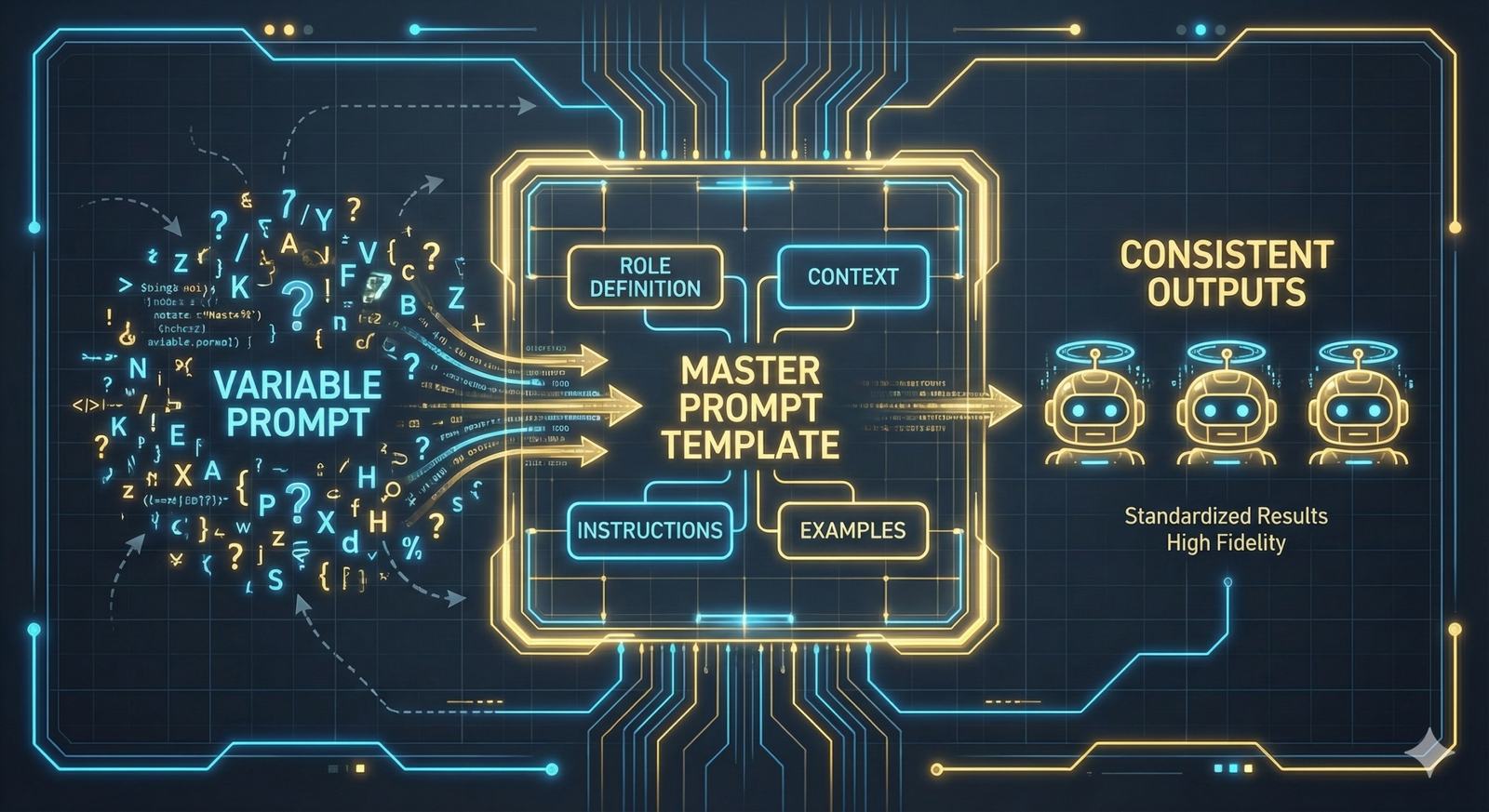











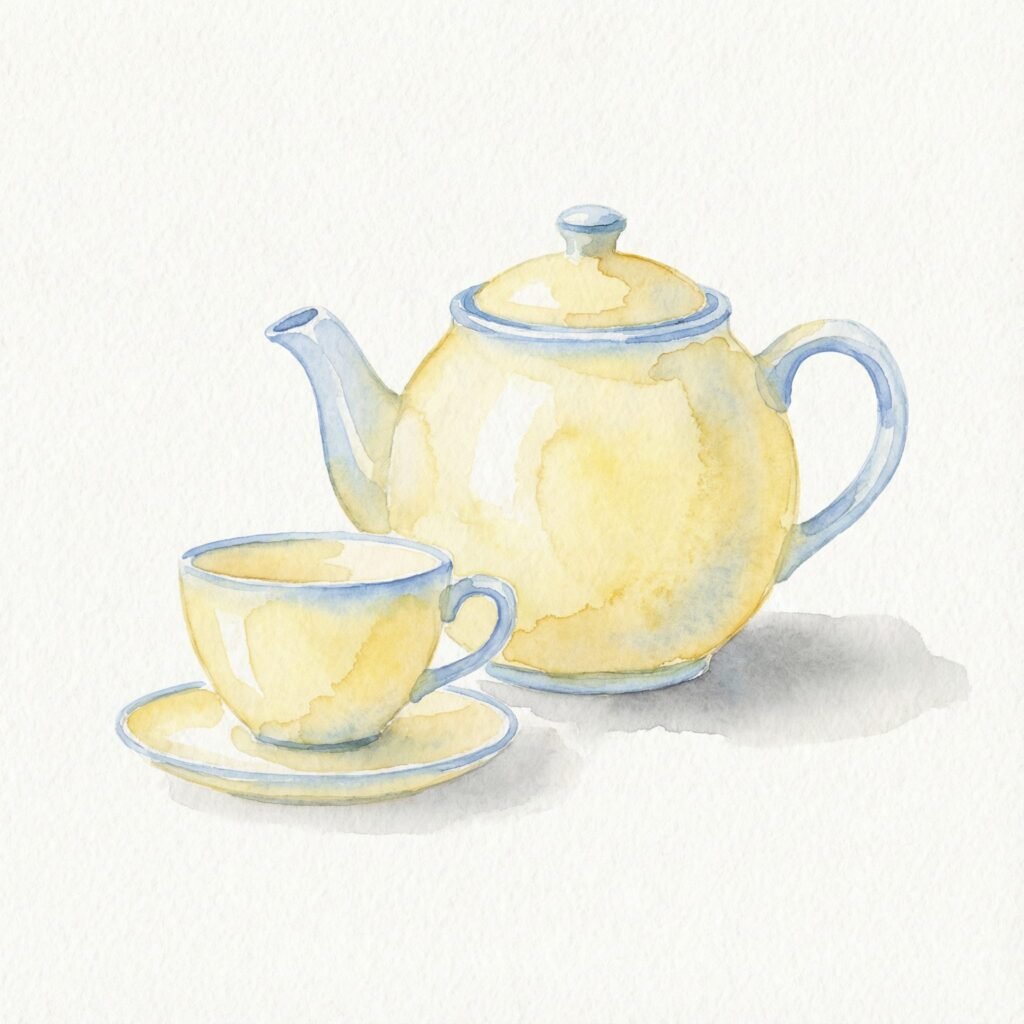

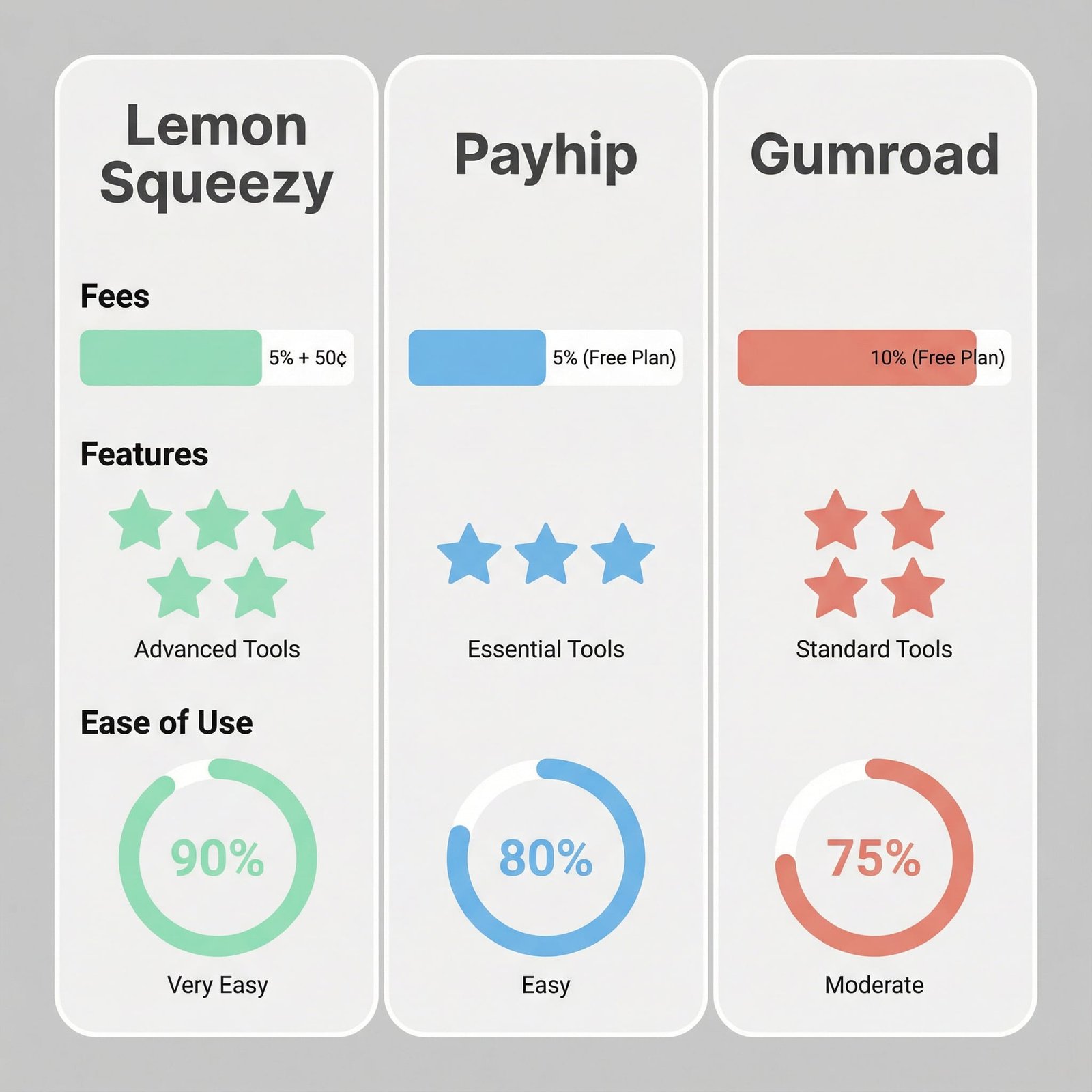


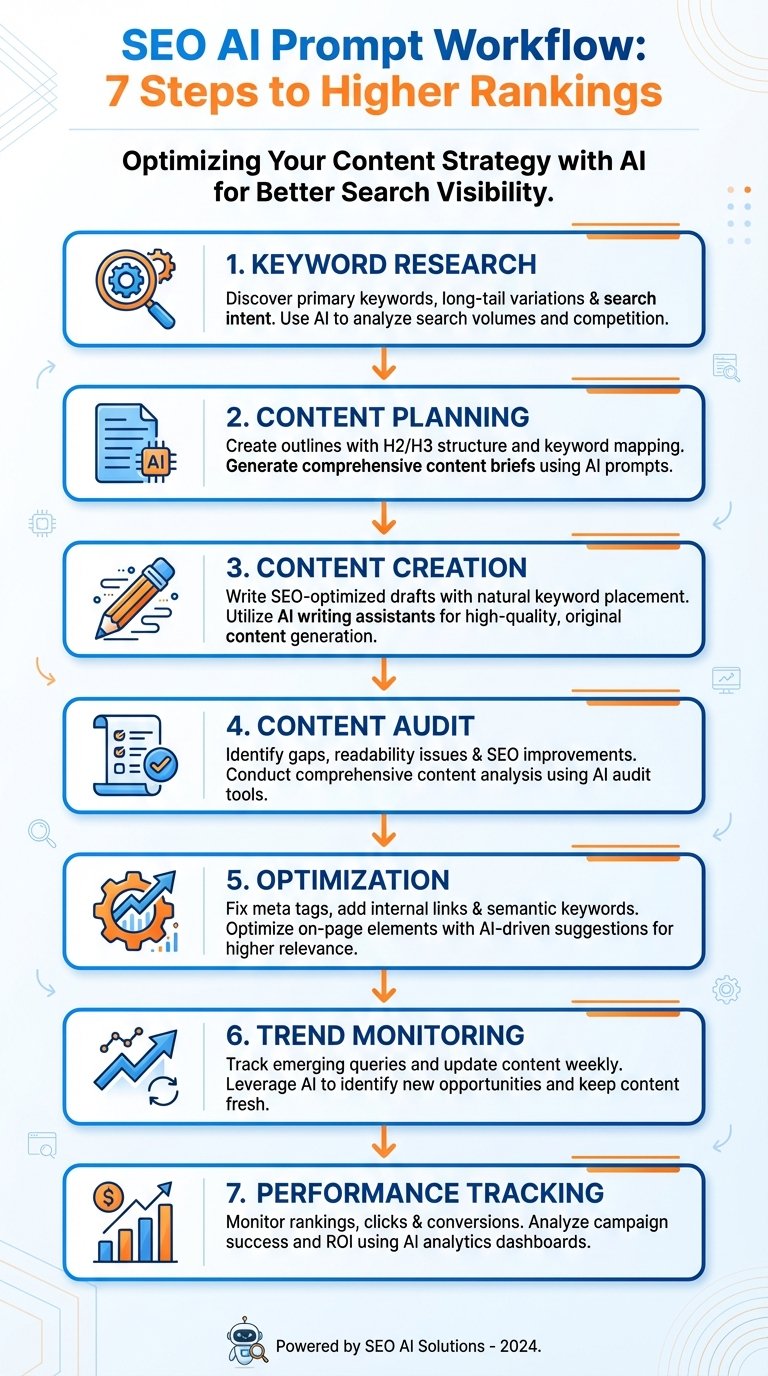
 Photo by