
Tag: designtools

  • 10 Best Free AI Prompt Libraries for Creators (2026)

    10 Best Free AI Prompt Libraries for Creators (2026)

    AI can boost what you make, not replace it. Writers, artists, and designers are hitting new highs by pairing their taste with smart tools. The right prompt turns a rough idea into a strong draft, a clean layout, or a striking image in minutes.

    AI prompt libraries are simple to use. They’re curated collections of ready‑made prompts for tools like ChatGPT, Claude, and Midjourney. Think of them as starter kits that help you ask better questions, so you get better results, faster.

    In 2025, creators need speed and consistency. A good library saves hours, kills the blank page, and keeps your voice on track. It also sparks fresh angles for briefs, scripts, mood boards, and client work, without guesswork.

    This guide spotlights the top 10 free options, based on recent tools and user feedback. You’ll find large community hubs, official prompt sets, and visual builders that suit different workflows. Each pick helps you get from idea to output with less friction and more control.

    If you want cleaner copy, tighter concepts, or sharper images, this list will help. Use these libraries to jumpstart drafts, test styles, and refine prompts that actually perform. Grab a few favorites, try them on a live project, and watch your creative process speed up.

    Why Free AI Prompt Libraries Boost Your Creative Work

    Free prompt libraries give you structure, speed, and fresh ideas. You get proven templates, clear formats, and real examples that cut guesswork. They help you move from a fuzzy thought to a strong prompt that delivers.

    Artistic depiction of a light bulb seated on a crescent moon amidst bookshelves.
    Photo by Pixabay

    Faster Starts, Better Results

    Blank pages slow you down. A free library gives you prompts you can reuse and tweak. You get clarity on tone, style, role, and steps. That leads to cleaner drafts and tighter images in less time. For a deeper take on how prompt libraries improve consistency and output, see this guide on the advantages of a well-stocked prompt library.

    Great for Beginners and Pros

    Beginners learn the basics fast. You see how to set context, goals, and constraints. You learn how to ask for format, voice, and length.

    Pros get refinement. You can A/B test prompt variants, stack instructions, and lock voice. You also build your own set from proven examples.

    Turn Vague Ideas Into Clear Requests

    A good library shows you the jump from rough to precise. Example:

    • Vague idea: “I need a product launch post.”
    • Clear prompt: “You are a senior copywriter. Write a 120-word LinkedIn post for a new eco water bottle. Use a confident, friendly tone. Include one stat, a soft CTA, and three hashtags. Output in two versions.”

    Idea Generation for Content, Art, and Design

    Use curated prompts to spark topics, angles, and styles:

    • Content: outlines, hooks, headlines, scripts.
    • Art: styles, moods, camera cues, lighting.
    • Design: layout prompts, color palettes, brand voice rules.

    Works With Popular AIs

    Most libraries include templates for ChatGPT, Claude, Midjourney, and similar tools. You can copy, paste, and adapt across platforms with small tweaks to syntax.

    Real Value Without the Price Tag

    Free sets cover most needs. You can ship client work, test formats, and build your voice at zero cost. If you ever outgrow them, compare options with this guide on free vs. paid AI prompts.

    Quick Tip: Start Small

    Pick three prompts. Run them on a live task. Tweak wording, save wins, and build a mini library you trust.

    Top 10 Free AI Prompt Libraries to Try Right Now

    You do not need to start from scratch. These free prompt libraries give you fast starts, clear structure, and solid examples you can copy and adapt. Use them to shape tone, format, and steps, then tweak for voice and context. Pick two or three, test on a real task, and save what works.

    1. The Prompt Index: Community Ideas for All AI Tools

    A large, free, community-driven library with prompts for ChatGPT, Claude, Midjourney, and more. It also teaches prompt engineering with clean patterns you can reuse.

    • Best for: writers, artists, and designers who want ready prompts they can adapt.
    • Key features: broad categories for writing, art, and design, practical examples, fast browsing.
    • Try this: “You are an editor. Rewrite this blog intro in 120 words, clear tone, short sentences, keep one stat, end with a soft CTA.”
      Explore it here: The Prompt Index.

    2. Claude 3 Prompt Library: Optimized Tips for Better AI Replies

    The official library for Claude 3 offers concise templates that improve clarity, structure, and output quality.

    • Best for: writers and content teams working in Claude.
    • Key features: business and personal task prompts, role prompts, formatting instructions.
    • Try this improvement: Instead of “Write a post,” use “You are a senior copywriter. Draft a 130-word LinkedIn post in a confident, friendly voice, include one data point, a single CTA, and three hashtags.”
      Browse the official set: Claude Prompt Library.

    3. AIPRM: Quick ChatGPT Prompts for Marketing and SEO

    A free Chrome extension with categorized templates for content, ads, and SEO tasks. Great for saving time when you need a prompt on demand.

    • Best for: marketers, bloggers, SEO specialists.
    • Key features: one-click prompt insertion, topic categories, community ratings.
    • Try this: “You are an SEO strategist. Create a content brief for ‘best running shoes for flat feet,’ include H2s, FAQs, and internal link ideas.”

    4. PromptHero: Free Prompts for Stunning AI Images

    A smartphone showing the Midjourney website on its screen against a gray textured surface.
    Photo by Sanket Mishra A broad gallery of free image prompts for Midjourney, Stable Diffusion, and DALL·E. Ideal for visual research and quick concept art.

    • Best for: artists, art directors, brand designers.
    • Key features: style tags, model-specific syntax, searchable references.
    • Sample prompt: “portrait, natural window light, 85mm look, Fujifilm Pro 400H, subtle film grain, shallow depth of field, relaxed candid pose.”

    5. EasyPrompt on GitHub: Open-Source Tools for Productivity

    An open-source collection for ChatGPT aimed at automation, brainstorming, and structured workflows.

    • Best for: developers and creators who like versioned, reusable prompts.
    • Key features: prompt templates in repos, task automation patterns, idea generation.
    • Try this: “You are a product strategist. Generate 10 feature ideas for a note app, group by user value, add effort score and risk notes.”

    6. Taskade AI Prompt Generator: Custom Prompts for Any Platform

    Build custom prompts for emails, blogs, analysis, and more, then paste into your AI of choice.

    • Best for: writers, managers, and teams that need consistent output.
    • Key features: fields for tone, audience, format, and steps, easy export.
    • Try this: “You are a newsletter editor. Write a 180-word weekly email, friendly tone, 2 insights, 1 stat, scannable bullets, and a single CTA.”

    7. Feedough AI Prompt Generator: Sharpen Your Own Prompt Ideas

    Refine rough prompts into clear, detailed versions that work in ChatGPT and Midjourney.

    • Best for: creators who struggle with phrasing or missing details.
    • Key features: prompt expansion, clarity checks, model-ready syntax.
    • Try this: Turn “make a logo prompt” into “Create a logo prompt for a minimalist coffee brand, warm palette, negative space mark, vector output, 3 variations.”

    8. PromptBuilder: Visual Way to Build Structured Prompts

    A drag-and-drop interface that turns complex asks into clean, modular prompts.

    • Best for: marketing and content teams, solo creators planning campaigns.
    • Key features: blocks for role, task, constraints, and format, easy sharing.
    • Try this: Stack blocks for purpose, audience, tone, and steps to build a reusable blog outline prompt.

    9. God of Prompt: Huge Collection for ChatGPT and Midjourney

    A massive library with over 30,000 free prompts across marketing, SEO, writing, and design.

    • Best for: business creators who need many options fast.
    • Key features: wide categories, quick copy-and-paste, multi-model support.
    • Try this: “You are an ecom copywriter. Write a 60-word product description, benefits first, one sensory detail, one social proof line, and a clear CTA.”

    10. Wharton Generative AI Labs Prompt Library: Customizable Use Cases

    A clean library organized by purpose, with shareable prompts for research and writing.

    • Best for: students, analysts, and writers who want clear structure.
    • Key features: use-case folders, editable templates, guidance on adapting prompts.
    • Try this: “You are a research assistant. Summarize five sources on remote work productivity, list claims, methods, sample sizes, and limits in a table.”

    How to Pick and Use These Libraries in Your Daily Routine

    Team working on laptops around a table with notebooks and coffee cups.
    Photo by fauxels

    You have strong free options. Now turn them into a daily habit that speeds work and keeps quality high. Start with your main output, add a simple test loop, and save what performs. Small, repeatable steps beat long setup.

    Match Libraries to Your Creative Needs

    Pick based on what you ship most days.

    • Text-first: Choose AIPRM or God of Prompt for briefs, outlines, and SEO. They cut setup time and push clear structure. Pair with the Claude 3 Prompt Library when you need crisp roles and formatting.
    • Image-first: Use PromptHero for styles and camera cues. Keep The Prompt Index handy for model syntax and quick variations.
    • Hybrid: Write in Claude or ChatGPT, then mirror the concept in PromptHero. This keeps story and visuals aligned.

    For stronger prompts across tools, review these practical prompting tips for 2025.

    Steps to Integrate Prompts Into Your Day

    Build a tight loop you can finish in 10 minutes.

    1. Search: Spend five minutes in one library that fits today’s task. Save two candidates.
    2. Test: Paste one prompt, run it, then tweak a single variable, like tone, length, or constraints.
    3. Lock: Save the better version with a clear name, like LI_post_130w_confident_stat_cta.
    4. Use: Start each session with your top three saved prompts. Warm up with one quick run.

    Example tweak: change “friendly tone” to “clear, confident tone,” set length to “120–140 words,” and add “one stat” for sharper posts.

    Combine Libraries for Stronger Results

    Stack strengths to get complete outputs.

    • Idea to outline: AIPRM for an SEO brief, then Wharton Labs for research notes and summary templates.
    • Rough to polished: Feedough to expand a vague ask, then Taskade to structure steps and format.

    Teams can go farther by curating shared winners. This guide on building a team prompt library outlines a simple system.

    Keep Up With 2025 AI Updates

    Models shift, syntax tightens, and context limits change. Schedule a monthly review, refresh your top prompts, and note model-specific tweaks. If you want a quick trend check with real examples, scan this 2025 workflow roundup on Medium, Mastering AI for Work in 2025. Small updates keep results sharp and stable.

    Conclusion

    Free prompt libraries turn ideas into clear asks, fast. They give you structure, ready templates, and model-aware syntax that reduce guesswork. You get cleaner drafts, stronger visuals, and more consistent results with less effort.

    Pick one from this list and use it today on a live task. Start with a single prompt, tweak tone or length, then save the version that works. Small wins stack, and soon you will have a personal set that fits your voice and workflow.

    These tools help creators move quicker in 2025 without losing quality. They cut the blank page, support A/B tests, and keep teams aligned across text and images. That means more time for taste, craft, and client goals.

    Try one library now, then tell us what you shipped. Share your best prompt in the comments, or bookmark this post for your next sprint. Your process gets faster when your prompts are clear, repeatable, and ready to run.

    FAQ:
    What are AI prompt libraries?

    AI prompt libraries are curated collections of pre-written prompts designed to guide AI tools like ChatGPT, Midjourney, and Claude. They act as starter kits, helping creators ask better questions to get more specific and high-quality outputs faster.

    How can free AI prompt libraries benefit creators?

    Free AI prompt libraries save creators significant time, eliminate writer’s block or creative inertia, provide consistent quality, spark new ideas for various projects, and allow for efficient experimentation with different styles and tones.

    Are these AI prompt libraries really free to use in 2026?

    Yes, the libraries highlighted in this guide are selected specifically for their free access to a substantial collection of prompts. While some platforms might offer premium features, their core prompt repositories are available at no cost.

    Can I use these prompts with any AI tool?

    Most prompts are designed to be versatile, but some libraries specialize in prompts for specific AI models (e.g., text-based for ChatGPT, image-based for Midjourney). The article will specify compatibility where relevant.

  • AI Prompts for Graphic Design: Create Stunning Designs

    AI Prompts for Graphic Design: Create Stunning Designs

    Why AI Prompts Transform Your Graphic Design Workflow

    AI prompts turn your ideas into clear design directions. They cut grunt work, suggest color palettes and layouts, and speed up iteration. In 2025, adoption is mainstream. Designers use prompts to move from concept to draft in minutes, not hours. Reports show AI use in design up by 55 percent year over year, and tools like Firefly have generated billions of images. This shift lets you focus on style, story, and polish, not repetitive steps. For more context on tools and benefits, see this overview of AI for graphic design and this guide on AI tools reshaping design in 2025.

    Save Time and Boost Creativity with Smart Prompts

    Well-structured prompts replace lengthy back-and-forths with fast, usable drafts. You can lock a color palette, set a layout grid, and test type pairings in one pass.

    Example, turning a vague idea into a full visual:

    • Vague: “We need a summer sale poster.”
    • Smart prompt: “Create a bold A3 poster for a fashion summer sale, 40 percent off, warm coral and teal palette, high-contrast headline, sans-serif H1 and humanist sans for body, asymmetrical layout with hero photo on right, clean white space, export for print and Instagram.”

    In minutes you get several options with tuned colors, hierarchy, and spacing. Then you add your brand voice, swap imagery, and finesse micro-typography. The prompt does the heavy lifting, you handle the unique touches. This also helps non-designers produce professional results without guesswork.

    Overcome Common Design Blocks Using AI Guidance

    Blank-page syndrome fades when you start with structured prompts. Ask for three layout variants, two color schemes, and one type system. You now have scaffolding, not a void.

    Practical tip for authentic work:

    1. Generate options with clear constraints, like tone, audience, and medium.
    2. Pick one, then apply personal edits, such as custom iconography, branded patterns, and refined kerning.
    3. Run one more prompt for targeted tweaks, like “increase contrast in CTA” or “reduce visual noise.”

    AI handles complex elements like grids, spacing, and palette harmony, while you steer direction. The result is faster cycles, stronger ideas, and consistent outputs that still feel human.

    Top AI Tools and Ready-to-Use Prompts for Stunning Graphics

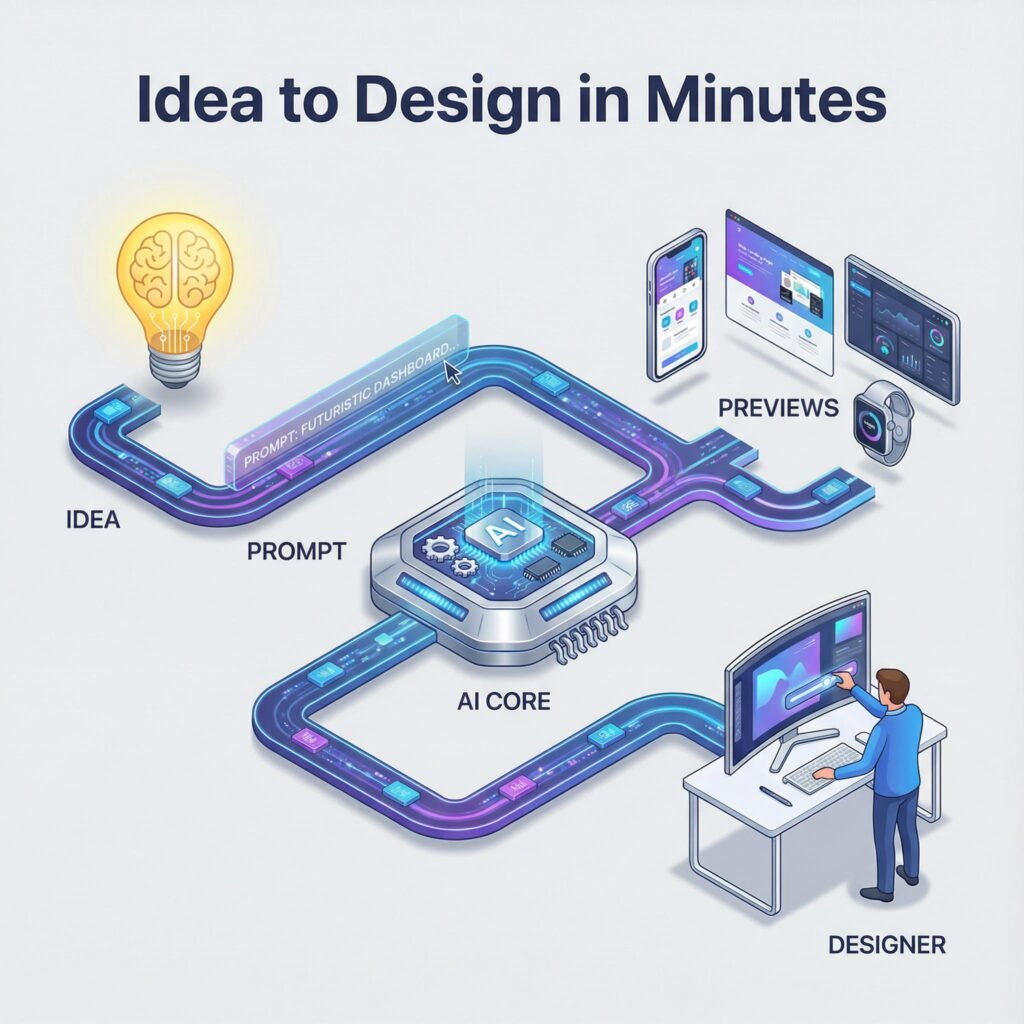
    An infographic illustrating the streamlined workflow of using AI prompts: from concept ideation to generating multiple design variations and final refinement.

    Use these 2025-ready tools to move from prompt to polished design fast. Each one supports clear, simple prompts, then gives you on-brand results you can tweak in minutes.

    Canva Magic Studio: Quick Templates and Edits

    Canva’s AI suite pairs smart templates with fast text and image edits. Try it when you need social posts, posters, or quick turnarounds.

    • Magic Design: Auto-generates layouts, type pairs, and color themes based on your brief. See how it works with Magic Design.
    • Magic Write: Draft headlines, captions, and post copy in seconds. Learn more on Magic Write.
    • Magic Edit: Select, describe, and transform objects inside your image.

    Sample prompt: “Create a social media post template for a summer sale using bright colors and fun fonts.”

    Result: bold, seasonal templates with playful type. Customize by swapping brand colors, locking your logo, and saving as a branded template.

    Designs.ai: From Logos to Full Graphics

    This suite covers logos, brand kits, and even simple videos, which is ideal for small teams.

    • Logo Maker: Generates marks and wordmarks with color and font options.
    • GraphicMaker and Videomaker: Build ads, social sets, or short promos using stock assets.

    Prompt: “Design a logo for a new eco-friendly brand with a green theme.”

    Result: multiple green-forward logo options. Tweak shapes, choose a modern sans, and export a full kit for web and print. Great for startups that need speed and range.

    Adobe Firefly: Text-to-Image Magic

    Firefly creates high-quality images and stylized type from concise prompts.

    • Generative images: Photoreal or stylized results with strong lighting and texture controls.
    • Text effects: Apply styles to lettering for posters and hero graphics.

    Prompt: “Generate an image of a cozy living room with a warm color palette.”

    Refinement tips: add lens type, lighting, and materials. For example, “soft window light, oak wood, linen textures, 35mm look.” Use negative cues to avoid clutter.

    Freepik AI Suite and PNG Maker: Streamline Image Tasks

    Pair Freepik’s AI tools with PNG Maker to speed up production for ads and product pages.

    • Generate and upscale: Create concepts, then boost resolution for print or large banners.
    • Background removal: Clean product shots for stores or marketplaces.

    Prompt: “Remove the background from a photo of a product to use on a website.”

    Workflow: remove the background, upscale for crisp edges, then drop into a brand template. Result, consistent, studio-like assets ready for email, PDPs, and ads.

    Craft Effective Prompts to Get the Designs You Want

    A wide-angle shot of a clean, minimalist design studio workspace. On a large, ultra-wide digital monitor, a collage of four distinct AI-generated works is displayed in a row. The works include a sophisticated minimalist logo, a whimsical character concept art piece, an intricate procedural abstract pattern, and a high-energy marketing poster. Directly beneath each of these four artworks on the digital screen, the text 'AI Prompted Design' is rendered in a sharp, clean, white font. The studio environment is bathed in soft, natural morning light coming from an off-screen window, creating subtle reflections on the monitor's glass. The color palette is dominated by neutral whites and grays, allowing the vibrant colors of the digital art to stand out.

    Strong prompts turn ideas into on-brand visuals fast. Start simple, then add detail with purpose. Use references, call out color and type, and define the mood so the AI makes choices you actually want. For more prompt fundamentals, skim this short guide on writing AI prompts with clear structure.

    Key Elements of a Strong AI Prompt

    Great prompts share four parts:

    • Subject: What you want designed and for whom.
    • Style: Visual direction, references, or art movements.
    • Details: Colors, typography, layout notes, size, export needs.
    • Mood: Tone or feeling that drives choices.

    Before and after examples show how clarity lifts results:

    • Weak: “Make a poster for a tech event.”
    • Strong: “A3 tech conference poster for startup founders, bold Swiss style, cobalt and white, large geometric headline, grid layout, semibold grotesk font, clean icons, high contrast, export for print and Instagram.”
    • Weak: “Create a product banner.”
    • Strong: “Homepage hero banner, 1600×600, minimalist, beige and charcoal, product centered, soft shadow, CTA button ‘Shop Now’ in emerald, ample white space, light sans-serif, mobile-safe margins.”

    Do this:

    • Name exact colors and type categories.
    • Set constraints like size, aspect ratio, file format.
    • Reference styles or designers if helpful.

    Avoid this:

    • Vague cues like “modern,” “sleek,” “cool.”
    • Cluttered lists of 20 adjectives.
    • Missing audience, platform, or output size.

    Prompt templates you can copy:

    1. Poster: “A2 poster for [event], [style reference], [2 colors], [headline], [font category], [layout note], mood [adjective], export [format].”
    2. Social ad: “Square ad for [audience] on Instagram, [brand colors], clear product focus, short headline, [font], strong CTA, safe margins, export PNG.”
    3. Web banner: “Hero banner 1600×600 for [site], minimalist, [palette], central product, soft lighting, [CTA text], [font], 2 variants.”
    4. Product card: “Ecommerce product card, white background, subtle shadow, price tag visible, [badge text], crisp edges, export WebP and PNG.”

    For more style ideas and pitfalls to avoid, this list of logo prompt examples for 2025 is handy.

    Common Mistakes and How to Fix Them

    • Too much detail overwhelms the model. Fix it by stripping to must-haves, then add one constraint per test.
    • Lack of clarity causes random results. Name the audience, platform, size, and palette.
    • Conflicting styles confuse output. Pick one style reference at a time.
    • Ignoring output specs wastes time. Include format and resolution upfront.

    Test and tweak:

    1. Start with a lean prompt.
    2. Review, then adjust one variable, like palette or type.
    3. Run 2 to 3 variations, compare, and keep the winner.
    4. Lock what works, then refine micro details like spacing or contrast.

    Final tip: iterate in small steps. Each pass should answer one question, not five.

    Conclusion

    AI prompts turn vague ideas into clear, on-brand visuals with speed. You set the intent and constraints, the tools handle drafts, grids, color, and type. The workflow you saw, from Canva Magic Studio to Firefly and Designs.ai, proves that anyone can move from concept to a strong first pass in minutes.

    Start today. Pick one tool, write a simple prompt, and ship a small asset, like a social post or header. Keep what works, adjust one variable, then run a second pass. Your eye for story and polish completes the result.

    Share your first AI design in the comments, or test one of the prompt templates above and post what you made. Keep exploring small tweaks, like color, spacing, or tone, and lock your best settings. AI speeds the steps, your taste sets the standard. Together, they make stunning design feel repeatable and within reach. Thanks for reading, and see you in the next build.

    FAQ Section
    What are AI prompts in graphic design and how do they work?

    AI prompts are textual instructions given to artificial intelligence tools (like Midjourney or Firefly) to generate specific visual content, design elements, or creative directions. They work by guiding the AI’s algorithm to produce desired graphic designs based on the input text, transforming ideas into visual outputs rapidly.

    How do AI prompts significantly speed up the graphic design process?

    AI prompts streamline design by automating initial concept generation, suggesting layouts, color palettes, and variations, and generating multiple drafts in minutes. This allows designers to bypass repetitive tasks and move from a raw idea to a refined concept much faster than traditional methods.

    What kind of graphic designs can be created using AI prompts?

    AI prompts can create a wide array of graphic designs, including logos, illustrations, marketing materials, social media visuals, website mockups, product renders, abstract art, and even detailed scene compositions, depending on the AI tool’s capabilities and the specificity of the prompt.

    Will AI technology eventually replace human graphic designers?

    AI is generally viewed as an augmenting tool rather than a replacement for human graphic designers. It automates repetitive tasks and assists with ideation, allowing designers to focus on higher-level strategic thinking, artistic direction, client communication, and the critical human element of empathy and storytelling in design.

    What are some best practices for writing effective AI prompts for graphic design?

    Effective AI prompts are clear, concise, and specific. Best practices include using descriptive adjectives, specifying styles (e.g., ‘minimalist’, ‘photorealistic’), defining colors or moods, and mentioning desired elements or compositions. Iteration and experimentation are key to refining prompts for optimal results.

  • 7 Canva Pro Hacks Big Companies DON’T Want You to Know!

    7 Canva Pro Hacks Big Companies DON’T Want You to Know!

    Imagine making designs as good as big brands, but without spending a lot. Canva Pro has tools that most people don’t know about. You can get free premium stock photos and make your designs look better automatically.

    Every month, over 75 million people use Canva. But only a few know how to use it to its fullest. These canva pro tips show how small businesses and freelancers can beat the competition. They do it all with affordable design tools. Discover the secrets that big companies don’t want you to know, without spending a fortune.

    Unleashing the Power of Canva Pro for Design Dominance

    Canva’s growth to 75 million monthly users is no fluke. Its canva design tools make top-notch design easy for all. Startups and big companies alike use Canva Pro to quickly bring ideas to life.

    Why Over 75 Million People Trust Canva Every Month

    Canva’s appeal lies in its speed and ease of use. No need for complex tutorials—just drag, drop, and share. Small businesses save a lot of time with ready-made templates for social media and more. Marketers get professional-looking designs without needing to hire experts.

    This is why 90% of users say Canva cuts design time in half or more.

    The Hidden Advantage for Budget-Conscious Designers

    For how to use canva pro for small business teams, the cost savings are huge. At just $12.99/month, it’s a fraction of the cost of other software. You get access to premium fonts, photos, and video tools without needing to ask for budget approval.

    No more juggling different apps. Everything you need for your campaigns is in one place.

    Setting Up Your Canva Pro Account for Maximum Efficiency

    • Organize templates into folders labeled by project type
    • Save brand colors and logos in the Assets library
    • Enable team collaboration for real-time edits

    Pro tip: Use the “Reuse” feature to adapt past designs instead of starting from scratch. These steps turn Canva into time-saving design tools for marketers that boost productivity.

    Magic Resize: Transform One Design Into Multiple Platform Assets

    Save hours with Canva Pro’s magic resize tool. It turns one design into perfect graphics for all platforms. No more resizing headaches. Designers can now optimize social media graphics with canva pro in seconds. Every post will look sharp on Instagram, LinkedIn, or TikTok.

    Instant Optimization for Every Social Media Platform

    No more guessing which size fits where. The magic resize tool adjusts designs to match platform specs. Turn an Instagram carousel into a Pinterest pin or a Twitter header—all from one file. Perfect for campaigns needing consistent branding across channels.

    Perfect Pixel Dimensions for Each Platform Without the Guesswork

    Canva Pro’s templates handle the math. Use these verified sizes for flawless posts:

    • Instagram posts: 1080×1080 pixels
    • Facebook covers: 820×312 pixels
    • Twitter headers: 1500×500 pixels
    • LinkedIn banners: 1584×396 pixels

    How to Batch Process Multiple Designs Simultaneously

    Need to update 20 ads at once? Use batch resizing to apply the magic resize tool to entire projects. Load your social media design templates into the editor, select all, and resize them in one click. No more tedious manual edits.

    Background Remover: Professional Photo Editing Without Photoshop

    Canva Pro’s background removal tool lets users get pro results without Photoshop. It’s great for e-commerce and marketing teams. Just upload photos and AI does the rest in seconds.

    It’s easy to use and perfect for many needs. You can make product images, social media graphics, or presentations look great.

    Here are some ways to use it:

    • Make product images with clear backgrounds in seconds
    • Isolate subjects for composite images
    • Clean up stock photos for better visuals

    background removal tool

    Need to fix complex edges like hair or transparent objects? Zoom in to fine-tune edges. Here are some tips for the best results:

    • Use high-resolution images for clear results
    • Adjust edge detection settings for better precision
    • Preview on different backgrounds to check quality

    Unlike Photoshop, which is hard to learn and expensive, Canva Pro is easy and affordable. It offers similar quality in seconds. This tool saves time and money, making it a must-have for businesses needing quick, pro edits.

    Brand Kit: Maintain Perfect Consistency Across All Materials

    Canva Pro’s Brand Kit is your go-to for keeping your brand consistent. It’s a central place for all your designs, from social media to flyers. This way, teams can avoid mistakes and work more efficiently.

    Color Palette Setup in Three Steps

    Start by adding approved hex codes or swatches. Save them in your brand kit for quick access. Here’s how:

    1. Go to “Brand Kit” in Canva Pro settings
    2. Input color codes or scan physical samples using the eyedropper tool
    3. Label palettes by project or brand line for easy navigation

    Logo Management Made Simple

    Upload all your logo versions to avoid confusion. Use Canva’s auto-sizing feature for perfect scaling. Remember to add notes, like “Do not overlay text on transparent backgrounds,” in your brand kit templates.

    Font Locker for Typography Control

    Upload custom fonts to avoid licensing issues. Choose font pairs, like “Montserrat for headers / Roboto for body,” for consistent look. Team members can pick from approved fonts easily.

    Feature How It Works Impact
    Color Library Stores up to 20 palette variations Reduces 90% of color mismatch errors
    Logo Manager Automates resolution optimization Cuts production time by 50% for repetitive assets
    Font Locker Enforces brand-approved typography Boosts brand recognition by 40% (per 2023 Canva case studies)

    Using these brand kit templates, teams can work faster and keep designs consistent. This system makes following brand guidelines easy, without needing extra software.

    Content Planner: Schedule and Organize Your Design Calendar

    Make Canva Pro your go-to content planning software with its calendar tool. Plan, design, and publish campaigns all in one place. The interface helps you organize months of content in grids that match your brand’s look.

    Save time by scheduling posts for Facebook, Instagram, and LinkedIn right from the social media content scheduler.

    Here’s how it works:
    1. Start with a draft calendar and fill in date slots.
    2. Assign roles for design approvals.
    3. Set posts to go live at the best times for your audience.

    Feature Canva Pro Other Tools
    Design + Schedule Integration Yes Requires third-party apps
    Brand Asset Library Access Direct sync Manual uploads
    Performance Tracking Basic analytics Paid upgrades needed

    Spot gaps in your schedule with the color-coded timeline. Teams can work together in real-time while keeping the brand consistent. Automated reminders help you stay on track with publish dates.

    This integration cuts down steps from 7 to just 2 clicks in Canva’s dashboard.

    Sync your social media content scheduler with Google Calendar or Outlook. This keeps your marketing campaigns in sync. Export reports to see how your designs perform, then use that data to improve future content.

    7 Canva Pro Hacks Big Companies DON’T Want You to Know!

    Discover secret tools that give you an advantage over others. These tips use Canva Pro features for professional designers to save time and money. They are great for solo creators and teams alike, making design work easier.

    Canva Pro features for professional designers

    Access Premium Stock Photos Without Additional Costs

    Did you know Canva Pro offers millions of premium images? You can avoid expensive stock sites by using advanced search filters. Just type “premium” in the image search bar to find top-quality assets.

    This hidden feature lets you use license-free photos for all your projects. It can save you hundreds of dollars every year.

    Smart Copy: Generate Compelling Text in Seconds

    • Input keywords like “sales email header” to auto-generate headlines
    • Adjust tone settings for formal, casual, or persuasive copy
    • Preview text layouts directly in design templates

    Team Templates for Consistent Branding

    Create professional design templates once and share them with your team. Lock down important elements like logos and colors to keep designs consistent. This way, new team members can create professional materials quickly, cutting down on revisions by up to 60%.

    Animation Studio: Bring Static Designs to Life in Minutes

    Canva Pro’s Animation Studio makes simple designs come alive quickly. It doesn’t need you to know how to use animation software. With the animated graphics creator tools, you can add movement to logos, social media posts, and more in just a few minutes. This means you can create engaging content that beats static designs.

    Begin by animating your social media stories. You can make text move or images zoom on platforms like Instagram or TikTok. Just tweak the timing and how things move to fit your brand’s style. You don’t need to know how to code or use extra tools. It’s all about dragging, dropping, and animating.

    Key Social Media Tips

    • Instagram Reels: Add fade transitions to product showcases
    • TikTok Ads: Use pulse effects on call-to-action buttons
    • Facebook Headers: Animate logo reveals for profile updates

    Logo Animation Secrets

    Turn your static logos into memorable creating animated logos in canva pro with cool animations. Try simple rotations or color changes to catch the eye without being too much. Save different versions for your website, emails, and video starts.

    Export for Any Platform

    Export your work in 4+ formats, like HD MP4 for YouTube or GIFs for Twitter. The system adjusts the quality and size based on where you want to share it. This saves you up to 60% of time compared to editing everything manually.

    Photo Enhancer: Automatic Image Optimization Tools

    Canva Pro’s Photo Enhancer makes dull photos look great with just one click. Unlike professional graphic design software that takes hours, these tools quickly adjust brightness, contrast, and saturation. This is perfect for busy marketers who need fast results.

    With advanced features, you can tweak certain parts of an image. Smart cropping makes sure your photos fit any social media size. Plus, built-in effects add a professional touch. For instance, a blurry photo can become clear and bright in seconds, ready for your social media posts.

    • Selective adjustments target underexposed areas
    • Smart cropping adapts to platforms like Facebook or TikTok
    • Pre-designed effects match brand aesthetics

    Mobile photographers will love these tools the most. They can instantly improve photos taken with smartphones. This means no need for extra apps. The quality is top-notch, just like from the best canva pro tools for social media marketing, but without the hassle or cost.

    Whether you’re enhancing product photos for ads or improving customer testimonials, Canva Pro’s Photo Enhancer makes it easy. You don’t have to switch between different programs. Everything you need for great visuals is in one place.

    Team Collaboration Features That Streamline Your Workflow

    Canva Pro makes team work smooth, cutting down on delays. It offers real-time editing and central tools to keep projects moving. These canva pro features for professional designers make teamwork a breeze, not a hassle.

    Real-Time Editing Capabilities

    Many users can edit designs together, like a shared document. Marketing teams can finish campaigns quicker by working on layouts together. No more waiting for files—changes show up right away, reducing delays.

    Comment and Approval Systems

    Track feedback directly on designs with built-in comment threads. Assign approval steps to make revisions smoother. No more lost emails—every note stays with the project, speeding up design workflow optimization. Features include:

    • Inline comments for precise feedback
    • Approval statuses to mark revisions as “completed”
    • Automated notifications when updates are needed

    Version History and Design Recovery

    Access every edit made to a project with version history logs. Roll back to previous drafts if mistakes happen, ensuring nothing is lost. Teams can experiment freely, knowing they can revert instantly, reducing downtime.

    Custom Template Creation: Build Once, Use Forever

    Custom templates save a lot of time. With Canva Pro, marketers create professional design templates that fit different campaigns. They keep the brand look the same. Just a 30-minute setup can save hours every week.

    • Identify repeating designs like newsletters or product flyers.
    • Lock brand elements (logos, color schemes) to preserve consistency.
    • Design editable zones for text, images, or CTAs to allow flexibility.

    Real estate agencies use templates for property listings. Restaurants streamline seasonal menus. Retail teams automate product promo graphics. These time-saving design tools for marketers cut creation time by 80% for routine tasks.

    Organize templates in Canva’s library for instant access. Share them with teams to ensure everyone uses the same base files. For example, event planners save 4+ hours per month by reusing invitation templates with editable dates and locations.

    These systems turn Canva Pro into a scalable asset. One-time template investments pay off across campaigns, reducing errors and speeding up approvals. Marketers avoid reinventing the wheel while keeping visuals sharp and on-brand.

    Data Visualization Tools: Turn Boring Statistics Into Engaging Graphics

    Use Canva Pro’s canva design tools to make numbers tell stories. No need for coding or spreadsheets. Create visuals that grab attention and make complex data easy to understand. These tools make it simple to get your point across.

    Chart Creation Without Spreadsheet Headaches

    Just import your data from Excel or CSV into Canva. You can easily change colors, labels, and layouts to fit your brand. Resize charts for any use, keeping your data accurate. No need for precise adjustments.

    Infographic Templates That Tell Your Data Story

    Choose from professional design templates made for telling data stories. Replace placeholders with your numbers and update colors and icons. Each template is designed for easy reading and flow, keeping your message clear.

    Interactive Elements for Enhanced Engagement

    • Hover-over details that reveal data points
    • Animated transitions between charts
    • Clickable sections linking to deeper insights

    These features let viewers dive into the data themselves. Whether for a client deck or social post, interactive elements improve retention and encourage deeper analysis. No advanced software skills needed.

    Video Creation Features You Didn’t Know Existed

    Did you know Canva Pro has hidden video tools as good as pro software? The makes static designs into moving clips easily. Marketers can make professional videos without spending a lot. They use the best canva pro tools for social media marketing to save time and money.

    https://www.youtube.com/watch?v=nch2NObpZSg

    Starting a video is as simple as dragging elements into a timeline. You can add text, transitions, and music right in the app. Users can combine clips, photos, and animations to fit their brand.

    For example, making vertical videos for Stories or square ones for feeds is easy with pre-set templates.

    • Format-specific templates for Instagram Reels, TikTok, YouTube, and Facebook
    • Voiceover recording and audio mixing tools
    • Animated text and motion graphics synced to music

    These tools mean you don’t need many apps. Brands can make great videos themselves, saving money. Canva Pro’s easy design lets anyone make professional content fast. Whether it’s for a big campaign or daily posts, Canva Pro’s tools keep teams on top.

    Comparing Canva Pro to Professional Design Software: Value Analysis

    When looking at Canva Pro versus professional graphic design software, affordability, ease of use, and quality are key. This breakdown shows how Canva Pro stacks up against big names like Adobe Creative Cloud.

    Canva Pro vs. Adobe Creative Suite: Cost Breakdown

    • Canva Pro: $12.99/month, no hidden fees for templates or stock media
    • Adobe Creative Cloud: Starts at $52.99/month, with costs rising for multi-user teams
    • Professional design software often requires costly upgrades and training budgets

    Learning Curve Comparison for New Users

    Canva Pro makes it easy to create ads or social posts in minutes. Adobe tools like Photoshop or Illustrator need weeks to learn. Online courses for these tools can cost a lot more.

    Output Quality Assessment for Various Design Needs

    • Print materials: Professional software excels in high-resolution editing and vector graphics
    • Marketing assets: Canva Pro produces polished digital content at a fraction of the cost
    • Complex animations or 3D design: Adobe remains superior for advanced projects

    For small businesses or marketers without designers, Canva Pro offers great results at a lower cost. But, teams needing advanced tools for video or print might still prefer Adobe.

    Implementation Strategy: Integrating These Hacks Into Your Design Workflow

    Begin by auditing your workflow to find where things slow down. Use Canva Pro’s team tools to map out your current process. Start by focusing on time-saving design tools for marketers that fix these issues.

    1. Phase 1: Audit & Prioritize – List out your design tasks. Choose Canva Pro features that will make the biggest difference, like Magic Resize for keeping social media posts consistent.
    2. Phase 2: Pilot Testing – Have 2-3 team members try out features like Brand Kit integration for a week or two.
    3. Phase 3: Full Rollout – Plan training sessions on using team templates and automation tools.
    Organization Type Timeline Focus Areas
    Solopreneur 1-2 weeks Automate repetitive tasks with Canva’s template library
    Small Business 2-4 weeks Train teams on team collaboration tools
    Marketing Teams 4-6 weeks Integrate with project management software
    Agencies 6-8 weeks Create client-specific template libraries

    Keep track of how much time you save per project. Use Canva’s Brand Kit analytics to check for consistency. Update your priorities every quarter to meet changing needs. You should see improvements in consistency in 8-12 weeks.

    Conclusion: Elevate Your Design Game Without Breaking the Bank

    Professional design doesn’t have to cost a fortune. Canva Pro offers affordable tools that make high-quality visuals accessible. It’s a great alternative to expensive software like Adobe.

    Canva Pro’s tools, like automated photo optimization and animation, make sure your content looks great on social media. Features like the Brand Kit and Smart Copy help keep your designs consistent. This saves time and effort.

    Canva Pro is much cheaper than Adobe’s Creative Suite but still offers top-notch quality for most business needs. Start with simple hacks like using the Content Planner or Photo Enhancer. These tools help small teams compete with big companies without breaking the bank.

    Whether you’re making social media graphics or data infographics, Canva Pro is easy to use. It meets today’s design needs without costing too much. So, why wait? Upgrade your design skills today with just a click.

    FAQ

    What are some Canva Pro tips for maximizing design efficiency?

    To boost your design speed in Canva Pro, use the Magic Resize tool. It makes designs fit for different platforms easily. Also, the background removal tool improves images without needing Photoshop.

    Don’t forget the brand kit templates. They help keep your designs consistent and save time.

    How can I maintain brand consistency using Canva Pro?

    Canva Pro’s Brand Kit makes keeping your brand consistent easy. Upload your logo, set your colors, and pick fonts. This way, every design follows your brand’s look, making everything cohesive.

    What are the best Canva Pro tools for social media marketing?

    For social media, Canva Pro has great tools. Use design templates for quick posts, the Content Planner for scheduling, and animations to make designs pop. The background removal tool also creates stunning visuals easily.

    Can I create animated logos in Canva Pro?

    Yes, Canva Pro makes creating animated logos simple. Use the Animation Studio to add movement to your logos. This makes them stand out on digital platforms.

    How do I remove a background in Canva without using Photoshop?

    Removing backgrounds in Canva Pro is easy with the Background Remover tool. Just pick your image, click “Effects,” and choose “Background Remover.” You’ll get a clean look in seconds.

    Is Canva Pro worth it compared to professional graphic design software?

    Canva Pro is a budget-friendly choice compared to professional software. It offers tools like brand kits, stock images, and advanced editing. It’s perfect for small businesses looking for quality designs without breaking the bank.

    How can I optimize my social media graphics using Canva Pro?

    To make your social media graphics better in Canva Pro, use the Magic Resize tool. It ensures your designs fit each platform’s size. Also, the Content Planner helps schedule and organize your posts.