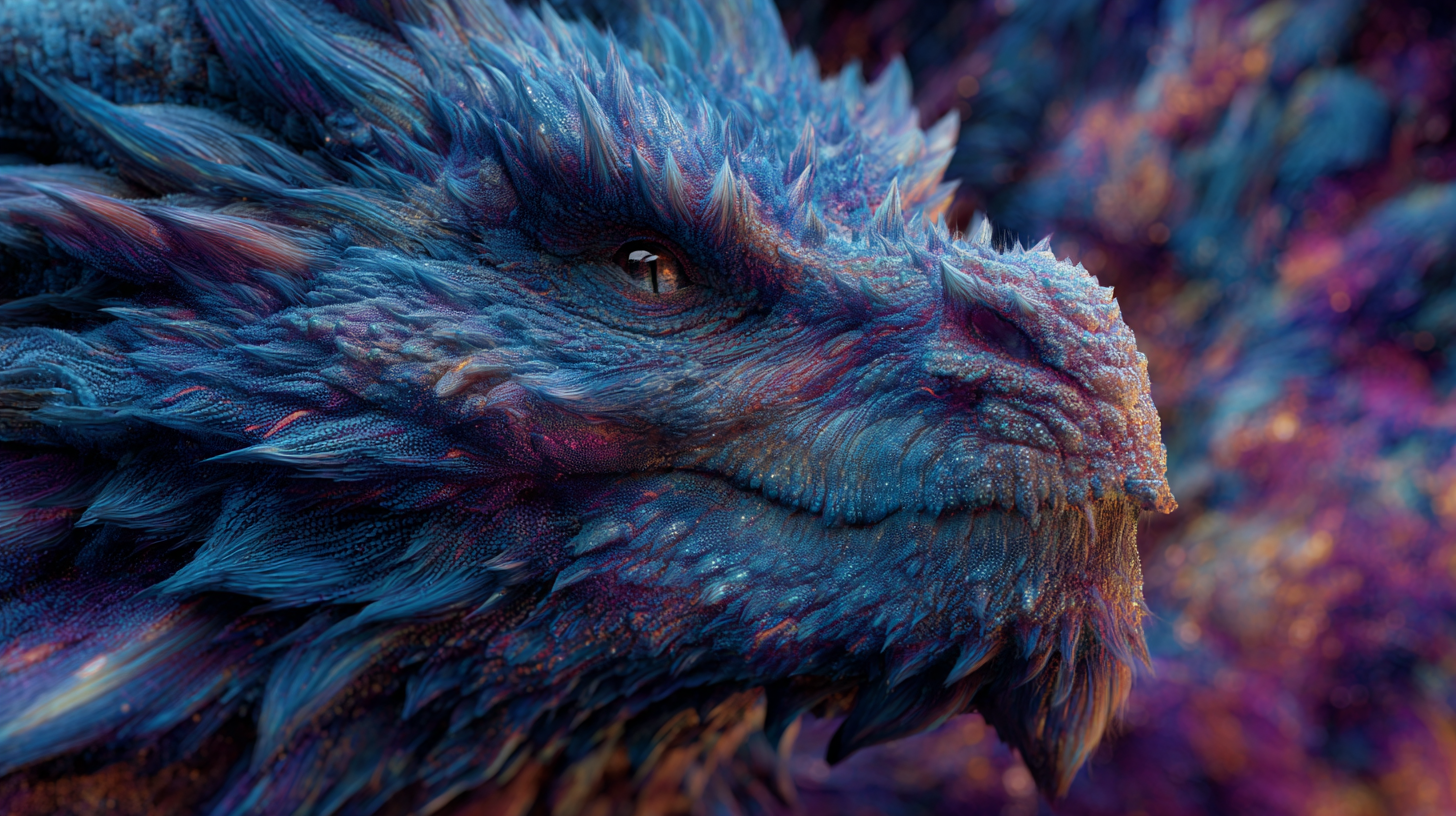
Picture this: you type a few words, then watch a blank canvas bloom into color, light, and detail. With smart AI art prompts, you turn quick ideas into stunning digital art in minutes. You can create breathtaking scenes with just a few words, then refine them until they feel like your style.
AI art prompts are simple text instructions that guide tools like DALL-E, Midjourney, and Stable Diffusion. You describe the subject, mood, style, and light, and the model fills in the visuals. This helps artists, designers, and creators move fast, test looks, and stay consistent across projects. From lo-fi nostalgia to Studio Ghibli warmth or biophilic calm, your words steer the vibe.
You’ll get practical tips and clear examples next, so you can prompt with confidence and save hours. Create masterpiece AI art with curated prompts for DALL-E, Midjourney, and Stable Diffusion. Instant inspiration. For more tools that speed up your process, explore these Top Free AI Art Prompt Tools to Explore. And if you like a quick primer, this video is a helpful start: https://www.youtube.com/watch?v=nWKz74RvA8o.
Get to Know the Top AI Art Tools
You have strong ideas. The right AI art tools turn them into images that match your taste. Each model responds to AI art prompts in its own way, so your wording matters. Use the strengths of each tool to move from rough idea to gallery-ready visual, fast.
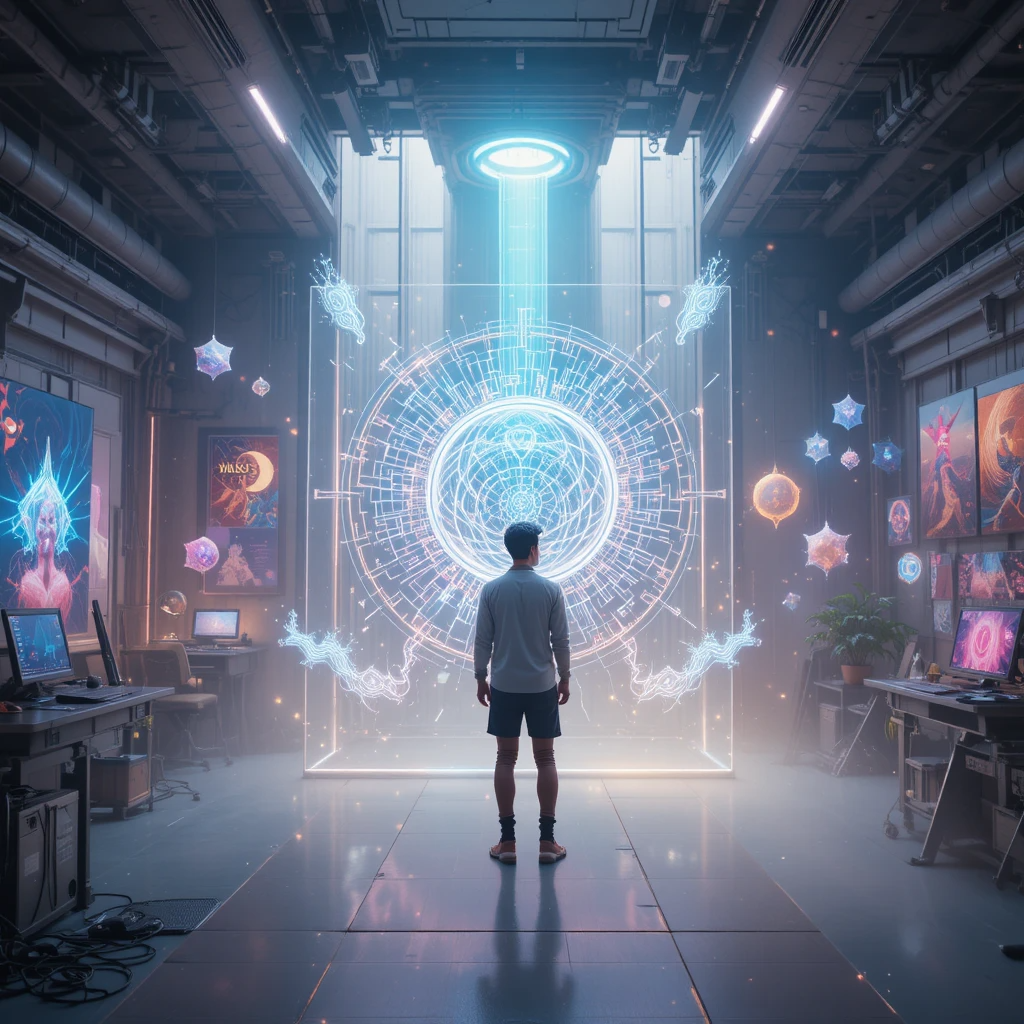
DALL-E: Your Go-To for Realistic Visions
You can describe your scene in full sentences to get sharp results. DALL-E reads longer prompts well, and it follows natural language with ease. It is great for lifelike scenes, product mockups, and clean compositions.
- How to write: Use full sentences, add colors, lighting, composition, and mood.
- What it excels at: Clear subjects, realistic textures, faithful layouts.
- Where to learn more: See practical tips in Microsoft’s guide, How to use AI image prompts to generate art using DALL‑E.
Example prompt:
- “A realistic painting of a surfing dog on a sunny beach with a beautiful sunset background.”
To make it pop, add specific color notes and feeling:
- “A realistic painting of a surfing dog on a sunny beach at golden hour, warm orange and pink sky, crisp highlights on wet fur, gentle waves, joyful mood, shallow depth of field.”
You describe the scene like you would to a photographer. DALL-E fills in the rest, giving you a strong first render for stunning digital creations.
Midjourney: Quick Sparks for Artistic Flair
You start with key words to ignite creative outputs. Midjourney loves short, punchy prompts stacked with style cues. Keep it crisp. The model thrives on bold art styles, clear subjects, and tight descriptors.
Example prompt:
- “Surfing dog, impressionist style, sunny beach, vibrant sea.”
Tips that help:
- Style labels: impressionist, ukiyo-e, cyberpunk, watercolor.
- Lighting words: golden hour, overcast, studio softbox.
- Parameters: Adjust aspect ratio and detail to steer look. Midjourney’s Prompt Basics explains image prompts, multiple phrases, and parameters.
Start with a few strong nouns and styles. If you like the vibe, nudge it with more texture and light details. This quick loop keeps your art fresh and expressive.
Stable Diffusion: Build Custom Worlds Step by Step
You refine your prompts with specifics to shape perfect images. Stable Diffusion responds to weighted keywords and negative prompts, so you can dial in detail and remove noise. It suits custom styles, consistent characters, and intricate scenes.
Example prompt:
- “Photorealistic cityscape at night, neon lights, dark sky, –ar 16:9.”
- Many Stable Diffusion interfaces let you set aspect ratio in the UI or with flags. Use what your interface supports.
Ways to gain control:
- Weighted keywords: “neon signs:1.2, wet pavement:1.1, pedestrians:0.9” to raise or lower impact.
- Negative prompts: “blurry, low-res, extra fingers, tilt-shift, watermark” to block unwanted artifacts.
- Stepwise edits: Upscale, then inpaint small fixes like eyes, logos, or reflections.
Pair specific positives with strong negatives. Your AI art prompts become a blueprint, guiding composition, texture, and polish until the image matches your goals.
Master Tips to Craft Powerful AI Art Prompts
You do not need long paragraphs to guide the model. You need clear building blocks. Use AI art prompts to set the subject, style, lighting, and mood, then layer details until the image clicks. Think of it like painting with words, one controlled stroke at a time.
Start Simple and Add Details Layer by Layer
You begin with the main idea, then build it out. Start with a clean base, then stack specifics to steer composition and vibe without clutter.
Use this four-part mental checklist:
- Subject: what the image is about, the focal point.
- Style: the visual treatment or medium.
- Lighting: how the scene is lit, time of day, softness or contrast.
- Mood: the feeling or tone you want.
Example progression, from basic to detailed:
- Base: “A fox in a forest.”
- Add style: “A fox in a forest, watercolor illustration.”
- Add lighting: “A fox in a forest, watercolor illustration, morning light through mist.”
- Add mood and color: “A fox in a forest, watercolor illustration, morning light through mist, calm mood, soft greens and amber highlights.”
- Add composition and texture: “A fox in a forest, watercolor illustration, morning light through mist, calm mood, soft greens and amber highlights, centered subject, shallow depth of field, fine paper grain.”
Quick cues that help across tools:
- Styling: oil painting, isometric, film still, tilt-shift, ukiyo-e.
- Lighting: backlit, golden hour, overcast, studio softbox, neon glow.
- Mood: serene, whimsical, gritty, cinematic.
For more prompt structure ideas, skim practical guidance in MIT Sloan’s primer on effective prompts for AI. If you want a list of tools that help you move faster, review these Top free AI art prompt tools.
Experiment and Refine Your Prompts
You try a prompt, see the art, then adjust for better results. Iteration wins. Change one variable at a time so you can see what actually helped.
Tighten results with these moves:
- Tweak color or elements: shift from “neon city” to “teal and magenta signage,” or swap “crowded street” for “three pedestrians with umbrellas.”
- Dial aspect ratios: square for portraits, 16:9 for landscapes, 4:5 for social feeds. Use your tool’s parameter or UI control.
- Use negative prompts: block artifacts like “blurry, watermark, extra fingers, low-res.” This is essential for Stable Diffusion and helpful in many UIs.
- Control detail: raise or lower texture words, for example “fine pores, microfibers, crisp reflections” or “minimal detail, flat color blocks.”
- Lock consistency: repeat key tokens for a character or product across runs to keep faces, colors, and logos stable.
A simple iteration loop:
- Generate your first image with a short, clear prompt.
- Analyze what you like: subject, palette, composition.
- Add or remove one thing: mood word, lighting, or a color.
- Run variants. Compare. Keep the best, discard the rest.
- Finish with clean-up: upscale, light inpainting, or a sharper negative list.
What is new and useful for October 2025:
- Prompt optimizers are common in many image UIs. They rewrite your input into clearer phrasing and better keyword order. Use them to test phrasing A/B without guesswork. See a current overview of core elements in CNET’s guide on why AI art prompts fail and how to fix them.
- Meta prompting helps when you feel stuck. Ask an AI assistant to propose three variations of your prompt with tighter style, lighting, and negative lists, then paste the best version back into your image model. For a fundamentals refresh, Articulate’s tutorial on how to write great AI art prompts highlights clarity and specificity.
Keep your edits small and focused. Treat AI art prompts like camera settings. One click at a time, you shape the shot until it looks exactly right.
Ready AI Art Prompts for Fall and Halloween Vibes
You want quick wins for seasonal art, with prompts that hit on the first try. Use these AI art prompts to warm up your portfolio for fall, then switch to eerie night scenes for Halloween. If you want more seasonal ideas, skim these inspiration lists of Midjourney Halloween prompts or browse high-performing autumn Midjourney prompts to spark new directions.
Fall Scenes to Warm Your Portfolio
Aim for rich color, soft light, and tactile textures. You create a cozy forest path with this prompt. Keep each tailored to the model’s strengths.
- DALL-E, photoreal warmth:
- “Late-autumn forest path, golden leaves, misty morning, warm backlight through trees, shallow depth of field, soft lens flare, natural color grading, quiet mood.”
You create a cozy forest path with this prompt.
- “Late-autumn forest path, golden leaves, misty morning, warm backlight through trees, shallow depth of field, soft lens flare, natural color grading, quiet mood.”
- Midjourney, painterly vibe:
- “Harvest market, wicker baskets, apples and pumpkins, knitted sweaters, golden hour, watercolor wash, gentle grain, soft vignette, –ar 4:5.”
You capture seasonal charm with gentle texture and shape.
- “Harvest market, wicker baskets, apples and pumpkins, knitted sweaters, golden hour, watercolor wash, gentle grain, soft vignette, –ar 4:5.”
- Stable Diffusion, texture control:
- “Cabin by a lake, fog, birch trees, amber and moss palette, wet wood reflections, fine film grain:1.2, soft light:1.1, leaves swirling:0.9, negative: blurry, watermark, low-res.”
You dial in tactile detail and remove noise with a clean negative list.
- “Cabin by a lake, fog, birch trees, amber and moss palette, wet wood reflections, fine film grain:1.2, soft light:1.1, leaves swirling:0.9, negative: blurry, watermark, low-res.”
- Bonus, product-forward scene:
- “Minimal fall flat lay, kraft paper, cinnamon sticks, knit scarf, ceramic mug with steam, overhead composition, muted terracotta and cream, soft window light.”
You build a shop-ready visual for thumbnails and ads.
- “Minimal fall flat lay, kraft paper, cinnamon sticks, knit scarf, ceramic mug with steam, overhead composition, muted terracotta and cream, soft window light.”
Halloween Magic for Spooky Art
Night, glow, and movement sell the mood. You bring ghosts to life using these words. Work bioluminescent accents into each scene so the dark feels alive.
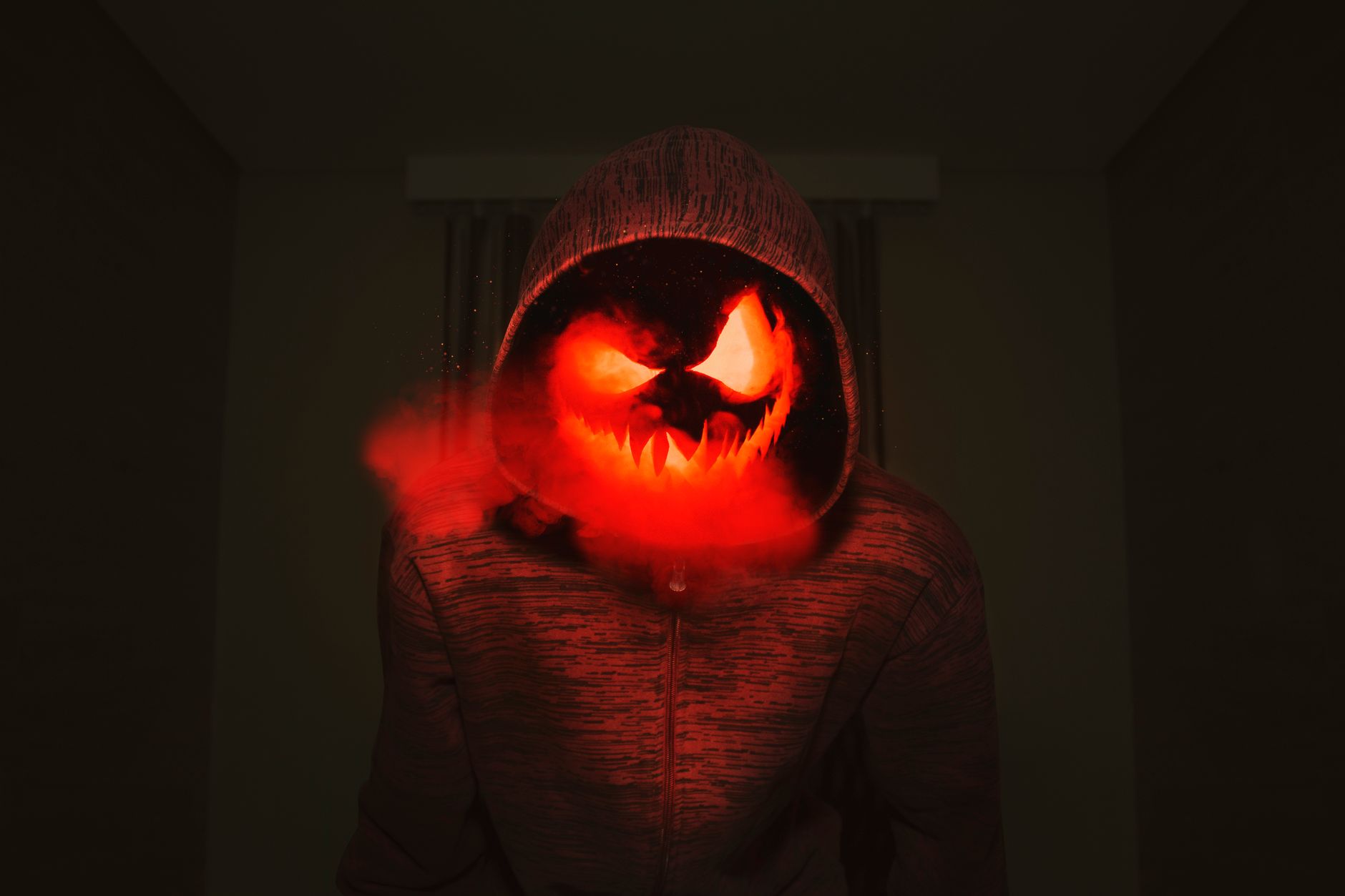 Photo by David Gomes
- DALL-E, cinematic night:
- “Victorian alley at midnight, rain-slick cobblestones, bioluminescent fog curling around gas lamps, subtle ghost silhouettes, cool moonlight, teal and violet glow, high contrast.”
You stage a moody scene with glow that guides the eye.
- “Victorian alley at midnight, rain-slick cobblestones, bioluminescent fog curling around gas lamps, subtle ghost silhouettes, cool moonlight, teal and violet glow, high contrast.”
- Midjourney, graphic poster look:
- “Neon jack-o’-lantern, smoke tendrils, pitch-black background, bioluminescent carve lines, crisp rim light, dramatic shadows, horror poster style, –ar 3:4.”
You get punchy contrast that reads even at thumbnail size.
- “Neon jack-o’-lantern, smoke tendrils, pitch-black background, bioluminescent carve lines, crisp rim light, dramatic shadows, horror poster style, –ar 3:4.”
- Stable Diffusion, eerie ecosystem:
- “Ancient forest at night, luminous mushrooms and fireflies:1.3, spectral deer:1.1, cool blue moonbeams, fog layers:1.2, negative: cartoonish, oversaturated, extra limbs.”
You control glow, remove artifacts, and keep forms believable.
- “Ancient forest at night, luminous mushrooms and fireflies:1.3, spectral deer:1.1, cool blue moonbeams, fog layers:1.2, negative: cartoonish, oversaturated, extra limbs.”
- Bonus, character-forward:
- “Witch on a rooftop, wind-tossed cloak, city skyline at night, broom bristles lit with bioluminescent embers, star-swept sky, subtle film grain, crisp highlights.”
You balance character, light, and setting for a hero image.
- “Witch on a rooftop, wind-tossed cloak, city skyline at night, broom bristles lit with bioluminescent embers, star-swept sky, subtle film grain, crisp highlights.”
Use these AI art prompts as seasonal presets. Start with one, generate, then tweak color, light, or composition until the image clicks.
Conclusion
You started with a few words and a blank canvas, now you can guide light, mood, and style with intent. Strong AI art prompts give you clear control, faster results, and consistent looks across tools. You now have the tools to make digital art that stands out.
Create masterpiece AI art with curated prompts for DALL-E, Midjourney, and Stable Diffusion. Instant inspiration.
Try the tips, test the seasonal examples, then tweak one setting at a time until your image clicks. Share your favorite results, note what worked, and save prompt presets so your next project moves even faster. If you want more ideas, explore more on the site and keep building your prompt library.