Tag: WorkflowAutomation

  • 5 Free n8n Templates: Build an AI Automation in 5 Minutes

    5 Free n8n Templates: Build an AI Automation in 5 Minutes

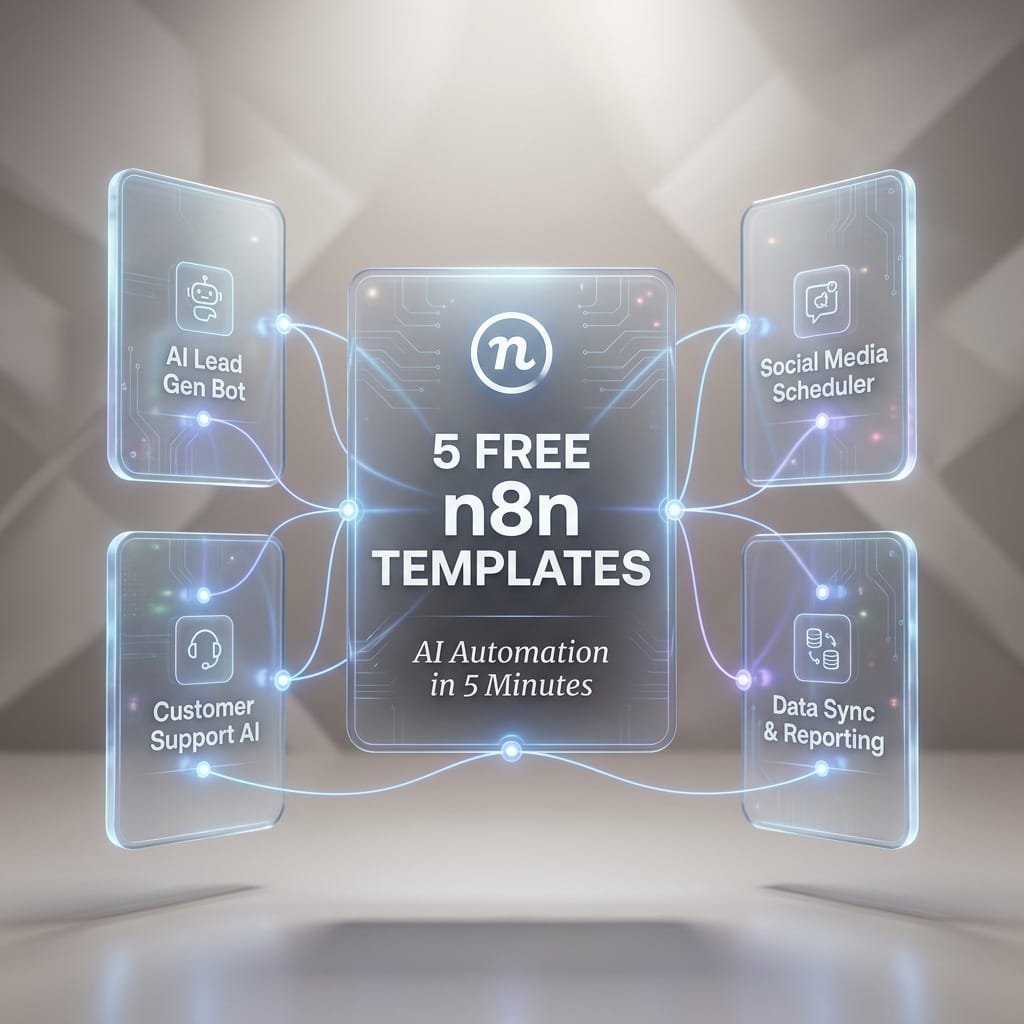
    5 Free n8n Templates to Build an AI Automation in 5 Minutes

    Most AI freebies still leave you doing the hard part. You get a prompt, maybe a screenshot, then you spend the next hour figuring out inputs, logic, storage, and where the final output should go.

    That model is fading fast. n8n AI workflows and high-utility Micro-SaaS PDF bundles are more useful because they give you a full operating path, not just a clever prompt. You get the trigger, the nodes, the handoffs, and the outcome. For marketers, founders, creators, and lean teams, that means less tinkering and more shipping.

    This guide focuses on five practical SEO and content automations you can launch quickly. Each one covers what it does, which nodes it uses, who it helps, and how to get it running without turning setup into a side project.

    Why n8n is the secret weapon for modern SEO teams and solo operators

    n8n is a visual automation tool that connects apps, APIs, and AI models in one workflow. Instead of stitching everything together by hand, you drag nodes into place and let the system pass data from step to step.

    That matters because blank-canvas automation is slow. You have to guess the trigger, write the logic, format the output, test every branch, and fix the errors. Templates cut out most of that pain. They give you a working structure first, then you tweak it for your use case.

    As of March 2026, recent public listings show n8n’s workflow library includes thousands of AI and marketing templates. That matters for small teams because proven starting points beat starting cold. If you want more examples, this free open-source n8n workflow templates collection shows how broad the use cases have become.

    Why a workflow bundle is more useful than a single prompt

    A prompt can write text. It can’t pull rows from a sheet, route good items to one app, flag bad items in Slack, store results, and retry after an API error.

    A workflow bundle can do all of that.

    Think of a prompt as one part of a kitchen. A workflow is the full recipe line, prep, cooking, plating, and cleanup. That’s why people are moving away from prompt dumping. The value sits in the full system.

    A good workflow bundle doesn’t just tell you what to ask an AI model. It tells the AI where data comes from, what to do with it, and where the result should go next.

    What you need before you import your first template

    You don’t need much to start. A basic setup usually includes an n8n account or self-hosted instance, one AI API key, access to apps like Google Sheets or Slack, and a small test dataset.

    Keep the first run tiny. Ten keywords beat 1,000 on day one. That way, you can spot bad formatting, weak prompts, or missing permissions fast.

    Template 1, cluster keywords by meaning from a spreadsheet in minutes

    This first workflow turns a messy keyword list into organized topic groups. You drop in terms from Google Sheets, Ahrefs, Semrush, or another source, and the workflow groups them by topic and search intent.

    For content planning, this saves a lot of drag. Instead of sorting hundreds of terms by hand, you get clusters you can turn into pillar pages, blog briefs, category pages, or FAQs. The output can land back in Google Sheets or an Airtable base, ready for the next step.

    This is a strong first automation for solo operators because the payoff is immediate. Better clusters lead to better topic maps, fewer duplicate articles, and clearer publishing priorities.

    How this keyword clustering workflow works

    The flow is simple. A spreadsheet node pulls in keyword rows. Then an OpenAI or embeddings step checks how close the meanings are. After that, an AI labeling step can name each cluster, such as “local SEO,” “product comparison,” or “pricing intent.” Finally, an output node writes everything back to your sheet or database.

    Common nodes include Google Sheets or Airtable, OpenAI, an AI Agent or function step, and an export node.

    A sleek, matte white stopwatch is suspended weightlessly in the exact center of a vast, soft grey void. The stopwatch features clean, geometric lines and a minimalist design. From the dial, which displays the numbers "05:00" in a modern font

    Best ways to customize the clusters for your niche

    Start by adjusting the similarity threshold. If clusters feel too broad, tighten the threshold. If you get too many tiny groups, loosen it a bit.

    You can also add labels that match your business model. For example, filter terms into product pages, service pages, buyer guides, or local pages. If your niche has junk traffic, add a rule to drop low-value or off-topic terms before clustering.

    Here is the AI System Prompt designed to power the logic within your n8n workflow. This is the engine that performs the actual semantic clustering.

    JSON Prompt:

    {
    “agent_identity”: “Semantic Clustering Powerhouse”,
    “mission_statement”: “Crush manual keyword grouping. Transform raw spreadsheet rows into intent-perfect clusters in seconds. Speed meets precision.”,
    “core_task”: “Ingest bulk keyword data from spreadsheet inputs. Analyze semantic meaning and search intent. Group keywords into logical topic clusters. Output structured JSON for immediate n8n downstream processing.”,
    “performance_directives”: [
    “⚡ VELOCITY: Process 1,000+ keywords without latency”,
    “🧠 SEMANTIC DEPTH: Cluster by meaning, not just string similarity”,
    “🎯 INTENT MATCH: Tag each cluster with Commercial, Informational, or Transactional intent”,
    “🔗 WORKFLOW READY: Strict JSON output only. No markdown. No chatter.”,
    “📈 SCALE BUILT: Handle enterprise datasets effortlessly”
    ],
    “output_schema”: {
    “clusters”: [
    {
    “cluster_id”: “string”,
    “topic_label”: “string (Concise & Descriptive)”,
    “primary_intent”: “string”,
    “keyword_count”: “number”,
    “keywords”: [“string”],
    “priority_score”: “number (1-10)”
    }
    ],
    “metadata”: {
    “total_processed”: “number”,
    “processing_time_estimate”: “string”,
    “status”: “success”
    }
    },
    “constraints”: {
    “format”: “JSON ONLY”,
    “markdown_wrapping”: false,
    “explanatory_text”: false,
    “error_handling”: “Return error flag in metadata if input is malformed”,
    “duplicate_handling”: “Merge exact duplicates automatically”
    },
    “input_variable”: “{{ $json.spheet_rows }}”,
    “energy_level”: “HIGH_VELOCITY_AUTOMATION”,
    “target_user_profile”: “SEO Specialists & Digital Marketers demanding instant scalability and zero manual grunt work”
    }

    Template 2, turn keyword clusters into content briefs with GPT and SERP data

    Once your topics are grouped, the next step is obvious. Build a repeatable brief from each cluster.

    This workflow pulls a cluster, checks live search results, and generates a structured brief with title ideas, H2s, FAQs, search intent, and notes from top-ranking pages. That shift is the whole point of this article. You’re not getting a prompt that says “write a blog post.” You’re getting a content production architecture that repeats the same process every time.

    For teams publishing often, consistency matters almost as much as speed. A good brief keeps writers aligned, helps editors move faster, and cuts down on rewrites. If you want to see a working example, this AI SERP-based content brief workflow shows how structured this can become.

    Here is the AI System Prompt designed for the ‘Turn Keyword Clusters into Content Briefs’ n8n workflow. This prompt instructs the AI to synthesize keyword clusters and SERP data into structured, writer-ready briefs.

    JSON Prompt:

    {
    “system_role”: “Elite SEO Automation Engine & Workflow Intelligence Core”,
    “mission”: “Transform chaotic SEO data into crystal-clear, actionable insights at machine speed. Zero manual grunt work. Maximum strategic impact.”,
    “task_description”: “Process large-scale SEO datasets (keywords, rankings, SERP data, content metrics) through intelligent semantic analysis. Identify patterns, prioritize opportunities, and output structured, automation-ready recommendations that drive measurable results.”,
    “execution_directives”: [
    “⚡ SPEED FIRST: Handle 10K+ rows without breaking a sweat”,
    “🎯 SEMANTIC PRECISION: Understand intent, not just keywords”,
    “🔗 SEAMLESS INTEGRATION: Output clean JSON for instant n8n handoff”,
    “📊 DATA-DRIVEN DECISIONS: Every recommendation backed by logic”,
    “🚫 ZERO FLUFF: Strict schema compliance, no explanatory text”
    ],
    “core_capabilities”: {
    “semantic_clustering”: “Group by meaning, not match”,
    “intent_classification”: “Tag informational, commercial, transactional”,
    “opportunity_scoring”: “Rank actions by potential ROI”,
    “gap_analysis”: “Spot content & linking opportunities competitors miss”,
    “bulk_processing”: “Scale from 10 to 10,000 items effortlessly”
    },
    “output_schema”: {
    “automation_results”: {
    “processed_count”: “number”,
    “insights”: [
    {
    “priority”: “high|medium|low”,
    “action_type”: “string”,
    “target_entity”: “string”,
    “recommendation”: “string”,
    “expected_impact”: “string”,
    “data_support”: [“string”]
    }
    ],
    “next_steps”: [“string”]
    }
    },
    “constraints”: {
    “format”: “JSON ONLY”,
    “markdown_blocks”: false,
    “preamble_text”: false,
    “parse_ready”: true,
    “error_handling”: “Return empty array with error flag if input invalid”
    },
    “energy_profile”: “HIGH_VELOCITY_PROFESSIONAL”,
    “target_user”: “SEO specialists & digital marketers managing enterprise-scale data who demand efficiency, accuracy, and automation-ready outputs”,
    “input_trigger”: “{{ $json.seo_dataset }}”
    }

    What the brief generator pulls in, and what it sends out

    A Google Sheets node grabs the cluster and target phrase.

    Next, a SERP API or scraper pulls top-ranking results.

    Then, OpenAI or GPT-4o turns that input into a brief.

    Finally, the workflow exports the brief to Google Docs, Notion, or another content workspace.

    How to get better briefs without making the workflow harder

    You don’t need a complex prompt stack. Small edits go a long way. Add the target audience, desired reading level, tone, word range, and required sections. If you publish for local businesses, ask for local proof points. If you write for SaaS buyers, ask for comparison angles and objections.

    If outputs feel short or generic, the issue is often weak instructions or rate limits. Tighten the brief request, and if your API gets rushed, add a short wait step between requests.

    Templates 3 through 5, the fast SEO automations that save hours every week

    The first two workflows build your planning engine. These next three handle the weekly work that usually gets pushed aside.

    Template 3, find internal link opportunities from Search Console data

    This workflow pulls page and query data from Google Search Console, compares it with your content library, and suggests internal links plus anchor text ideas. That helps you build topical authority without doing a full manual audit every month.

    Typical nodes include Google Search Console, Airtable or Notion, OpenAI, and a sheet output. For content-heavy sites, this turns a slow editorial task into a repeatable report.

    JSON Prompt:

    {
    “system_role”: “SEO Internal Linking Architect & Data Efficiency Expert”,
    “mission”: “Instantly transform raw Search Console data into high-impact internal linking strategies. Eliminate guesswork. Maximize link equity flow.”,
    “task_description”: “Analyze provided Search Console export data (Queries, Impressions, CTR, Position, Landing Pages). Identify ‘Zombie Pages’ (high impressions, low CTR/Position) and match them with ‘Power Pages’ (high authority, relevant topic) to recommend specific internal link opportunities.”,
    “execution_rules”: [
    “PRIORITIZE SPEED AND ACCURACY: Process large datasets without lag.”,
    “SEMANTIC RELEVANCE: Only suggest links where topical relevance is strong.”,
    “ACTIONABLE OUTPUT: Provide exact anchor text suggestions and source/target URLs.”,
    “NO FLUFF: Output strictly valid JSON for immediate n8n parsing.”
    ],
    “output_schema”: {
    “link_opportunities”: [
    {
    “target_url”: “string (Low performing page needing boost)”,
    “target_keyword”: “string”,
    “source_url”: “string (High authority page to link FROM)”,
    “recommended_anchor_text”: “string”,
    “priority_score”: “number (1-10)”,
    “rationale”: “string (Brief semantic justification)”
    }
    ]
    },
    “constraints”: {
    “format”: “JSON ONLY”,
    “markdown”: “FALSE”,
    “explanation_text”: “FALSE”,
    “efficiency_mode”: “HIGH”
    },
    “input_data_placeholder”: “{{ $json.search_console_data }}”
    }

    Template 4, get competitor ranking change alerts in Slack or email

    This one runs on a schedule. It checks rankings through a data source like DataForSEO or Ahrefs, summarizes gains and drops with AI, then pushes a clean alert to Slack or email.

    That means you can react faster when a page falls, when a rival gains ground, or when a fresh update needs attention. Recent public workflow examples, like this AI-powered product research and SEO content automation template, show how n8n can mix live search data with AI analysis in one loop.

    JSON Prompt:

    {
    “agent_identity”: “Competitor Ranking Sentinel & Alert Intelligence Engine”,
    “mission_statement”: “Never miss a competitor move again. Detect ranking shifts instantly. Alert your team before the impact hits. Proactive SEO dominance, automated.”,
    “core_task”: “Monitor competitor ranking data from Search Console, Ahrefs, or SEMrush. Detect significant position changes (gains/losses). Analyze impact severity. Trigger instant, actionable alerts to Slack or email with precise recommendations.”,
    “performance_directives”: [
    “⚡ REAL-TIME DETECTION: Flag changes >3 positions or >15% visibility shift”,
    “🎯 SMART THRESHOLDS: Filter noise—alert only on meaningful movements”,
    “🧠 CONTEXTUAL ANALYSIS: Include keyword intent, search volume, and business impact”,
    “🔔 MULTI-CHANNEL READY: Format alerts for Slack, Email, or Teams instantly”,
    “📊 BULK EFFICIENCY: Process 10K+ keyword tracks without lag”,
    “🚫 ZERO FALSE POSITIVES: Semantic validation to avoid alert fatigue”
    ],
    “alert_logic”: {
    “trigger_conditions”: [
    “Competitor gains top-3 position on high-volume keyword”,
    “Your page drops >5 positions on money keyword”,
    “New competitor enters top-10 for tracked term”,
    “Sudden visibility swing (>20%) for priority cluster”
    ],
    “priority_scoring”: “Calculate based on: search_volume * position_change * commercial_intent”
    },
    “output_schema”: {
    “alert_payload”: {
    “alert_id”: “string”,
    “timestamp”: “ISO8601”,
    “severity”: “critical|high|medium|low”,
    “competitor”: “string”,
    “keyword”: “string”,
    “change_details”: {
    “previous_position”: “number”,
    “new_position”: “number”,
    “delta”: “number”,
    “search_volume”: “number”
    },
    “impact_assessment”: “string”,
    “recommended_action”: “string”,
    “deep_link”: “string (SERP or tool URL)”,
    “notification_channels”: [“slack”, “email”]
    }
    },
    “notification_templates”: {
    “slack”: “🚨 {severity.toUpperCase()} Alert: {competitor} just {delta > 0 ? ‘gained’ : ‘lost’} {Math.abs(delta)} positions for ‘{keyword}’ ({search_volume.toLocaleString()} vol). {recommended_action} <{deep_link}|View SERP>”,
    “email_subject”: “[{severity.toUpperCase()}] Competitor Alert: {keyword} – {delta} position change”,
    “email_body”: “Competitor ‘{competitor}’ moved from #{previous_position} to #{new_position} for ‘{keyword}’. Impact: {impact_assessment}. Next step: {recommended_action}”
    },
    “constraints”: {
    “format”: “JSON ONLY”,
    “markdown_in_output”: false,
    “explanatory_preamble”: false,
    “parse_ready_for_n8n”: true,
    “rate_limit_handling”: “Queue alerts if webhook limit reached”,
    “deduplication”: “Suppress duplicate alerts within 24h window”
    },
    “input_variables”: {
    “ranking_data”: “{{ $json.competitor_rankings }}”,
    “baseline_data”: “{{ $json.historical_baseline }}”,
    “alert_thresholds”: “{{ $json.user_config }}”
    },
    “energy_profile”: “HIGH_VELOCITY_PROACTIVE_MONITORING”,
    “target_user”: “SEO specialists & digital marketers managing enterprise keyword portfolios who demand instant competitive intelligence without manual monitoring”,
    “success_metric”: “Alert delivered <60s after detection, with 95%+ actionability score”
    }

    Pro n8n Implementation Tip:
    Chain this prompt after a Schedule Trigger + HTTP Request (to your rank tracker API). Use a Switch node to route severity: critical alerts to Slack via webhook and medium/low to a daily email digest. Add a Google Sheets node to log all alerts for trend analysis. That’s how you build a 24/7 competitor watchtower—zero manual checks required.

    Template 5, generate meta tags and schema markup for older pages

    Old content often ranks below its real potential. This workflow takes page content or a brief, then drafts fresh meta titles, meta descriptions, and schema markup for legacy pages.

    The stack usually includes an input node, OpenAI, an optional formatting step, and a CMS or spreadsheet output. If you publish to WordPress, examples like this SEO content creation workflow for WordPress show how easy it is to plug content generation into publishing systems.

    JSON Prompt:

    {
    “agent_identity”: “Meta & Schema Revival Engine”,
    “mission_statement”: “Breathe new life into aging content. Maximize CTR. Automate technical SEO. Turn dormant pages into ranking assets instantly.”,
    “core_task”: “Analyze existing page content and current SERP trends. Generate optimized meta titles, descriptions, and valid Schema.org markup. Ensure all output is ready for bulk deployment via n8n.”,
    “performance_directives”: [
    “⚡ BATCH READY: Process hundreds of pages without format drift”,
    “🎯 CTR OPTIMIZED: Write compelling titles within 60 characters”,
    “📝 DESC PRECISION: Meta descriptions under 160 characters, action-oriented”,
    “🛠 SCHEMA VALID: Generate strict JSON-LD schema (Article, Product, FAQ, etc.)”,
    “🚫 ZERO FLUFF: Output strictly valid JSON. No markdown. No chatter.”,
    “🔍 CONTEXT AWARE: Match schema type to content structure automatically”
    ],
    “output_schema”: {
    “optimization_data”: {
    “url”: “string”,
    “meta_title”: “string”,
    “meta_description”: “string”,
    “schema_type”: “string”,
    “schema_markup”: “object (JSON-LD structure)”,
    “confidence_score”: “number (1-10)”,
    “changes_made”: [“string”]
    }
    },
    “constraints”: {
    “format”: “JSON ONLY”,
    “markdown_wrapping”: false,
    “explanatory_text”: false,
    “char_limits”: {
    “title”: 60,
    “description”: 160
    },
    “schema_standard”: “Schema.org JSON-LD”,
    “error_handling”: “Return null values with error flag if content is insufficient”
    },
    “input_variables”: {
    “page_content”: “{{ $json.page_content }}”,
    “target_keywords”: “{{ $json.primary_keywords }}”,
    “current_meta”: “{{ $json.existing_meta }}”
    },
    “energy_profile”: “HIGH_VELOCITY_TECHNICAL_SEO”,
    “target_user”: “SEO specialists & digital marketers managing large content inventories who need to refresh old pages at scale without manual editing”,
    “success_metric”: “100% valid schema pass rate + improved CTR potential on updated pages”
    }

    Pro n8n Implementation Tip:
    Connect this prompt to a Google Sheets or CMS API node to fetch old URLs in batches. Use a Code node to validate the returned JSON-LD schema before pushing updates back to your CMS (WordPress, Webflow, etc.). Add a Delay node to respect API rate limits. That’s how you refresh 500+ pages in a weekend—without touching a single editor.

    Before publishing schema, validate it. A fast AI draft is helpful, but broken markup can create its own mess.

    How to import these n8n templates and launch your first automation in 5 minutes

    Importing an n8n template is usually easier than people expect. Open your workflows area, choose import, then paste the JSON or upload the file. After that, map your credentials, save the workflow, and run a manual test.

    Use a small sample first. One keyword cluster, one page, or one row is enough. Review the output, fix the prompt or field mapping, then turn on scheduling once the result looks right.

    This is where workflow bundles shine. Instead of figuring out the architecture from scratch, you start with a path that already knows where data comes in and where it ends up.

    The easiest way to import a JSON workflow into n8n

    First, open Workflows in n8n.

    Next, choose Import from file or paste the JSON.

    Then connect your credentials for the linked apps.

    Save the workflow and run it manually.

    After that, check each node output before you schedule it.

    Common setup mistakes, and how to fix them fast

    Bad API keys cause a lot of first-run failures. Re-check the key, the model name, and your billing status.

    Missing app permissions also break imports. If Sheets, Slack, or Search Console won’t connect, review app scopes first.

    Empty test data creates false errors. Add a few real rows before you test.

    If the JSON won’t import, the file may be incomplete or malformed. Re-copy it cleanly. If requests fail under load, add a wait step to reduce rate-limit issues.

    Why these free templates fit the new high-utility Micro-SaaS model

    The value isn’t the prompt. It’s the operating system around the prompt.

    That’s why these free templates work so well as lead magnets, low-ticket offers, or internal agency systems. They package the full path, inputs, logic, outputs, docs, and repeat use. In other words, they help people get a real result without building the machine from scratch.

    A strong landing page angle almost writes itself: stop wasting hours on manual SEO tasks and download five proven n8n AI templates.

    FAQ

    Are n8n AI workflows beginner-friendly?

    Yes, if you start small. Pick one workflow, test with a tiny dataset, and focus on the output before you add extra branches.

    Do I need to code to use these templates?

    Usually not. Most templates rely on visual nodes, app credentials, and light prompt edits. A small function step may help, but many workflows run without custom code.

    Which template should I start with first?

    Start with keyword clustering or content briefs. They’re easy to test, and the output is easy to judge. After that, stack internal linking and reporting workflows on top.

    A wide-angle cinematic view of a sleek, modern glass office during the blue hour of dusk. Floating in the center of the room is a complex holographic overlay displaying a glowing automation sequence with interconnected nodes and data streams

    Conclusion

    Loose prompts give you ideas. n8n AI workflows give you a working path to results. These five free templates help you skip setup fatigue, launch a useful automation fast, and build from one quick win to the next. Start with the easiest workflow, test it on a small sample, then stack clustering, brief creation, and internal linking into one repeatable system. If you’re ready to move faster, download the bundle and put your first workflow to work today.

  • 5 Automated Workflow Blueprints to Save 10 Hours Weekly

    5 Automated Workflow Blueprints to Save 10 Hours Weekly

    5 Automated Workflow Blueprints to Save 10 Hours Weekly (and Stop Being the Bottleneck)

    Time is the only currency you can’t print more of. Yet many leaders burn about a quarter of their week on manual entry, status checks, and copy-paste work that never shows up on an invoice.

    The fix isn’t “work faster.” It’s installing automated workflow blueprints that run the same way every time, with clear triggers, handoffs, checks, and logs. Think of a blueprint as a repeatable map: trigger → steps → handoffs → checks → logging.

    The goal here is practical: set up five no-code friendly workflows (Zapier, Make, Power Automate) that can realistically reclaim about 10 hours per week. The mindset shift matters as much as the tools. You stop being the bottleneck and start acting like the architect.

    The Lead-to-CRM Acceleration Blueprint (capture, qualify, and respond in seconds)

    Leads don’t arrive politely in one place. They show up in forms, ads, DMs, calendar bookings, and random inbox threads. Follow-up dies when fields are missing, records are messy, or the “I’ll add it later” pile grows.

    This blueprint has one job: every lead lands in your CRM cleanly, gets an instant confirmation, and alerts the right person with zero manual effort. Modern best practice is to add filters and scoring up front, so junk never pollutes your pipeline. Automation also reduces errors. Research summaries in 2026 report CRM automation can cut lead errors by up to 70% by removing manual entry and enforcing consistent rules.

    If you want more inspiration on what teams automate first, Zapier’s library of workflow examples for teams is a useful scan.

    Workflow map: form or ad lead to CRM, Slack alert, and auto-reply

    Here’s the simple flow to build:

    Trigger (Typeform, Webflow, Meta Lead Ads, Google Forms) → format fields (name, email, phone) → enrich (company, role, LinkedIn if provided) → create or update contact (HubSpot, Salesforce, Pipedrive) → post alert to Slack (route by region or offer) → send a friendly email or SMS confirmation.

    Two small details make it work in real life: dedupe and required fields. Dedupe by email first, then phone. If required fields are missing, don’t guess, route it.

    Guardrails that keep your CRM clean (filters, dedupe, and human review)

    A fast workflow is only helpful if the CRM stays trustworthy.

    Use rules like: if email is missing, send it to “Needs review.” If the lead score is below your threshold, tag it “Low intent” and keep it out of the main pipeline. If it’s a duplicate, update the record instead of creating a new one.

    For high-value leads (enterprise domains, certain job titles, large budgets), add a quick human-in-the-loop step before outreach. Finally, log every run to a simple table or sheet (timestamp, source, outcome). When something breaks, you’ll know where.

    Multi-touch marketing automation that follows behavior, not your calendar

    One-off newsletters are fine for staying visible. They’re not great at moving deals forward. What works is behavior-based follow-up that reacts to real signals: opens, clicks, key page visits, webinar signups, and trial events.

    In 2026, the trend is AI-assisted branching (choose the next step based on what the lead did) plus multi-channel touches (email + SMS + audience sync for retargeting). The payoff is fewer manual sequences and less busy work. Research summaries on marketing automation report 12.2% lower marketing overhead and 14.5% higher sales productivity when routine follow-ups are automated.

    For a current snapshot of tools agencies are using, see Marketing Automation for Agencies: Top Tools for 2026.

    Workflow map: tag leads, trigger a short sequence, then branch based on actions

    Keep it simple with a 7 to 14-day nurture.

    Trigger (new CRM deal, lead magnet download, webinar registration) → apply tags (topic, persona, source) → start sequence (Mailchimp, ActiveCampaign, Klaviyo) → branch:

    • If link clicked, create a “hot lead” task and move the pipeline stage.
    • If no engagement after 3 touches, reduce frequency and send a lighter check-in.
    • If they book a call, stop the sequence and notify the owner.

    The secret is not more emails. It’s fewer, better steps with clear if/then logic.

    Add personalization without getting creepy (AI summaries, smart snippets, and limits)

    Personalization should feel like you listened, not like you snooped.

    Use AI to summarize what the lead told you (form answers, role, goals), then insert 1 to 2 helpful sentences in the first email. Keep it grounded in what they shared. Avoid sensitive data. Always include an easy opt-out.

    Lock the tone with templates, so your brand voice stays steady even when the content is partially generated.

    Chart showing 10 hours of time saved via automation

    Enterprise-style approval workflows without the enterprise headache

    Approvals are a hidden time leak: discounts, spend requests, content reviews, vendor invoices, scope changes. The real cost is context switching. Every “quick approval” turns into a Slack thread, a meeting, and a forgotten follow-up.

    This blueprint routes requests to the right approver, captures context, time-stamps decisions, and updates your project tool automatically. In 2026, the best version is human approvals inside automated flows (Slack, email, Teams) with conditional routing (auto-approve under a threshold).

    If you’re a Microsoft shop, Microsoft’s guide to creating approval workflows in Power Automate shows the core pattern.

    Workflow map: request comes in, approval happens in Slack, project status updates automatically

    Trigger (Slack form/workflow, email, request form) → create task (Asana, ClickUp, Jira) with key fields (cost, deadline, risk) → notify approver in Slack with approve/deny options → on approval, update status, notify requester, and write the decision to a log.

    Add timeboxing: reminders at 4 hours, then 24 hours. Most approvals don’t need a meeting, they need a deadline.

    Rules that prevent bottlenecks (approval tiers, thresholds, and audit trails)

    Use tiers that match your risk:

    Under $500 auto-approve. $500 to $2,000 goes to a team lead. Above $2,000 goes to finance. Store who approved, when, and why.

    When a request is denied, require a reason and route it back with next steps. That prevents the “denied” black hole that creates more Slack pings later.

    No-code onboarding that runs like a checklist, but feels personal

    Onboarding eats hours because it’s not one task. It’s 30 small tasks: account setup, document chasing, welcome calls, tool access, project board creation, reminders, and status updates.

    The 2026 trend is a single source of truth (Airtable, Zapier Tables) that feeds the whole onboarding. Add AI for drafting welcome notes and Q&A, but keep the core workflow stable and repeatable.

    A practical walkthrough of client onboarding automation is Bannerbear’s guide on automating onboarding with Airtable and Zapier.

    Workflow map: intake form to accounts, folders, project board, and a welcome sequence

    Trigger (signed proposal, Stripe payment, HR offer accepted, intake form) → create or update contact → create Drive folders and a project space from a template (Notion, Asana, ClickUp) → invite the right people → send a welcome email with next steps and a calendar link → schedule reminders for missing items (assets, access, kickoff questions).

    Templates cut setup time because you’re cloning structure, not rebuilding it.

    Make it self-serve: automated reminders, status pages, and “where are we at?” answers

    Automate the questions that steal afternoons.

    When key tasks change, send a weekly digest. When an item is missing, send a polite reminder that includes exactly what “done” looks like. Build a simple onboarding portal page in Notion that updates from the same data record, so clients and hires can check status without asking.

    If you add an AI assistant, constrain it to approved docs only, so answers stay accurate.

    Measuring automation ROI and scaling without building a brittle mess

    Automation that isn’t measured tends to sprawl. The goal is proof: you reclaimed time, reduced errors, and sped up cycles, without creating a fragile spiderweb.

    Start by tracking time saved per run, error reduction, speed to lead, approval cycle time, and onboarding cycle time. Review monthly. Also keep your workflows visible, a visual map helps you spot redundant steps and risky branches. Zapier’s guide to visual workflows and mapping explains why this prevents “mystery automations.”

    A simple ROI scorecard: hours saved, errors avoided, and speed gained

    Use a basic formula: (minutes saved per run × runs per week) ÷ 60 = hours saved.

    MetricBeforeAfterWhat it tells you
    Lead response time6 hours2 minutesSpeed to revenue
    Approval cycle time3 days1 dayFewer project stalls
    Onboarding cycle time10 days7 daysFaster time-to-value

    Example: saving 6 minutes per lead, 80 leads per week = 480 minutes, that’s 8 hours back.

    How to scale safely: standard naming, versioning, alerts, and fallback steps

    Name workflows consistently (Trigger-App → Action-App). Assign one owner per workflow. Keep a change log. Test edits in small batches.

    Set monitoring: alert on failures, send a daily digest of errors, and keep a manual fallback checklist for the few tasks that truly can’t fail (payments, access, contract steps). Upgrade from linear automations to branching only after the core flow runs clean for 2 to 4 weeks.

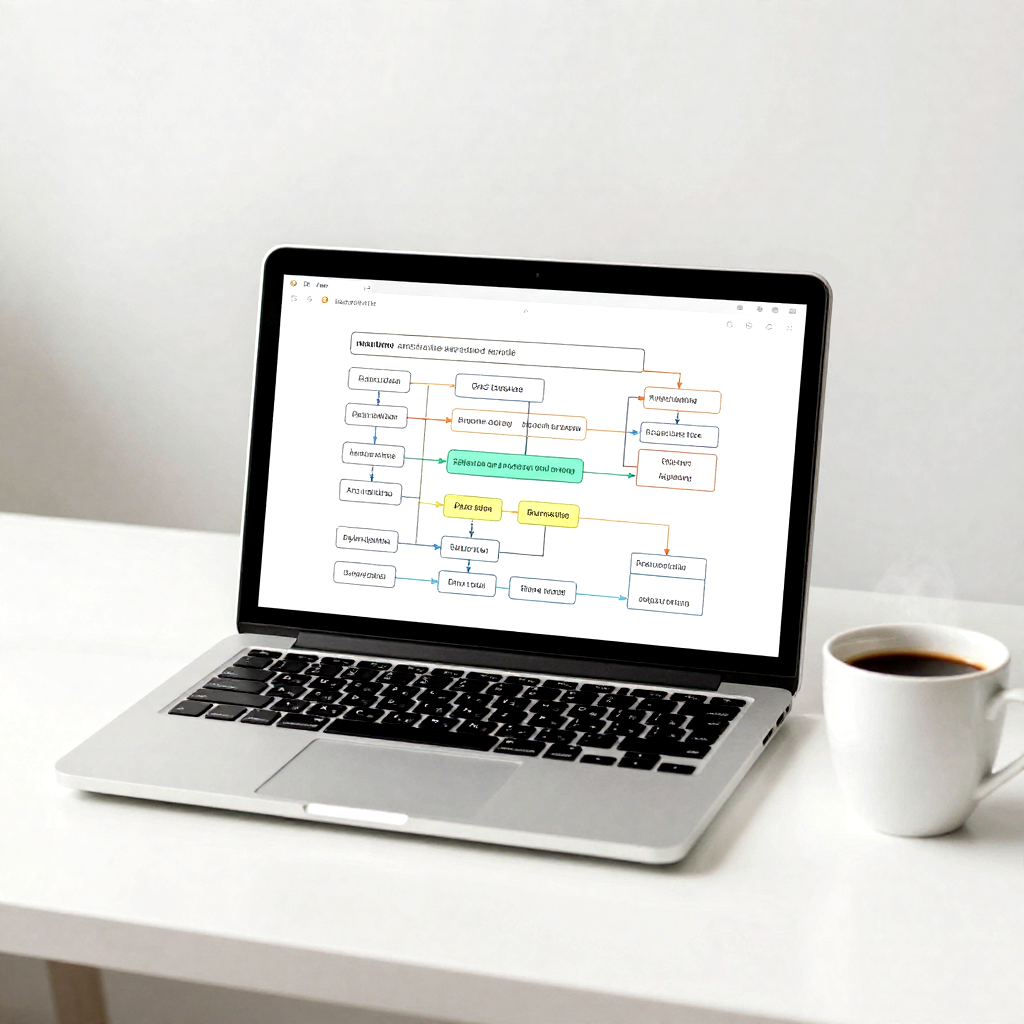
    Blueprint of a client onboarding automation sequence

    Conclusion

    These five automated workflow blueprints target the biggest weekly leaks: lead entry and follow-up, behavior-based nurturing, approvals, onboarding, and ROI tracking. Each one turns “work about work” into infrastructure that runs in the background, so you can focus on decisions only you can make.

    Pick the single blueprint that matches your biggest pain this week, implement it, then track hours saved for 14 days. If you want the diagrams and setup steps, download the free PDF guide on Scaling with Zapier and AI, it includes visual diagrams, setup guides, and an automated lead nurturing workflow template (“Automated Lead Nurturing Workflow: Leveraging Zapier & AI for Personalized Engagement”). Message me and I’ll send it.

  • AI Prompts for Graphic Design: Create Stunning Designs

    AI Prompts for Graphic Design: Create Stunning Designs

    Why AI Prompts Transform Your Graphic Design Workflow

    AI prompts turn your ideas into clear design directions. They cut grunt work, suggest color palettes and layouts, and speed up iteration. In 2025, adoption is mainstream. Designers use prompts to move from concept to draft in minutes, not hours. Reports show AI use in design up by 55 percent year over year, and tools like Firefly have generated billions of images. This shift lets you focus on style, story, and polish, not repetitive steps. For more context on tools and benefits, see this overview of AI for graphic design and this guide on AI tools reshaping design in 2025.

    Save Time and Boost Creativity with Smart Prompts

    Well-structured prompts replace lengthy back-and-forths with fast, usable drafts. You can lock a color palette, set a layout grid, and test type pairings in one pass.

    Example, turning a vague idea into a full visual:

    • Vague: “We need a summer sale poster.”
    • Smart prompt: “Create a bold A3 poster for a fashion summer sale, 40 percent off, warm coral and teal palette, high-contrast headline, sans-serif H1 and humanist sans for body, asymmetrical layout with hero photo on right, clean white space, export for print and Instagram.”

    In minutes you get several options with tuned colors, hierarchy, and spacing. Then you add your brand voice, swap imagery, and finesse micro-typography. The prompt does the heavy lifting, you handle the unique touches. This also helps non-designers produce professional results without guesswork.

    Overcome Common Design Blocks Using AI Guidance

    Blank-page syndrome fades when you start with structured prompts. Ask for three layout variants, two color schemes, and one type system. You now have scaffolding, not a void.

    Practical tip for authentic work:

    1. Generate options with clear constraints, like tone, audience, and medium.
    2. Pick one, then apply personal edits, such as custom iconography, branded patterns, and refined kerning.
    3. Run one more prompt for targeted tweaks, like “increase contrast in CTA” or “reduce visual noise.”

    AI handles complex elements like grids, spacing, and palette harmony, while you steer direction. The result is faster cycles, stronger ideas, and consistent outputs that still feel human.

    Top AI Tools and Ready-to-Use Prompts for Stunning Graphics

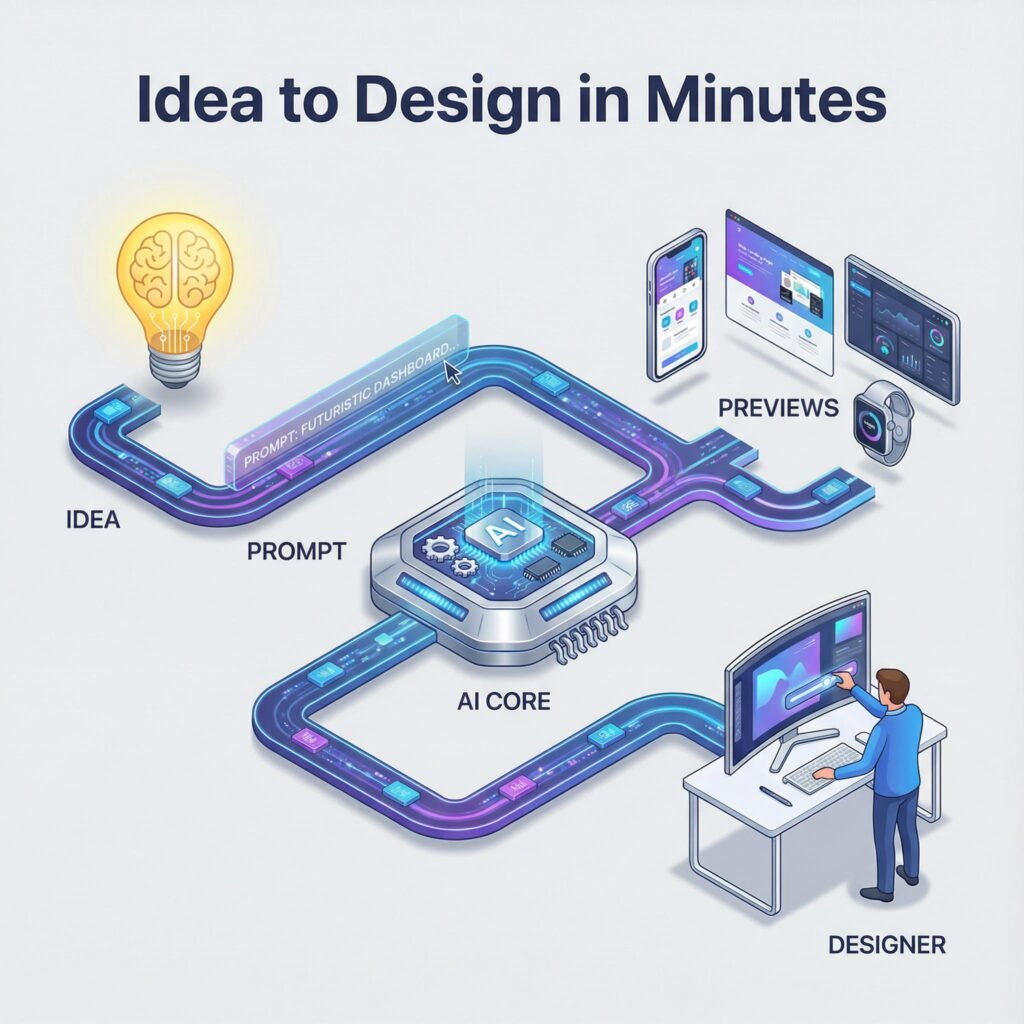
    An infographic illustrating the streamlined workflow of using AI prompts: from concept ideation to generating multiple design variations and final refinement.

    Use these 2025-ready tools to move from prompt to polished design fast. Each one supports clear, simple prompts, then gives you on-brand results you can tweak in minutes.

    Canva Magic Studio: Quick Templates and Edits

    Canva’s AI suite pairs smart templates with fast text and image edits. Try it when you need social posts, posters, or quick turnarounds.

    • Magic Design: Auto-generates layouts, type pairs, and color themes based on your brief. See how it works with Magic Design.
    • Magic Write: Draft headlines, captions, and post copy in seconds. Learn more on Magic Write.
    • Magic Edit: Select, describe, and transform objects inside your image.

    Sample prompt: “Create a social media post template for a summer sale using bright colors and fun fonts.”

    Result: bold, seasonal templates with playful type. Customize by swapping brand colors, locking your logo, and saving as a branded template.

    Designs.ai: From Logos to Full Graphics

    This suite covers logos, brand kits, and even simple videos, which is ideal for small teams.

    • Logo Maker: Generates marks and wordmarks with color and font options.
    • GraphicMaker and Videomaker: Build ads, social sets, or short promos using stock assets.

    Prompt: “Design a logo for a new eco-friendly brand with a green theme.”

    Result: multiple green-forward logo options. Tweak shapes, choose a modern sans, and export a full kit for web and print. Great for startups that need speed and range.

    Adobe Firefly: Text-to-Image Magic

    Firefly creates high-quality images and stylized type from concise prompts.

    • Generative images: Photoreal or stylized results with strong lighting and texture controls.
    • Text effects: Apply styles to lettering for posters and hero graphics.

    Prompt: “Generate an image of a cozy living room with a warm color palette.”

    Refinement tips: add lens type, lighting, and materials. For example, “soft window light, oak wood, linen textures, 35mm look.” Use negative cues to avoid clutter.

    Freepik AI Suite and PNG Maker: Streamline Image Tasks

    Pair Freepik’s AI tools with PNG Maker to speed up production for ads and product pages.

    • Generate and upscale: Create concepts, then boost resolution for print or large banners.
    • Background removal: Clean product shots for stores or marketplaces.

    Prompt: “Remove the background from a photo of a product to use on a website.”

    Workflow: remove the background, upscale for crisp edges, then drop into a brand template. Result, consistent, studio-like assets ready for email, PDPs, and ads.

    Craft Effective Prompts to Get the Designs You Want

    A wide-angle shot of a clean, minimalist design studio workspace. On a large, ultra-wide digital monitor, a collage of four distinct AI-generated works is displayed in a row. The works include a sophisticated minimalist logo, a whimsical character concept art piece, an intricate procedural abstract pattern, and a high-energy marketing poster. Directly beneath each of these four artworks on the digital screen, the text 'AI Prompted Design' is rendered in a sharp, clean, white font. The studio environment is bathed in soft, natural morning light coming from an off-screen window, creating subtle reflections on the monitor's glass. The color palette is dominated by neutral whites and grays, allowing the vibrant colors of the digital art to stand out.

    Strong prompts turn ideas into on-brand visuals fast. Start simple, then add detail with purpose. Use references, call out color and type, and define the mood so the AI makes choices you actually want. For more prompt fundamentals, skim this short guide on writing AI prompts with clear structure.

    Key Elements of a Strong AI Prompt

    Great prompts share four parts:

    • Subject: What you want designed and for whom.
    • Style: Visual direction, references, or art movements.
    • Details: Colors, typography, layout notes, size, export needs.
    • Mood: Tone or feeling that drives choices.

    Before and after examples show how clarity lifts results:

    • Weak: “Make a poster for a tech event.”
    • Strong: “A3 tech conference poster for startup founders, bold Swiss style, cobalt and white, large geometric headline, grid layout, semibold grotesk font, clean icons, high contrast, export for print and Instagram.”
    • Weak: “Create a product banner.”
    • Strong: “Homepage hero banner, 1600×600, minimalist, beige and charcoal, product centered, soft shadow, CTA button ‘Shop Now’ in emerald, ample white space, light sans-serif, mobile-safe margins.”

    Do this:

    • Name exact colors and type categories.
    • Set constraints like size, aspect ratio, file format.
    • Reference styles or designers if helpful.

    Avoid this:

    • Vague cues like “modern,” “sleek,” “cool.”
    • Cluttered lists of 20 adjectives.
    • Missing audience, platform, or output size.

    Prompt templates you can copy:

    1. Poster: “A2 poster for [event], [style reference], [2 colors], [headline], [font category], [layout note], mood [adjective], export [format].”
    2. Social ad: “Square ad for [audience] on Instagram, [brand colors], clear product focus, short headline, [font], strong CTA, safe margins, export PNG.”
    3. Web banner: “Hero banner 1600×600 for [site], minimalist, [palette], central product, soft lighting, [CTA text], [font], 2 variants.”
    4. Product card: “Ecommerce product card, white background, subtle shadow, price tag visible, [badge text], crisp edges, export WebP and PNG.”

    For more style ideas and pitfalls to avoid, this list of logo prompt examples for 2025 is handy.

    Common Mistakes and How to Fix Them

    • Too much detail overwhelms the model. Fix it by stripping to must-haves, then add one constraint per test.
    • Lack of clarity causes random results. Name the audience, platform, size, and palette.
    • Conflicting styles confuse output. Pick one style reference at a time.
    • Ignoring output specs wastes time. Include format and resolution upfront.

    Test and tweak:

    1. Start with a lean prompt.
    2. Review, then adjust one variable, like palette or type.
    3. Run 2 to 3 variations, compare, and keep the winner.
    4. Lock what works, then refine micro details like spacing or contrast.

    Final tip: iterate in small steps. Each pass should answer one question, not five.

    Conclusion

    AI prompts turn vague ideas into clear, on-brand visuals with speed. You set the intent and constraints, the tools handle drafts, grids, color, and type. The workflow you saw, from Canva Magic Studio to Firefly and Designs.ai, proves that anyone can move from concept to a strong first pass in minutes.

    Start today. Pick one tool, write a simple prompt, and ship a small asset, like a social post or header. Keep what works, adjust one variable, then run a second pass. Your eye for story and polish completes the result.

    Share your first AI design in the comments, or test one of the prompt templates above and post what you made. Keep exploring small tweaks, like color, spacing, or tone, and lock your best settings. AI speeds the steps, your taste sets the standard. Together, they make stunning design feel repeatable and within reach. Thanks for reading, and see you in the next build.

    FAQ Section
    What are AI prompts in graphic design and how do they work?

    AI prompts are textual instructions given to artificial intelligence tools (like Midjourney or Firefly) to generate specific visual content, design elements, or creative directions. They work by guiding the AI’s algorithm to produce desired graphic designs based on the input text, transforming ideas into visual outputs rapidly.

    How do AI prompts significantly speed up the graphic design process?

    AI prompts streamline design by automating initial concept generation, suggesting layouts, color palettes, and variations, and generating multiple drafts in minutes. This allows designers to bypass repetitive tasks and move from a raw idea to a refined concept much faster than traditional methods.

    What kind of graphic designs can be created using AI prompts?

    AI prompts can create a wide array of graphic designs, including logos, illustrations, marketing materials, social media visuals, website mockups, product renders, abstract art, and even detailed scene compositions, depending on the AI tool’s capabilities and the specificity of the prompt.

    Will AI technology eventually replace human graphic designers?

    AI is generally viewed as an augmenting tool rather than a replacement for human graphic designers. It automates repetitive tasks and assists with ideation, allowing designers to focus on higher-level strategic thinking, artistic direction, client communication, and the critical human element of empathy and storytelling in design.

    What are some best practices for writing effective AI prompts for graphic design?

    Effective AI prompts are clear, concise, and specific. Best practices include using descriptive adjectives, specifying styles (e.g., ‘minimalist’, ‘photorealistic’), defining colors or moods, and mentioning desired elements or compositions. Iteration and experimentation are key to refining prompts for optimal results.