

5 Automated Workflow Blueprints to Save 10 Hours Weekly (and Stop Being the Bottleneck)
Time is the only currency you can’t print more of. Yet many leaders burn about a quarter of their week on manual entry, status checks, and copy-paste work that never shows up on an invoice.
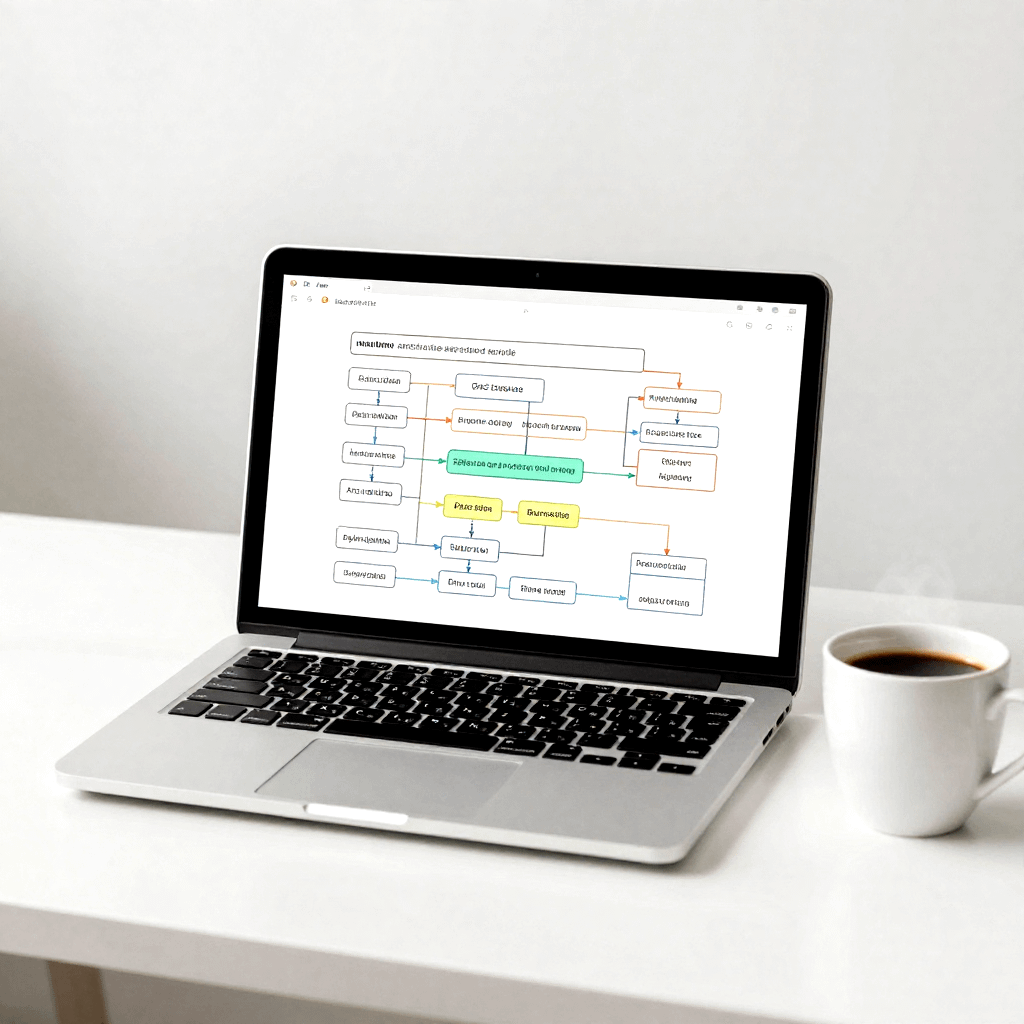
The fix isn’t “work faster.” It’s installing automated workflow blueprints that run the same way every time, with clear triggers, handoffs, checks, and logs. Think of a blueprint as a repeatable map: trigger → steps → handoffs → checks → logging.
The goal here is practical: set up five no-code friendly workflows (Zapier, Make, Power Automate) that can realistically reclaim about 10 hours per week. The mindset shift matters as much as the tools. You stop being the bottleneck and start acting like the architect.
The Lead-to-CRM Acceleration Blueprint (capture, qualify, and respond in seconds)
Leads don’t arrive politely in one place. They show up in forms, ads, DMs, calendar bookings, and random inbox threads. Follow-up dies when fields are missing, records are messy, or the “I’ll add it later” pile grows.
This blueprint has one job: every lead lands in your CRM cleanly, gets an instant confirmation, and alerts the right person with zero manual effort. Modern best practice is to add filters and scoring up front, so junk never pollutes your pipeline. Automation also reduces errors. Research summaries in 2026 report CRM automation can cut lead errors by up to 70% by removing manual entry and enforcing consistent rules.
If you want more inspiration on what teams automate first, Zapier’s library of workflow examples for teams is a useful scan.
Workflow map: form or ad lead to CRM, Slack alert, and auto-reply
Here’s the simple flow to build:
Trigger (Typeform, Webflow, Meta Lead Ads, Google Forms) → format fields (name, email, phone) → enrich (company, role, LinkedIn if provided) → create or update contact (HubSpot, Salesforce, Pipedrive) → post alert to Slack (route by region or offer) → send a friendly email or SMS confirmation.
Two small details make it work in real life: dedupe and required fields. Dedupe by email first, then phone. If required fields are missing, don’t guess, route it.
Guardrails that keep your CRM clean (filters, dedupe, and human review)
A fast workflow is only helpful if the CRM stays trustworthy.
Use rules like: if email is missing, send it to “Needs review.” If the lead score is below your threshold, tag it “Low intent” and keep it out of the main pipeline. If it’s a duplicate, update the record instead of creating a new one.
For high-value leads (enterprise domains, certain job titles, large budgets), add a quick human-in-the-loop step before outreach. Finally, log every run to a simple table or sheet (timestamp, source, outcome). When something breaks, you’ll know where.
Multi-touch marketing automation that follows behavior, not your calendar
One-off newsletters are fine for staying visible. They’re not great at moving deals forward. What works is behavior-based follow-up that reacts to real signals: opens, clicks, key page visits, webinar signups, and trial events.
In 2026, the trend is AI-assisted branching (choose the next step based on what the lead did) plus multi-channel touches (email + SMS + audience sync for retargeting). The payoff is fewer manual sequences and less busy work. Research summaries on marketing automation report 12.2% lower marketing overhead and 14.5% higher sales productivity when routine follow-ups are automated.
For a current snapshot of tools agencies are using, see Marketing Automation for Agencies: Top Tools for 2026.
Workflow map: tag leads, trigger a short sequence, then branch based on actions
Keep it simple with a 7 to 14-day nurture.
Trigger (new CRM deal, lead magnet download, webinar registration) → apply tags (topic, persona, source) → start sequence (Mailchimp, ActiveCampaign, Klaviyo) → branch:
- If link clicked, create a “hot lead” task and move the pipeline stage.
- If no engagement after 3 touches, reduce frequency and send a lighter check-in.
- If they book a call, stop the sequence and notify the owner.
The secret is not more emails. It’s fewer, better steps with clear if/then logic.
Add personalization without getting creepy (AI summaries, smart snippets, and limits)
Personalization should feel like you listened, not like you snooped.
Use AI to summarize what the lead told you (form answers, role, goals), then insert 1 to 2 helpful sentences in the first email. Keep it grounded in what they shared. Avoid sensitive data. Always include an easy opt-out.
Lock the tone with templates, so your brand voice stays steady even when the content is partially generated.
Enterprise-style approval workflows without the enterprise headache
Approvals are a hidden time leak: discounts, spend requests, content reviews, vendor invoices, scope changes. The real cost is context switching. Every “quick approval” turns into a Slack thread, a meeting, and a forgotten follow-up.
This blueprint routes requests to the right approver, captures context, time-stamps decisions, and updates your project tool automatically. In 2026, the best version is human approvals inside automated flows (Slack, email, Teams) with conditional routing (auto-approve under a threshold).
If you’re a Microsoft shop, Microsoft’s guide to creating approval workflows in Power Automate shows the core pattern.
Workflow map: request comes in, approval happens in Slack, project status updates automatically
Trigger (Slack form/workflow, email, request form) → create task (Asana, ClickUp, Jira) with key fields (cost, deadline, risk) → notify approver in Slack with approve/deny options → on approval, update status, notify requester, and write the decision to a log.
Add timeboxing: reminders at 4 hours, then 24 hours. Most approvals don’t need a meeting, they need a deadline.
Rules that prevent bottlenecks (approval tiers, thresholds, and audit trails)
Use tiers that match your risk:
Under $500 auto-approve. $500 to $2,000 goes to a team lead. Above $2,000 goes to finance. Store who approved, when, and why.
When a request is denied, require a reason and route it back with next steps. That prevents the “denied” black hole that creates more Slack pings later.
No-code onboarding that runs like a checklist, but feels personal
Onboarding eats hours because it’s not one task. It’s 30 small tasks: account setup, document chasing, welcome calls, tool access, project board creation, reminders, and status updates.
The 2026 trend is a single source of truth (Airtable, Zapier Tables) that feeds the whole onboarding. Add AI for drafting welcome notes and Q&A, but keep the core workflow stable and repeatable.
A practical walkthrough of client onboarding automation is Bannerbear’s guide on automating onboarding with Airtable and Zapier.
Workflow map: intake form to accounts, folders, project board, and a welcome sequence
Trigger (signed proposal, Stripe payment, HR offer accepted, intake form) → create or update contact → create Drive folders and a project space from a template (Notion, Asana, ClickUp) → invite the right people → send a welcome email with next steps and a calendar link → schedule reminders for missing items (assets, access, kickoff questions).
Templates cut setup time because you’re cloning structure, not rebuilding it.
Make it self-serve: automated reminders, status pages, and “where are we at?” answers
Automate the questions that steal afternoons.
When key tasks change, send a weekly digest. When an item is missing, send a polite reminder that includes exactly what “done” looks like. Build a simple onboarding portal page in Notion that updates from the same data record, so clients and hires can check status without asking.
If you add an AI assistant, constrain it to approved docs only, so answers stay accurate.
Measuring automation ROI and scaling without building a brittle mess
Automation that isn’t measured tends to sprawl. The goal is proof: you reclaimed time, reduced errors, and sped up cycles, without creating a fragile spiderweb.
Start by tracking time saved per run, error reduction, speed to lead, approval cycle time, and onboarding cycle time. Review monthly. Also keep your workflows visible, a visual map helps you spot redundant steps and risky branches. Zapier’s guide to visual workflows and mapping explains why this prevents “mystery automations.”
A simple ROI scorecard: hours saved, errors avoided, and speed gained
Use a basic formula: (minutes saved per run × runs per week) ÷ 60 = hours saved.
| Metric | Before | After | What it tells you |
|---|---|---|---|
| Lead response time | 6 hours | 2 minutes | Speed to revenue |
| Approval cycle time | 3 days | 1 day | Fewer project stalls |
| Onboarding cycle time | 10 days | 7 days | Faster time-to-value |
Example: saving 6 minutes per lead, 80 leads per week = 480 minutes, that’s 8 hours back.
How to scale safely: standard naming, versioning, alerts, and fallback steps
Name workflows consistently (Trigger-App → Action-App). Assign one owner per workflow. Keep a change log. Test edits in small batches.
Set monitoring: alert on failures, send a daily digest of errors, and keep a manual fallback checklist for the few tasks that truly can’t fail (payments, access, contract steps). Upgrade from linear automations to branching only after the core flow runs clean for 2 to 4 weeks.

Conclusion
These five automated workflow blueprints target the biggest weekly leaks: lead entry and follow-up, behavior-based nurturing, approvals, onboarding, and ROI tracking. Each one turns “work about work” into infrastructure that runs in the background, so you can focus on decisions only you can make.
Pick the single blueprint that matches your biggest pain this week, implement it, then track hours saved for 14 days. If you want the diagrams and setup steps, download the free PDF guide on Scaling with Zapier and AI, it includes visual diagrams, setup guides, and an automated lead nurturing workflow template (“Automated Lead Nurturing Workflow: Leveraging Zapier & AI for Personalized Engagement”). Message me and I’ll send it.