
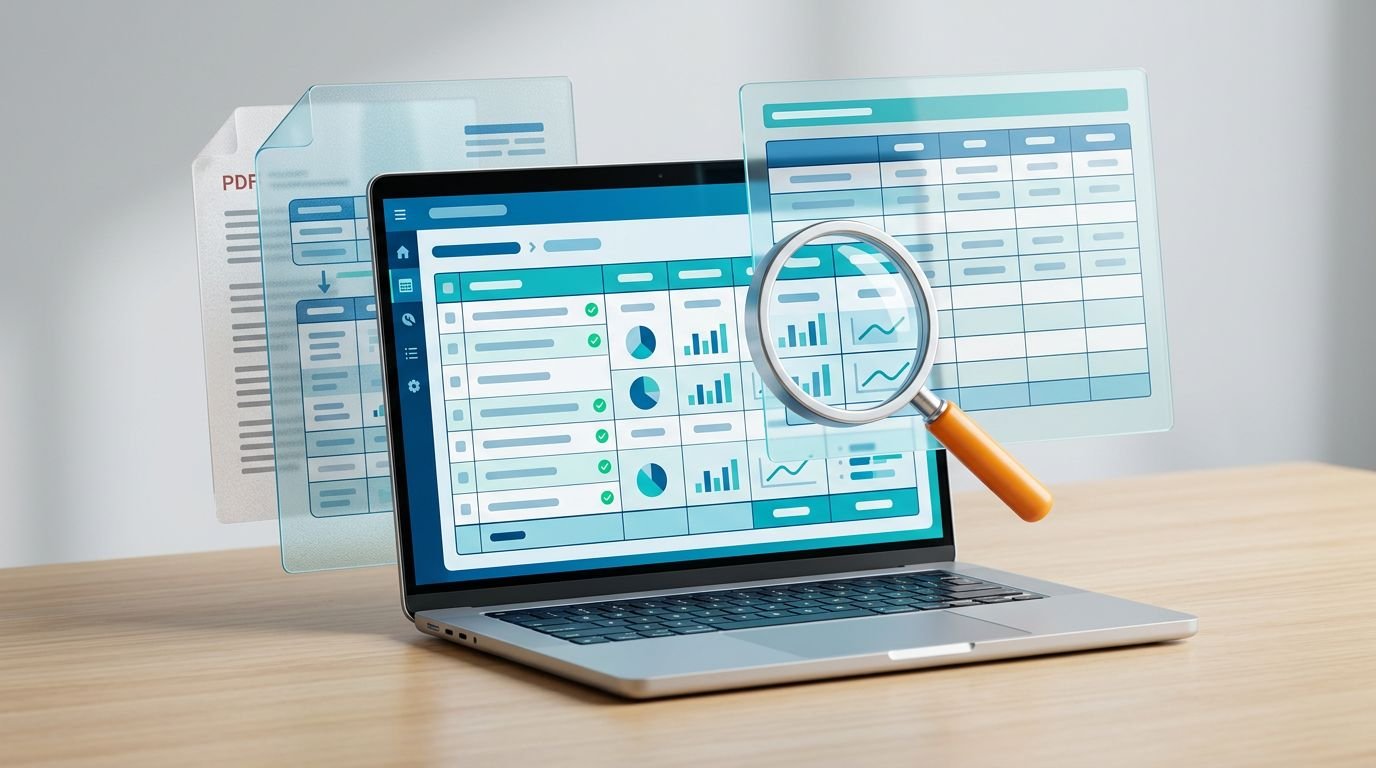
A PDF can look like a tidy spreadsheet while storing nothing more than scattered text fragments and images. PDF table extraction only works well when your tool and prompt match the document’s underlying structure.
You might need data from a financial report, supplier invoice, research paper, or public dataset for PDF table extraction. The goal isn’t merely to copy visible values. Headers, rows, totals, dates, and number formats all need to survive the move into usable data.
Start by identifying what kind of PDF you have before choosing a prompt or extraction tool.
Key Takeaways
- Classify the PDF as text-based, scanned, or mixed before selecting an extraction tool or prompt.
- Use Camelot Lattice for bordered tables, Stream for borderless layouts, Tabula for manual region selection, and pdfplumber for lower-level coordinate control.
- Define table boundaries, headers, output schema, uncertainty rules, and formatting requirements in every extraction prompt.
- Treat automated extraction as a draft: verify headers, row and column counts, totals, dates, decimals, currency symbols, and negative values against the source.
- Keep uncertain cells visible and use reviewable outputs such as CSV, JSON, Markdown, or pandas DataFrames instead of assuming a clean-looking table is accurate.
PDF table extraction begins with the source file
Text-based PDFs contain selectable characters. If you can highlight a value and paste it into a text editor, the file has a usable text layer. Camelot, Tabula, and pdfplumber can often extract tables from these files without OCR.
An image-only PDF is different. Each page is an image, so software must first perform OCR recognition. It then has to determine which words belong in the same row and column. Faint lines, skewed pages, stamps, handwriting, and low-resolution scans can all damage table structures.
Traditional python packages struggle because PDF files rarely contain semantic instructions such as “this is column three.” They store text positions, drawing commands, and page coordinates, so it can be difficult to parse PDFs. Spacing, missing borders, merged cells, and heavy graphics can all obscure table structures.
| PDF type | Best first approach | Common risk |
|---|---|---|
| Digital financial statements | Camelot Lattice or Stream | Split headers and merged cells |
| Borderless report table | Stream mode or coordinate-based extraction | Incorrect column boundaries |
| Scanned invoice or form | OCR plus a table recognition service | Misread dates and digits |
| Mixed PDF with charts and tables | Page-by-page routing | Extracting non-table content |
The source type should also shape your prompt. Image-only scans can be routed to a service such as AWS Textract before the model receives a bounded page range. Giving a vision model raw page images is different from asking it to organize selectable text into CSV.
Choose a Tool Before You Write the Prompt

For a PDF with selectable text, choosing among python packages such as pdfplumber based on file type is an automated way to parse PDFs reliably. Camelot is often the strongest Python library starting point. The official documentation states that it works with PDFs containing selectable text, not scanned documents. Camelot offers two useful parsing methods:
- Lattice looks for ruled table lines. Use it for statements, reports, and forms with visible cell borders.
- Stream uses whitespace between text groups. Use it for borderless tables with consistent spacing.
These open-source tools address different layouts and control needs. Camelot can export tables to CSV, Excel, JSON, HTML, or a pandas DataFrame. That makes it practical when you want to validate values in Python before loading them into a database or analysis notebook.
For Lattice parsing, install Ghostscript at the operating-system level first. Then confirm its executable is available on your system path, install the parser with its image-processing dependencies, and test it against one known page. On Windows, you may need to point your environment to the Ghostscript executable. A failed dependency check is easier to fix on one page than after a 400-page batch starts.
Tabula is useful when you want to mark table areas manually or test column boundaries visually. However, Tabula’s manual selections can vary when page layouts shift. A practical comparison of Tabula and Camelot shows why irregular headers and changing column positions often require document-specific settings.
Use pdfplumber when you need lower-level control. You can inspect words, lines, coordinates, and cropped regions before you decide how to rebuild a table. For current installation details and issues, check the Camelot project repository.
Prompt Templates for Extracting Tables from PDFs

A strong prompt defines the table scope, required fields, output format, and uncertainty rules. Vague requests such as “extract this table” can merge nearby notes, invent missing values, or flatten multi-row headers.
Copy-Paste Template for text-based PDFs
You are extracting one table from a text-based PDF.
Source pages: [PAGE RANGE].
Extract only the table titled or described as [TABLE NAME OR DESCRIPTION]. Preserve the original row order and column order.
Keep multi-row headers as separate header rows unless [HEADER RULE] requires a combined name. Preserve dates, currency symbols, decimal places, negative values, percentages, blank cells, and footnotes attached to cells.
Do not infer missing values. Use an empty field for a blank source cell. If a character or number is unclear, write [UNCLEAR] in that cell.
Return the result as CSV with one header row. After the CSV, list uncertain cells with the page number and source text.
Use this template after Camelot, Tabula, or the selected parser has isolated the correct table text. Customize [PAGE RANGE], [TABLE NAME OR DESCRIPTION], and [HEADER RULE]. For a two-line header, specify whether to keep both rows or merge them with a separator.
Copy-Paste Template for scanned documents
Review the attached PDF page images as OCR sources.
Extract the table located at [TABLE LOCATION] on pages [PAGE RANGE]. Reconstruct columns only when the visual alignment supports them.
Preserve every visible header, row label, date, total, subtotal, currency mark, decimal place, and negative sign. Keep empty cells as null.
Do not guess unreadable text or numbers. Add every uncertain value to an
uncertain_cellslist with the page number, row identifier, column name, extracted value, and reason for uncertainty.Return valid JSON with these keys:
table_title,columns,rows,uncertain_cells, andnotes.
Use this for scans, photographed pages, and image-based PDFs. If AWS Textract supplies the initial OCR output, keep these same uncertainty rules. Replace [TABLE LOCATION] with a plain description such as “bottom half of the page” and define a narrow page range. Smaller page batches reduce the chance of joining unrelated tables.
Copy-Paste Template for Verification and Repair
Audit the candidate table against the provided PDF source.
Check that headers, row count, column count, totals, dates, decimal precision, thousand separators, and negative signs match the source.
Recalculate visible subtotals and totals when the source provides enough values. Flag differences instead of changing source values.
Return a corrected Markdown table. Then provide a short audit list containing: missing cells, changed cells, uncertain OCR results, and totals that do not reconcile.
Never create a value that is not visible in the source.
Run this after the initial extraction, not before it. Replace “Markdown table” with CSV or JSON if the next system requires another format. The audit list creates a review queue instead of hiding uncertain results inside a clean-looking spreadsheet.
Verify the Output Before You Export It
Automated extraction should produce a draft, not a trusted record. Confidence scores from AWS Textract can help prioritize review, but they can’t replace source comparison. A clean table can still lose a minus sign, misplace a decimal, or shift a header one column right.
Camelot exposes accuracy and whitespace values in its parsing report. These fields help sort tables for review, but they don’t prove that a table matches the source. A high score can still preserve the wrong reading order.
Use a simple review process before you publish or analyze extracted table data:
- Compare a sample of output tables against the original PDF page, including the first and last row.
- Check that every header maps to the intended column and that merged cells did not shift later values.
- Recalculate totals where possible, then compare date formats, currency symbols, percentages, decimals, and negative values.
- Keep uncertain values visible until a person verifies them.
- Export tables as CSV for spreadsheets, Markdown for publishing, JSON for APIs, or a pandas DataFrame for data analysis.
Treat a reconciled total as a warning system, not proof of accuracy. Two transposed values can still produce the same sum.
When APIs, Vision Models, and Prompt Libraries Fit
AWS Textract is a strong option among managed services when you process high volumes of scanned files or unstructured documents. Its table analysis returns blocks and relationships that help you rebuild cells, rows, and columns. Confidence scores provide an automated way to route weak results to manual review.
Vision-capable models, including GPT-4 Vision-era endpoints, use deep learning to interpret difficult layouts. Their layout analysis helps explain ambiguous headers, cells, and page geometry. However, they don’t reliably replace validation. Function calling can enforce a JSON structure, but it can’t prove that every extracted value came from the source page. Use models for bounded page ranges, clear output schemas, and reviewable exceptions.
Sensitive PDFs need privacy controls before you upload them anywhere, whether you use hosted providers or open-source models. Confirm your provider’s retention settings, access permissions, encryption terms, and data-processing agreement. Redact personal, financial, health, or confidential business data when the workflow allows it.
These templates belong in a versioned prompt repository, separate from generic text generation prompts or creative writing prompts. If you offer a free prompt download or a ChatGPT prompt collection, label each template by PDF type, output schema, and tested model.
Readers who download AI prompts want instant prompt access, but they also need clear instructions. A prompt library download or prompt files download can include Markdown and JSON versions. People who get prompt packages should know that specific AI model prompts behave differently.
Keep extraction resources separate from a Midjourney prompt download, Stable Diffusion prompt pack, or AI art prompt package. Those products solve visual-generation tasks, while PDF extraction prompts need schema rules and verification steps.
Frequently Asked Questions
What is the best tool for extracting tables from a PDF?
Camelot is a strong starting point for text-based PDFs, with Lattice suited to bordered tables and Stream suited to borderless layouts. Tabula and pdfplumber are useful when you need manual selection or lower-level control over coordinates and table structure.
Can these prompts extract tables from scanned PDFs?
Yes, but scanned PDFs require OCR or a vision-capable model before the table can be reconstructed. Use narrow page ranges, preserve uncertain values, and require the system to report unreadable cells instead of guessing.
What should a PDF table extraction prompt include?
A useful prompt should specify the page range, table location or title, required columns, header rules, output format, and handling of blank or unclear cells. It should also prohibit inferred values and define how uncertainty will be reported.
How do you verify extracted PDF table data?
Compare the extracted table with the original page, checking headers, row and column counts, numeric formatting, dates, signs, and totals. Recalculate visible totals where possible, but treat reconciliation as a warning system rather than proof of complete accuracy.
Is it safe to upload sensitive PDFs to an extraction service?
Review the provider’s retention settings, access controls, encryption terms, and data-processing agreement before uploading sensitive files. Redact personal, financial, health, or confidential business information whenever the workflow allows it.
Build Extraction Workflows You Can Trust
A reliable workflow starts by treating the PDF as evidence, not a ready-made spreadsheet. First classify the document, choose the right parser or OCR service, and set clear prompt boundaries.
A reliable extraction process preserves source fidelity and discloses uncertainty. Check headers, numeric formats, and totals before export, so your CSV, Markdown, or JSON becomes data you can use with confidence.
Leave a Reply