

A screenshot can show a broken conversion path, a misleading chart, or a confusing form state in seconds. With multimodal prompting, you give an AI model an image alongside written instructions, creating multimodal inputs for focused analysis.
Unlike text-only responses, visual prompting lets multimodal models connect visible interface elements, chart labels, layout patterns, and your stated business question. Still, they can’t inspect hidden code, confirm user behavior, or reliably calculate values from blurry pixels. Reliable results start with clear evidence and precise requests.
Key Takeaways
- Multimodal prompting combines screenshots, charts, written instructions, and business context to support focused visual analysis.
- Ask the model to separate visible observations from inferences, cite specific evidence, and label uncertainty instead of claiming access to hidden code or user behavior.
- Use an evidence-first workflow: inventory visible elements, request one narrow task at a time, reference image regions, and define a structured output format.
- Treat charts as visual evidence only; use CSV files, tables, spreadsheets, SQL queries, or trusted analytics sources for exact values and calculations.
- Name images by role and state, redact sensitive information, and keep human review and privacy checks in every repeatable multimodal workflow.
How multimodal prompting improves screenshot and UI analysis
Multimodal prompting combines visual input with written direction, including an attached screenshot or chart, written instructions, and business context. You might attach a dashboard screenshot and ask for usability issues, or provide a line chart and request a plain-English explanation of visible trends.
Behind the response, multimodal large language models use a vision encoder to convert image regions into image embeddings. Large language models process text alone, while these systems connect visual signals with written instructions to support cross-modal understanding. You don’t need to tune those components yourself.
Common multimodal applications include image classification, object recognition, visual question answering, text recognition, and text-based image retrieval. These bounded tasks don’t reveal hidden code or user behavior.

However, you do need to state what the model should inspect, what evidence it should cite, and how it should format the result. This is good prompt engineering, and visual prompting works best when those boundaries are explicit.
For example, “Review this landing page” invites broad opinions. A better request names the audience, task, screen size, and desired output:
Review this mobile checkout screenshot for first-time shoppers. Identify up to five visible friction points. For each point, cite the screen area, explain the likely user impact, and label your confidence as high, medium, or low. Do not claim knowledge of interactions, analytics, or code that are not visible.
That prompt gives the model boundaries. It also makes the answer easier for a designer, marketer, or developer to review.
Separate visible facts from interpretation
A model can often observe that a button sits below the fold, a form field shows an error state, or a chart’s legend uses similar colors. It can infer that a low-contrast button may be harder to notice. Those are different levels of certainty.
A screenshot doesn’t reveal the DOM, page-load time, keyboard behavior, analytics events, conversion rate, or whether a button works. Treat claims about those issues as hypotheses that need testing.
Ask for visual evidence first. Ask for recommendations second. This order reduces confident claims built on missing context.
OpenAI’s images and vision API guide explains how image inputs work across supported API workflows. Image quality matters because tiny labels, compressed charts, and dense tables can turn a reasonable visual task into guesswork.
Use an evidence-first multimodal prompting workflow
A strong prompt has four parts: the image context, the visual task, the evidence standard, and the output format. Keep each part short. Extra background only helps when it changes the judgment.
Start by naming every image and treating each attachment as a named set of multimodal inputs. Use “Screenshot A: desktop pricing page” and “Screenshot B: mobile pricing page,” rather than attaching two files without context. Image names, viewport details, and state labels connect each image to its request. This makes visual prompting clearer for reviewers. If your tool allows ordered image-and-text content, place the relevant image immediately before its instructions. The pairing is clearer for both the model and the person reviewing the conversation.
Then use iterative workflows with a logical progression:
- Ask the model to inventory visible elements before it critiques them. This confirms that it noticed the right navigation, chart, alert, or form control.
- Request one narrow task at a time, such as identifying a screen or chart type with image classification. Use visual question answering for a question about a visible control. For text-based image retrieval, specify whether matching uses visible labels or semantic descriptions.
- Require references to visible regions, colors, labels, or approximate positions.
- Ask it to separate observations, inferences, and questions for a human reviewer.
For product work, a compact structured response is more useful than a polished essay. Request an exact JSON shape with fields such as observation, evidence, risk, confidence, and follow_up_test. These fields are especially useful for multimodal applications. Structured output is helpful when you want to send findings into a spreadsheet, ticketing system, or content workflow.
If you build with Claude, its vision documentation covers image inputs, limits, costs, and coordinate-based tasks. Where your chosen endpoint supports it, structured outputs for Claude models can constrain a response to an exact JSON shape.
Analyze charts without inventing precision
Chart review is a practical use case for multimodal prompting. A model may spot a rising trend but misread a faint axis tick, overlap two series, or confuse a projected value with an actual result.
Send the underlying CSV or table whenever possible. Use visual prompting for appearance questions, such as legend clarity, annotation placement, or whether a headline matches the visible trend. Image classification can identify a chart type, but source data remains necessary for exact values, percentage changes, ranking, and arithmetic.
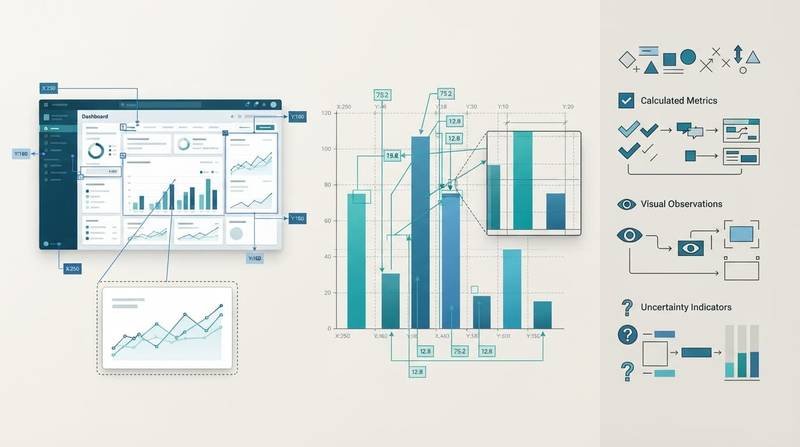
Follow a logical progression when reviewing charts:
| Visual task | What the model can often observe | What you should verify |
|---|---|---|
| Trend reading | Direction, major peaks, dips, and visible outliers | Exact percentage changes and time ranges |
| Label review and text recognition | Truncated labels, cluttered legends, weak contrast | OCR accuracy and source terminology |
| Series comparison | Which line or bar appears larger | Values where marks overlap or axes are unclear |
| Dashboard critique | Dense areas, misplaced emphasis, missing context | Metric definitions, filters, and data freshness |
Use the image for visual checks, the CSV or table for calculations, and a trusted analytics source for validation. This separation provides practical hallucination control, but it doesn’t guarantee perfect accuracy.
Use a prompt that asks the model to quote uncertain labels with a confidence level. For example: “List only values you can read clearly. Mark unclear labels as unreadable rather than estimating them.”
This approach matters for multimodal applications, including marketing reports, investor updates, and performance dashboards. These outputs require human or data-source verification before publication. A visually convincing answer can still contain a false number. Run calculations in a spreadsheet, SQL query, or trusted analytics source before sharing a conclusion.
Compare multiple screenshots without losing context
Visual prompting works well for before-and-after redesigns, A/B test variations, and responsive layout reviews. It fails when the model doesn’t know which screen belongs to which state, so create a clear image map first.
Name files by role and state. “A: desktop, current checkout” and “B: mobile, proposed checkout” are useful. “Screenshot 1” and “Screenshot 2” are not. Include viewport size, user goal, and whether each view shows a logged-in, error, or empty state.
Use iterative workflows for comparison: request differences first, assess task impact second, and ask for recommendations third. This sequence prevents the model from blending elements from several screens or inventing an interface state.
For high-resolution images, review each provider’s current documentation for image-input limits and pricing before setting upload rules. Compare guidance for Claude, Google Gemini, and GPT-4o, and use Anthropic’s Claude Opus 4.7 announcement as a reference for improved high-resolution image support, including images up to 2,576 pixels on the long edge. Even with larger inputs, crop dense dashboards into meaningful regions when labels and controls are small.
Privacy is part of responsible multimodal applications, too. Redact names, email addresses, customer identifiers, access tokens, account balances, and internal URLs before uploading screenshots. Consumer chat plans, enterprise products, and APIs can have different retention and training terms. Check the current policy for the exact service and account type you use.
Build a prompt repository that fits visual work
A useful prompt repository is a practical prompt engineering system for tested visual workflows, not a collection of generic commands copied from a marketplace. For multimodal large language models, save the original prompt, a redacted sample image, model name, output schema, and notes about common failure cases.
The web is full of a “prompt download free” offer, memberships that promise instant prompt access, and sites that encourage you to download AI prompts or get prompt packages. A prompt library download may include prompt files to download, but quality varies sharply.
A Midjourney prompt download, Stable Diffusion prompt pack, ChatGPT prompt collection, or AI art prompt package usually serves generative ai image creation. They may still help with text generation prompts or creative writing prompts. Screenshot reviews need prompts for multimodal models that state the image identity, evidence rules, privacy boundaries, and expected output structure.
For example, a content team can reuse one template to check chart readability before publishing. A SaaS founder can maintain another for identifying visible onboarding friction. Consistent metadata can support text-based image retrieval when a team needs to find prior screenshots or prompts by visible labels or task descriptions. Over time, keep prompts that produce findings your team can verify for repeatable multimodal applications, and retire prompts that invite vague design opinions.
Frequently Asked Questions
What is multimodal prompting?
Multimodal prompting gives an AI model an image alongside written instructions and relevant context. It helps the model connect visible interface elements, chart labels, and layout patterns with a specific question.
Can a model reliably analyze any screenshot or chart?
No. Models may miss small labels, misread blurry pixels, or confuse overlapping series, and they cannot confirm hidden code, user behavior, or whether an interaction works. Ask for visible evidence and verify important claims with testing or trusted data sources.
How should I prompt a model to review a UI screenshot?
State the image identity, audience, task, viewport or interface state, evidence standard, and desired output. Ask for specific screen regions, likely user impact, confidence levels, and a clear separation between observations, inferences, and follow-up questions.
Should I provide source data when asking about a chart?
Yes, provide the underlying CSV or table whenever exact values, rankings, percentage changes, or arithmetic matter. Use the image to review appearance and readability, then verify calculations against the source data or a trusted analytics system.
How can I protect privacy when uploading screenshots?
Redact names, email addresses, customer identifiers, access tokens, account balances, and internal URLs before uploading an image. Also check the current retention and training terms for the specific consumer, enterprise, or API service and account type you use.
Final thoughts
Multimodal prompting works best when you treat screenshots and charts as evidence, not complete records of reality. For practical hallucination control, ask the model to identify what it sees, label its inferences, and flag what it can’t confirm.
Strong visual AI workflows pair careful prompts with multimodal inputs, source data, human review, and privacy discipline. Cross-modal understanding connects visual evidence with a written question, but it doesn’t verify hidden behavior or exact calculations. When verification stays part of the process, a screenshot becomes a useful, testable analysis.
Leave a Reply